
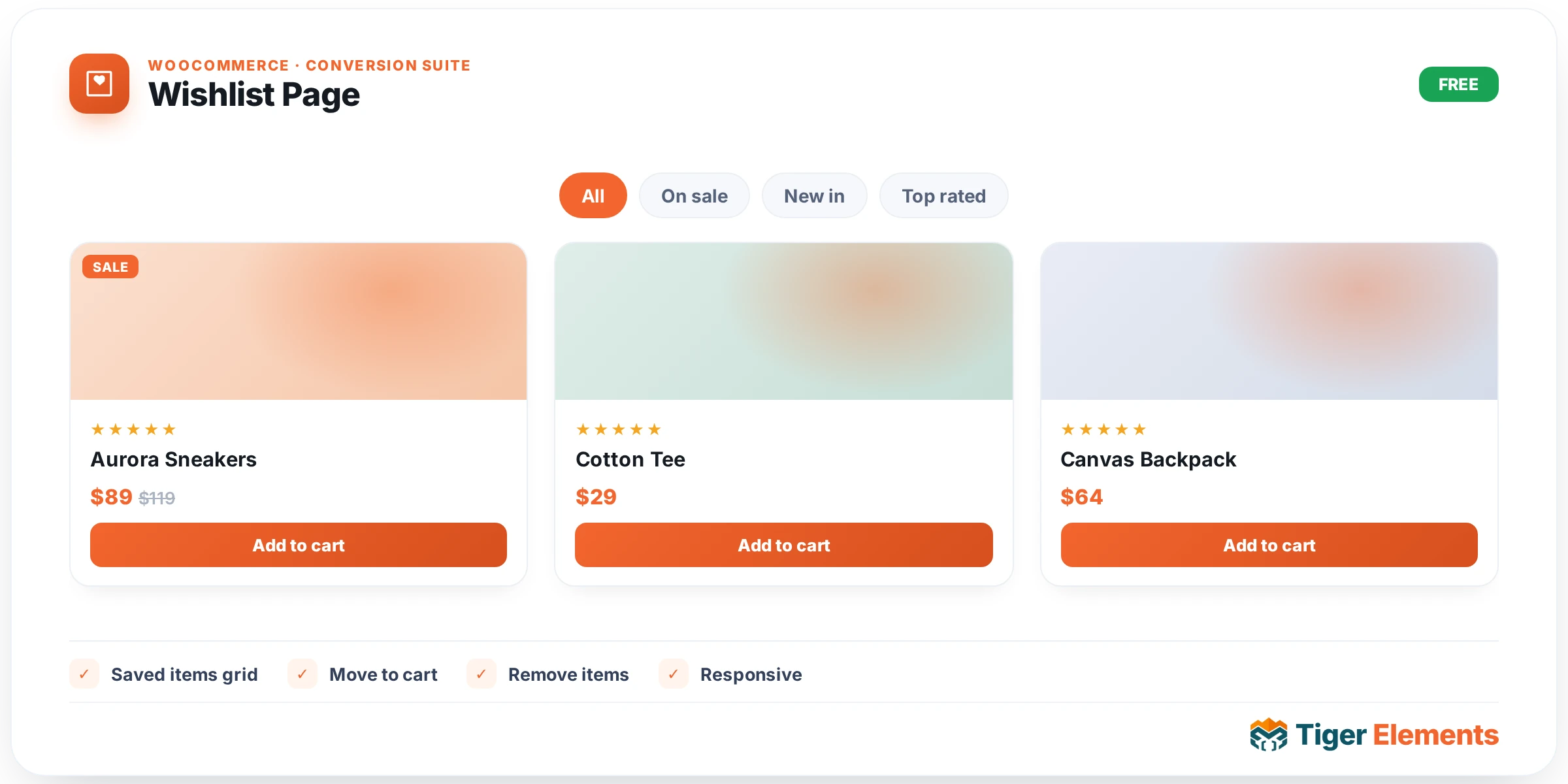
The Wishlist Page widget renders the actual list of products a visitor has saved — the destination the Wishlist Button links to. Between the two, you’ll usually build exactly one page site-wide (e.g. "My Wishlist") carrying this widget, and link to it from your header, account menu, or a 0 badge. It’s part of the free WooCommerce Conversion Suite and requires WooCommerce plus the WooCommerce Conversion module active.
Building the page
- Create a new page — "My Wishlist" or similar.
- Add the Tiger Wishlist Page widget anywhere on it.
- Set an Empty Button Link pointing at your shop page, so a visitor with nothing saved yet has somewhere obvious to go instead of a dead-end message.
- Publish, then link to the page from wherever shoppers expect to find their saved items — a header icon, the account navigation, or a footer link.
Layout options
The Layout control switches the whole list between a Table (compact rows, good for longer lists) and a Grid (card-based, more visual) — with a Grid Columns control that only applies in grid mode. Per-item, you can independently toggle Show Price, Show Stock, and Show Add to Cart, and customize the Add to Cart Label text.
The empty state
A dedicated Empty State section covers what a visitor sees before they’ve saved anything: an Empty Message (the text shown), and an Empty Button Text + Empty Button Link pair for a clear next action — almost always your shop or a bestsellers page, so an empty wishlist still converts into browsing rather than a dead end.
How it behaves
The list reads live from the same shared data_stores engine the Wishlist Button writes to, so anything added via the button — whether from a Product Grid card, a single-product page, or this widget’s own list — shows up here without any manual sync. Removing an item from the page removes it instantly (no page reload) and, once the last item is gone, the empty state described above takes over automatically. Only published, in-catalogue products are shown; if a saved product is later unpublished or deleted, it’s silently skipped rather than showing a broken row.
Styling
The Style tab covers item background, spacing (gap), border radius, padding, and thumbnail size for the row/card container; separate color controls for the title and price text; and full Normal/Hover styling (text, background, border radius) for the Add to Cart button, so the whole list can be made to match your site’s product-card design elsewhere.
Practical tips
- Keep exactly one Wishlist Page for the whole site and link to it everywhere consistently — creating several will just fragment where shoppers expect to find their list (there’s only one shared wishlist per visitor regardless of how many pages carry this widget).
- Table layout reads better for stores with many saved-item scenarios (bulk reorder shopping); Grid layout looks stronger for smaller, more visual catalogs.
- Pair with the header’s
0shortcode so the page’s existence is discoverable before a shopper has anything saved.
Troubleshooting
The page is always empty even after saving items. Confirm the Wishlist Button widget(s) elsewhere on the site are actually the Tiger wishlist widget (not a third-party plugin’s button) — they share the same underlying store only when both are Tiger’s own widgets.
A product I saved is missing from the list. Check whether it’s still published and in the store catalogue — unpublished or deleted products are automatically dropped from the display.
Add to Cart in the list doesn’t work for a variable product. The list uses WooCommerce’s own add-to-cart handling; make sure the product has its variations and stock configured, the same requirement as anywhere else on the store.