
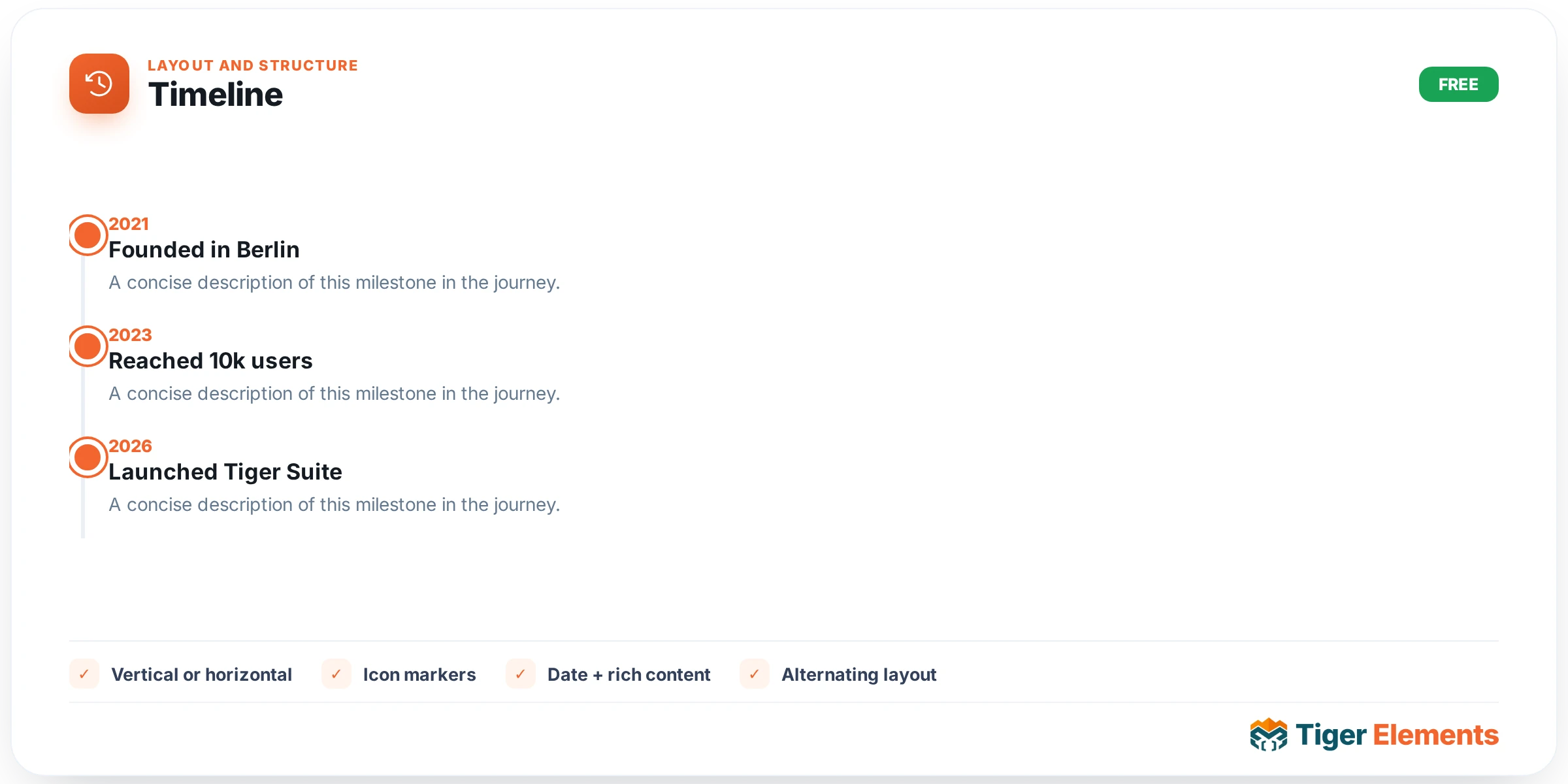
A vertical or horizontal timeline of milestones — company history, a project roadmap, a step-by-step onboarding process — built from a repeater of dated entries, each with an optional image, so both text-only and photo-illustrated timelines work from the same widget without needing separate variants for each style.
Building the entries
Each item in the timeline’s repeater is self-contained: a date or label, a title, body text describing that milestone or step, and an optional image attached to that specific entry. Because every field lives on the individual entry rather than being shared across the whole widget, a timeline can freely mix entries that have photos with entries that don’t — useful in practice, since not every milestone in a company’s history or every step in a process necessarily has (or needs) a supporting image, and forcing one wouldn’t add anything.
Style controls by region
The Style tab splits into three distinct concerns that together make up the visual identity of a timeline: the line and markers — the connecting thread running through the whole sequence and the dots or icons marking each point along it — the card itself, with separate typography controls for the date, title, and content text within each entry so the date can, for instance, read smaller and more muted than the title without extra custom CSS, and the navigation arrows that appear specifically on horizontal layouts, letting a visitor scrub back and forth through a long sequence of entries without needing to scroll the entire surrounding page.
Vertical versus horizontal
The choice between orientations should follow the content’s natural shape and length. A vertical timeline reads naturally as part of a normal scrolling page — a visitor simply continues scrolling down through history or steps the same way they’d read any other section, which makes it the more common choice for company-history or process-explainer sections embedded within a longer page. A horizontal timeline instead behaves more like its own self-contained, scrubbable component — better suited to a dedicated timeline page or a section where you specifically want the timeline to feel like an interactive artifact a visitor actively navigates through with the arrow controls, rather than something they simply scroll past.
Use it for
Two genuinely distinct applications share this one widget well: a company "About us" history section walking through founding, key milestones, and growth over the years, and a process explainer laying out the steps of how a service works — "you submit a request, we review it, we deliver" — where the connecting line visually reinforces that these steps happen in sequence rather than being independent, parallel options. A changelog or release-history page is a third natural fit, particularly with vertical orientation, where each entry is a version with its date and what changed.
Practical tips
- Keep individual entry descriptions concise — a timeline’s visual strength comes from the reader being able to scan the sequence at a glance, and entries with long paragraphs undermine that scannability regardless of orientation.
- Use images selectively rather than on every single entry, if some milestones genuinely don’t have a meaningful photo to attach — a forced, irrelevant image on every entry reads worse than a clean mix of illustrated and text-only points.
- Reserve horizontal orientation for timelines with a genuinely small, curated number of entries — a horizontal layout with many entries requires more scrubbing than most visitors will patiently do, where a vertical layout simply keeps scrolling naturally regardless of length.