
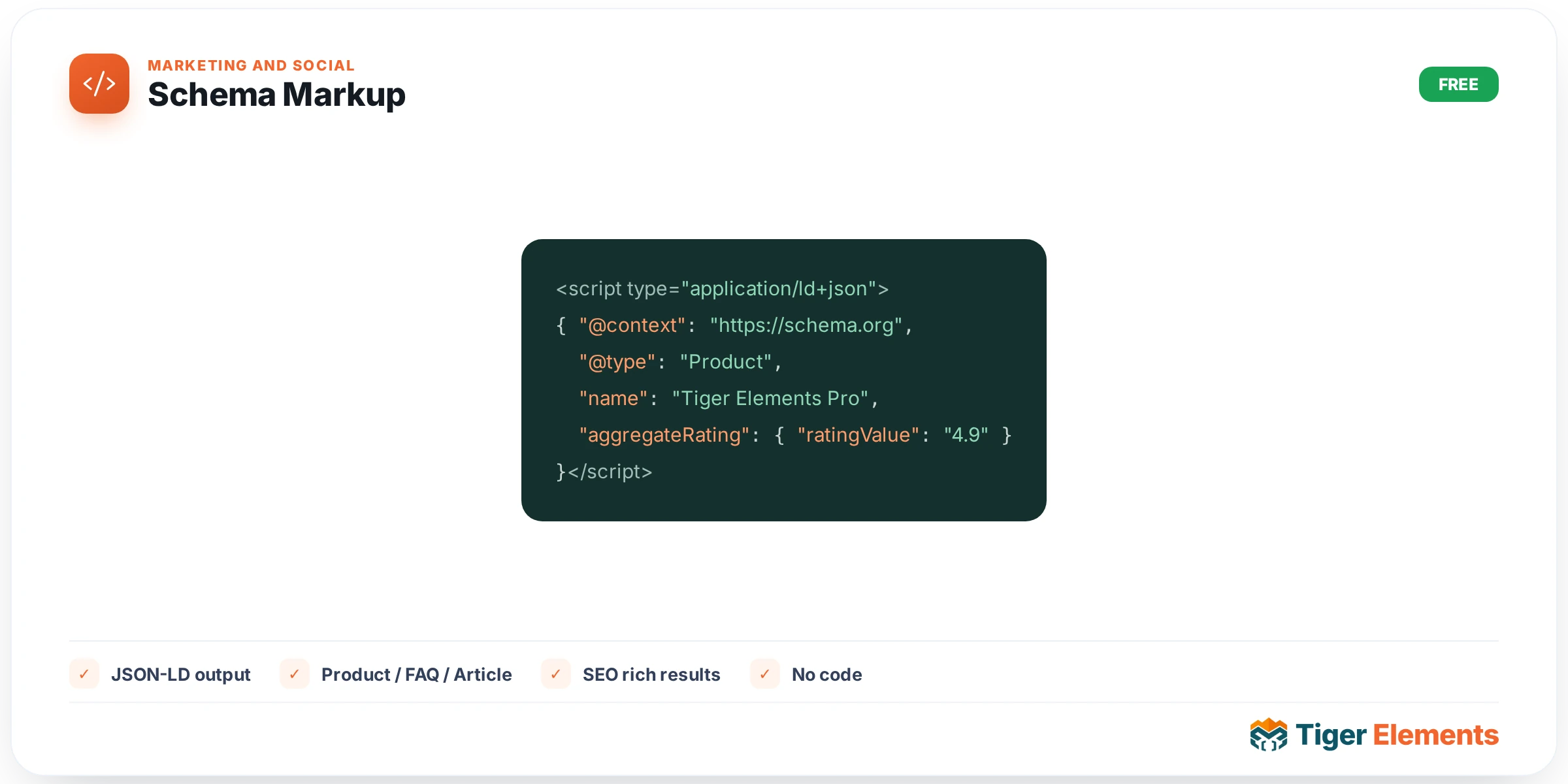
The Tiger Schema Markup widget puts structured data — the JSON-LD that search engines like Google use to build rich results — under the control of anyone building a page in Elementor, without touching a functions.php file or hand-writing schema.org syntax. Rich results (FAQ dropdowns in the SERP, star ratings under a product listing, breadcrumb trails, event dates) are one of the few remaining SEO levers a site owner can pull directly, and this widget exists so that lever is a dropdown in the Elementor panel rather than a developer task. Crucially, in every mode except FAQ, the widget is invisible on the front end: it only prints a <script type="application/ld+json"> block into the page. In the editor itself you’ll see a helpful colored notice badge instead of blank space, telling you which schema type is active and whether its data source is “⚡ Dynamic” or “✏️ Manual” so you’re never confused about why nothing renders on the canvas.
Everything starts with the Schema Type control in the Schema Type section, a select field with eight real options baked into the widget: ❓ FAQ Page, 📄 Article, 🏢 Local Business, 🌐 Organization, 🛒 Product, 🗺️ Breadcrumb List, 🔧 How-To, and 📅 Event. Choosing a type reveals a dedicated content section underneath — the widget uses Elementor’s conditional-control logic aggressively, so you only ever see fields relevant to the schema you picked.
FAQ is the default type and the most fully built out. Beyond the JSON-LD, it can also render an actual visual, itemscope-marked FAQPage/Question/Answer accordion on the page — controlled by the Show Visual FAQ switcher. Turn that on and you get a real accordion (with a Section Heading field, a Heading Tag select for H1–H6 or plain paragraph, and a FAQ Items repeater with Question, WYSIWYG Answer, and an “Open by Default” per-item switch). The FAQ Settings section adds two toggles: Open First Item by Default and Accordion Mode (Close Others), which controls whether opening one question collapses the rest. If you leave Show Visual FAQ off, the widget still emits the FAQPage schema silently — useful when you already have your own FAQ design elsewhere on the page and just want the structured data to match it.
The other seven types follow a consistent pattern: a Data Source select that toggles between “✏️ Manual” (you fill in every field yourself) and an “⚡ Auto” option specific to that type. Article can auto-pull the Headline, Description, Author, dates, and Featured Image straight from the current WordPress post (Data Source: “Auto — Current Post / Page”), with an Article Type sub-select for Article, Blog Posting, or News Article, and optional override fields if you want to tweak just the headline or description without going fully manual. Local Business and Organization share one section and can source data from “⚡ Auto — WordPress / Tiger Site Settings” or manual entry, with Local Business unlocking address, phone, opening hours, and aggregate rating fields that Organization doesn’t need. Product detects WooCommerce automatically — if WooCommerce is active, “⚡ Auto — WooCommerce Product” becomes available and pulls name, price, SKU, images, stock, and ratings straight from the product page, with manual override fields for brand and availability sitting alongside it. How-To supports manual steps via a repeater (Step Name, Step Description, Step Image) or an auto mode that borrows the post title and excerpt. Event detects The Events Calendar plugin the same way WooCommerce is detected for Product — if it’s active, an “⚡ Auto — The Events Calendar” option appears alongside a generic “Auto — Current Post” mode and full manual fields for dates, location, organizer, status, and attendance mode. Breadcrumb List defaults to “⚡ Auto — Detect from page hierarchy,” building the trail from post/page ancestry, categories, and WooCommerce automatically, or you can supply your own Breadcrumb Items repeater of label/URL pairs.
When to use it
Drop a manual-mode FAQ instance at the bottom of a service or pricing page to win the FAQ rich-result snippet while doubling as an on-page accordion that answers objections before checkout. Use the Product type in WooCommerce Auto mode on product templates so every product page emits accurate price/availability/rating schema without a developer maintaining it per product. Use Article in Auto — Current Post mode inside a blog post template so every article on the site automatically qualifies for Article rich results the moment it’s published, with zero per-post configuration.
Practical tips
Only enable Show Visual FAQ once — if you also hand-build an FAQ accordion elsewhere on the same page with duplicate questions, you risk emitting two FAQPage schema blocks, which Google will not favor. Check the editor-only source badge before publishing: a “✏️ Manual” tag on what you intended to be dynamic almost always means a required auto-detection dependency (WooCommerce, The Events Calendar) isn’t active, so the widget silently fell back. For Local Business, always fill in the Country field with a real two-letter code — omitted or malformed codes are one of the most common reasons Google Search Console flags a LocalBusiness schema as having a missing/invalid field. When stacking multiple schema widgets on one page (e.g., Article plus Breadcrumb plus FAQ), test the live page in Google’s Rich Results Test rather than trusting the editor badge alone, since JSON-LD validity issues only surface once several blocks combine on the rendered page.