
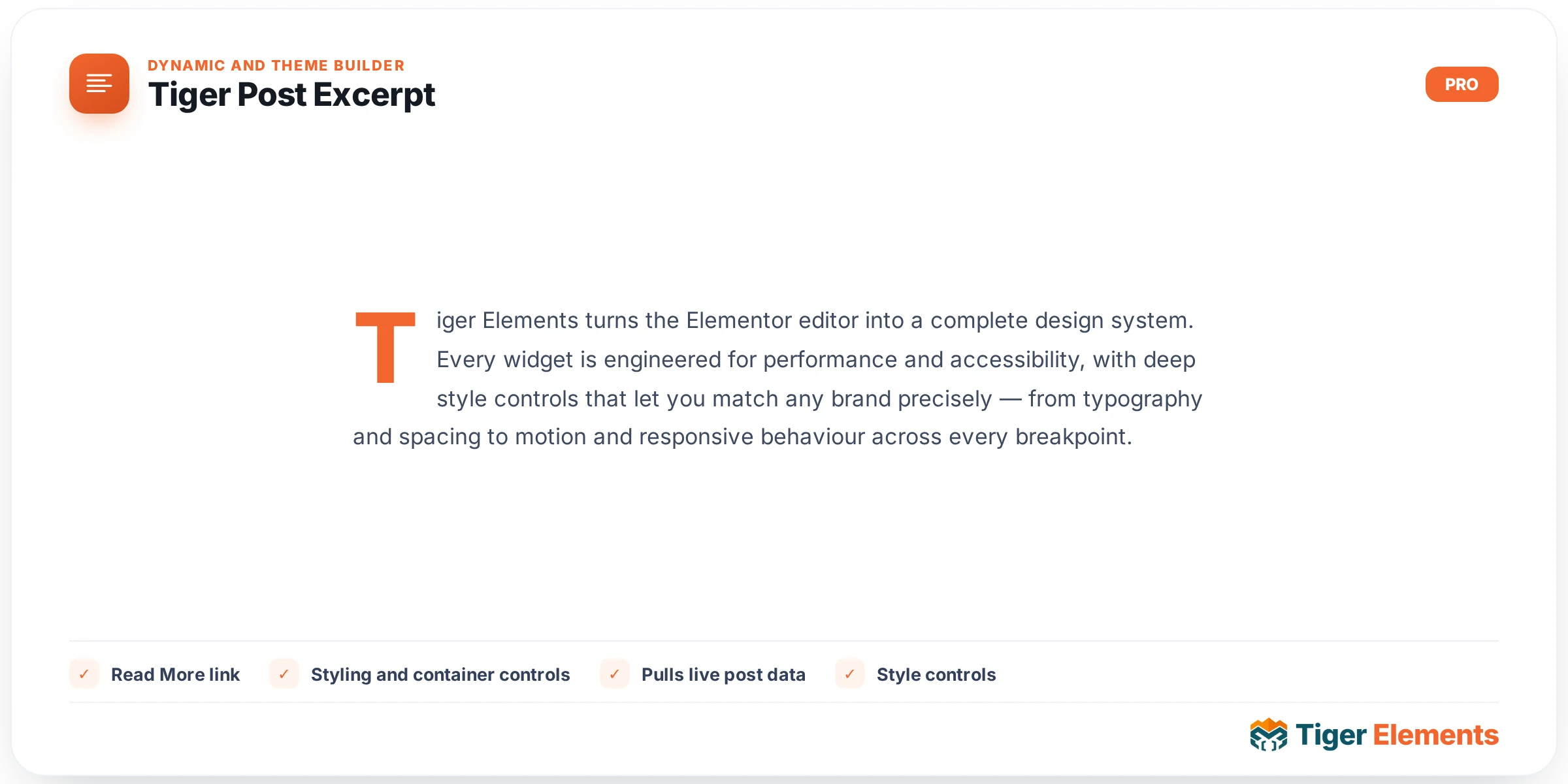
The Tiger Post Excerpt widget prints a short summary of the current post or CPT entry — a snippet built for archive loops, blog grids, related-post lists, and single-post templates where you want a teaser rather than the full article body. It is dynamic by design: drop it into a Theme Builder loop template once, and it automatically pulls the excerpt of whichever post is being rendered, using the internal $tiger_loop_post_id global when it is running inside a Tiger loop, or falling back to get_the_ID() for a single post context.
How the excerpt text is resolved
The widget does not simply dump the_excerpt(). It checks has_excerpt() first: if the editor manually wrote a custom excerpt in the post’s Excerpt box, that text is used verbatim. If no manual excerpt exists, it falls back to the post’s own content, stripped of all HTML tags with wp_strip_all_tags() — so shortcodes, images, headings, and markup never leak into the summary, only plain text survives.
That resolved text is then trimmed by the Word Limit control, a number field (0–200, default 30) in the Excerpt section. Setting Word Limit to 0 is a distinct behavior, not “no limit” in the unlimited sense — the control’s own description says it plainly: “0 = use the post’s own excerpt as-is.” At 0 the widget stops trimming and prints whatever text it resolved, manual excerpt or full stripped content, unmodified. Any value above 0 runs the text through wp_trim_words(), which counts words, not characters, so the cutoff point is content-dependent rather than a strict character budget. Whenever trimming occurs, the Ellipsis text control (default “…”) is appended at the cut point; this control only appears when Word Limit is not 0, since an untrimmed excerpt has no truncation point to mark.
Fallback text and the empty-string chain
If, after all of that, the resolved text is still an empty string — a post with no manual excerpt and no body content — the widget does not simply print nothing. In the Elementor editor’s edit mode, it shows a placeholder line (“Post excerpt preview text…”) so the layout stays visible while building. On the live front end, it instead prints whatever was typed into the Fallback Text textarea control, which also accepts dynamic tags. If Fallback Text is also empty, the widget renders nothing and returns early — no empty wrapper div is left in the markup, which matters if you’re hiding empty containers elsewhere via CSS.
Read More link
Turning on the Read More Link switcher (off by default) appends an anchor pointing at get_permalink() for the current post, labeled by the Read More Text field (default “Read more”, dynamic-tag capable). It only renders if more_text is non-empty, so clearing that field is a quick way to suppress the link without turning the switcher off. A second switcher, Read More on New Line, forces the link’s .tg-excerpt-more element to display:block; width:max-content via a direct CSS selector, which is why it only appears once Read More Link is enabled. On the Style tab, the Read More block gets its own section with Normal/Hover tabs for text color, background, and border — enough to style it as a plain link or a button-like element without a separate button widget.
Styling and container controls
Style-tab options are organized into Container (background, padding, margin, max-width, border, border radius, box shadow — all applied to the .tg-excerpt wrapper), Body Text (color, full typography group, text shadow, paragraph spacing), and the conditional Read More section described above. The excerpt text itself is run through wpautop() before output, wrapped in paragraph tags and sanitized with wp_kses_post().
When to use this vs. Tiger Post Content
Tiger Post Content is the full-article renderer: it runs the actual the_content filter chain, so shortcodes, embeds, galleries, and blockquotes all render properly, and it offers a Character Limit rather than a word limit, plus a Drop Cap switcher and dedicated style sections for headings, links, lists, and blockquotes. Reach for it on single-post templates where the whole article needs full formatting intact. Tiger Post Excerpt is the opposite tool: it strips markup down to plain text and works in words, not characters — exactly what you want in archive grids, related-posts widgets, and card layouts where every item needs a short, uniformly-trimmed, shortcode-free teaser rather than a rendered fragment of the real content.
Practical tips
- Because Word Limit counts words, two posts with wildly different sentence lengths can still produce visually uneven excerpt heights in a grid — pair the widget with a fixed-height or line-clamp container style rather than relying on the word count alone for visual consistency.
- If your posts rely on manual excerpts, remember the widget trusts
has_excerpt()completely: an editor-written excerpt is never re-trimmed by content, only by the Word Limit setting, so a manually written excerpt longer than your Word Limit will still get truncated with the ellipsis appended. - Set Word Limit to 0 deliberately when you want editors to have full manual control per post — it’s the one setting that bypasses
wp_trim_words()entirely and prints the resolved text (manual excerpt or stripped content) exactly as-is. - Leave Fallback Text empty on purpose if you’d rather have posts with no content simply omit the widget from the layout — since the render function returns early on an empty string, no stray empty wrapper or spacing gap gets left behind in the loop card.