
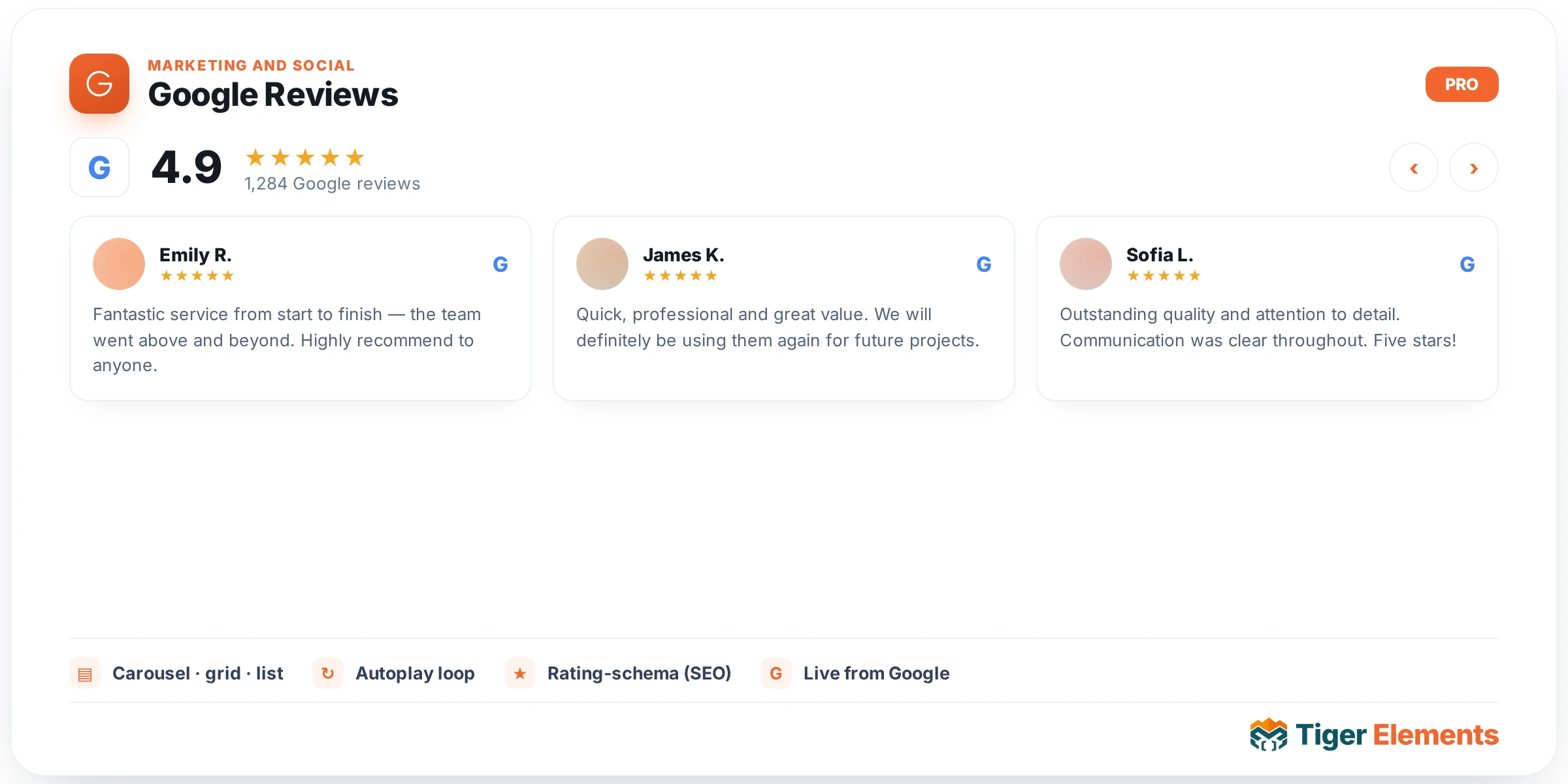
What the Google Reviews widget does
The Tiger Google Reviews widget pulls real reviews from the Google Places API for a specific business location and displays them as a styled grid or touch carousel — star ratings, reviewer photo, name, relative date, review text, and a “Posted on Google” badge. It is a Pro widget built on the bundled Tiger Swiper library, isolated from other sliders on the page. Rather than calling Google on every page load, it maintains a curated pool of up to 50 four- and five-star reviews per Place ID, stored in the options table and refreshed on a slow, adaptive schedule so a busy site never burns through its Google API quota.
Prerequisites
- A Google Cloud project with billing enabled and the Places API turned on. Google requires an active billing account for this API even though a monthly free usage tier applies — the widget will not work with a key that has no billing attached.
- A Google API key generated from that project.
- The Google Place ID of the business location.
Setup, step by step
1. Save your API key once, globally
The intended place to store your key is under Tiger Elements → API Settings in the WordPress admin menu. That screen saves the key to the tiger_google_api_key option (encrypted via the plugin’s Tiger_Encrypted_Option store) along with a site-wide “Preferred Language” for reviews, and runs a connection test against Google when you save.
Inside the widget itself, under Google API Settings, there is also a per-widget Google API Key field, pre-filled with your saved global key by default. You only need to type something different here if that widget instance must use a different Google account/project — the control’s own description confirms this: “Global API will be used if left empty.” For a typical single-business site, set the key once on the API Settings screen and leave the widget field alone.
2. Enter the Place ID
In the same section, fill in the Place ID text field. The widget gives two built-in helpers: a live autocomplete search box (“Tip: the suggestion list is powered by Google Places Autocomplete and uses your saved API key”) that looks up your business by name and fills in the Place ID, and a “Not finding your place?” link with a Get Place ID from Google button opening Google’s official Place ID Finder tool in a new tab.
3. How the cache and refresh cycle works
Once both fields are set, the widget does not hit Google on every visitor request. It fetches through Tiger_Reviews_API_Handler::get_reviews(), which caches per Place ID (and per language/translation combination) using WordPress transients plus a persistent stored pool. The literal cycle in the code:
- 12 hours (two API calls — newest and most-relevant) while the local pool of qualifying reviews is still filling up.
- 48 hours (one call, newest only) once the pool reaches its 50-review cap for that Place ID.
- If a cycle returns zero new qualifying reviews, the next interval stretches by an idle multiplier, up to 5× base — so a quiet listing can drift to roughly 60 hours in the 12-hour phase, or around 10 days in the 48-hour phase. Any fresh review resets the multiplier.
- A failed API call is not retried immediately — errors are cached for 5 minutes, during which the widget shows whatever reviews it already has stored.
Only 4★ and 5★ reviews are stored, and only if substantive: at least 65 characters and 12 words. Short praise like “Great!” is filtered out at fetch time so the pool (capped at 50 per Place ID) stays useful, with longer, more descriptive reviews shown first.
To pull fresh data immediately, flip the Force Refresh Now switcher in the same section. It bypasses the cache on the next save but is throttled to once every 5 minutes per Place ID, so a switch left on cannot spam Google. Toggle it back off afterward so caching resumes.
Display and styling controls
Under Layout & Filters: Layout Style (Static Grid or Touch Carousel), responsive Columns (1–4) and Card Gap, a Minimum Rating Filter (Show All / 5 Stars Only / 4+ / 3+), and Maximum Reviews to Load (1–100, default 10). An Output Review Schema (JSON-LD) switcher — off by default — emits AggregateRating and Review structured data nested inside an Organization node built from your site name and URL, for genuine star rich-results only. Carousel Settings add autoplay, autoplay speed, infinite loop, arrow icons, and pagination dots. Header & Button adds an optional title, an overall rating badge, and a “Write a Review” button. A Translate Reviews switcher with a Display Language selector (defaulting to the site-wide language from API Settings) controls whether reviews are translated or shown in each customer’s original language. Style-tab controls cover card background/border/shadow/hover states, avatar size, star colors and size, name/date/text typography, badge color, and navigation-arrow and pagination-bullet styling.
Practical tips / Troubleshooting
- If nothing renders and you see “Please enter your Google API Key and Place ID,” the widget’s
api_keyorplace_idsetting is genuinely empty — check a global key is saved under Tiger Elements → API Settings, or paste one directly into the widget. - A “Tiger Elements API Error” means Google rejected the call (bad key, Places API disabled, key restrictions, or billing not active). Restrict your key to the Places API and your domain, but if server-side requests fail, relax an HTTP-referrer restriction to an IP restriction instead.
- New sites can show “Could not fetch reviews” or too few cards at first — the pool fills gradually since Google returns only a few reviews per call and the quality gate discards short ones. Give it a few 12-hour cycles, or use Force Refresh Now (5-minute throttle) to speed testing.
- If a business’s Google reviews change but the widget looks stale, remember the cache legitimately stretches to 48 hours or longer under idle backoff — Force Refresh Now confirms new content exists before assuming something is broken.