
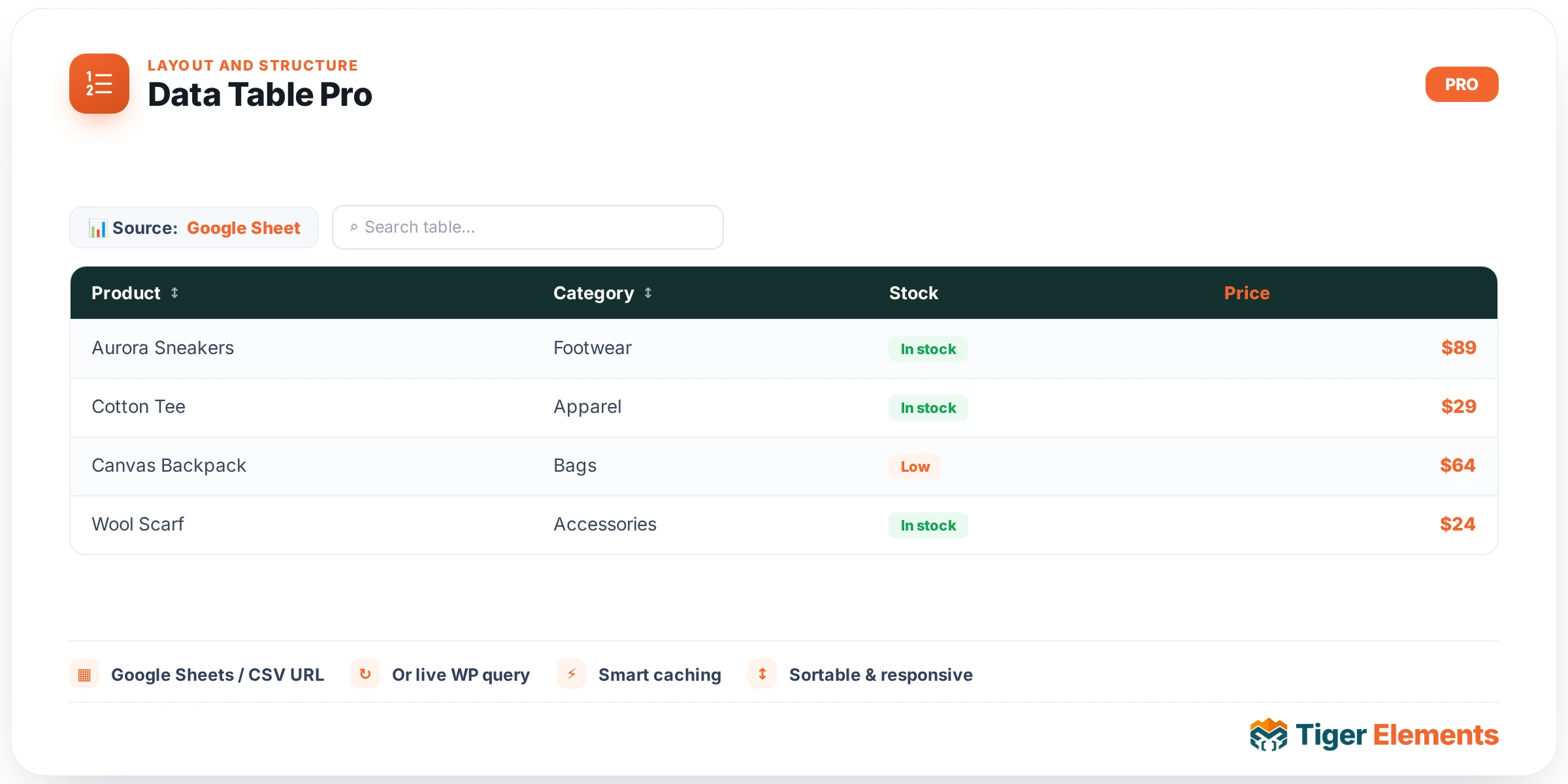
Data Table Pro renders a table whose rows come from somewhere other than manual typing — a live Google Sheet, a plain CSV file URL, or a WordPress query against posts or a custom post type. Where the free Table Builder widget is for content you type by hand, Data Table Pro is for content that already exists elsewhere and changes on its own schedule: a price sheet an ops team edits in Sheets, an inventory export, a staff directory, or a table driven straight from your own post data.
Choosing a data source
The Source control at the top of the Content tab switches the whole widget between two completely different modes: Google Sheets / CSV and WordPress Query (Posts / CPT). Everything below this control is conditional on which mode you pick.
Setting up a Google Sheet
This is the mode most people reach for first, and it’s designed to need almost no setup beyond sharing permissions:
- Open your Google Sheet, click Share in the top right, and under "General access" change it from "Restricted" to "Anyone with the link", with the role set to Viewer. This step is not optional — if the sheet stays restricted, the widget’s fetch request gets an access-denied response and shows an error message on the front end instead of your table.
- Copy the sheet’s normal browser URL — the one you’d share with a colleague, something like
https://docs.google.com/spreadsheets/d/1AbCdEfGhIjKlMnOpQrStUvWxYz/edit#gid=123456789. You do not need to manually construct an export or CSV URL yourself. - Paste that URL into the widget’s Google Sheets / CSV URL field.
Behind the scenes, the widget detects that the URL is a Google Sheets link, extracts the document ID with a regex match on the /d/… segment, and — if your URL included a gid= parameter pointing at a specific tab — preserves that so it pulls the exact sheet tab you had open, not just the first one. It then builds the real CSV export endpoint (.../export?format=csv&gid=…) itself and fetches that. In short: paste the ordinary share link, the widget does the URL surgery.
If you’d rather not go through Google Sheets at all, you can instead paste a direct URL to any .csv file, or any URL that contains output=csv in its query string (which covers CSV exports from other spreadsheet tools that follow that convention). Anything else — a URL that isn’t a Sheets link and doesn’t look like a CSV endpoint — is rejected with an explicit error rather than silently failing.
Header row and caching
Toggle First Row is Header on when row one of your sheet contains column labels (the usual case) — it renders as a <th> table header instead of a regular data row. Turn it off if your sheet is pure data with no label row.
Fetched data is cached using a WordPress transient, keyed by a hash of the exact fetch URL, so the widget isn’t hitting Google’s servers on every single page load — that would be slow and could hit rate limits on a busy page. Set Cache Time (Minutes) anywhere from 5 to 120 minutes to control how long a fetched copy is considered fresh before the widget checks Google again. When you’ve just updated the sheet and don’t want to wait out the cache window, flip Force Fetch (Bypass Cache) on — it clears the cached copy immediately and pulls fresh data on the next load. Remember to switch it back off afterward, or the table will re-fetch on every page view and lose the performance benefit caching exists for.
Setting up the WordPress Query source
Switch Source to WordPress Query to build the table from your own site’s content instead of an external file. Pick a Post Type (any registered public post type, including your own CPTs), set the Number of Rows, and choose an Order By — Date, Title, Menu Order, Random, or a Custom Field, which reveals an Order-By Meta Key field so you can sort by any meta value your posts carry — plus Ascending or Descending order.
Because a query doesn’t come with predefined columns the way a spreadsheet does, you then build the table’s structure yourself with a Columns repeater. Each row in that repeater is one table column, with a Column Header label and a Cell Value source picked from: Title, ID, Date, Modified Date, Excerpt, Author, Permalink (as URL text), Comment Count, a Custom Field (which reveals a Meta Key field for any ACF/Meta Box/plain postmeta key), or Taxonomy Terms (which reveals a Taxonomy field, e.g. category). Date and Modified Date columns get their own Date Format field (PHP date-format syntax, default Y-m-d) so you can match whatever format the rest of the page uses.
Interactivity
Two switches make the rendered table interactive without any extra setup: Sortable Columns lets visitors click a column header to sort the rows, with numbers and text both handled automatically so you don’t need to specify a data type per column. Search Box adds a live filter field above the table — as the visitor types, rows that don’t match are hidden — with its own Search Placeholder text control.
Styling
The Style tab is organized into three sections that mirror the table’s structure: Table Structure (overall width and border color), Header (text alignment, background and text color, typography, and padding for the <th> row), and Body Rows (text alignment, row background, a separate striped background color for even rows, a hover background, text color, typography, and padding). The striped and hover backgrounds give you a readable data table out of the box without writing any custom CSS.
Practical tips
- If the table shows a "Please paste a Google Sheets link" or "Access Denied" notice on the live page but looks fine in the editor preview, it’s almost always the sharing permission — double-check "Anyone with the link" is set as Viewer, not just that you personally can open it while logged into Google.
- Keep Cache Time reasonably short (5–15 minutes) for data that changes often, and longer for content that’s mostly static — every cache-miss is a live HTTP request to Google at page-load time, which is the slowest part of the whole widget.
- For a table you’re typing by hand rather than syncing from an external source, use the free Table Builder widget instead — Data Table Pro’s whole reason to exist is the live external/query connection.