
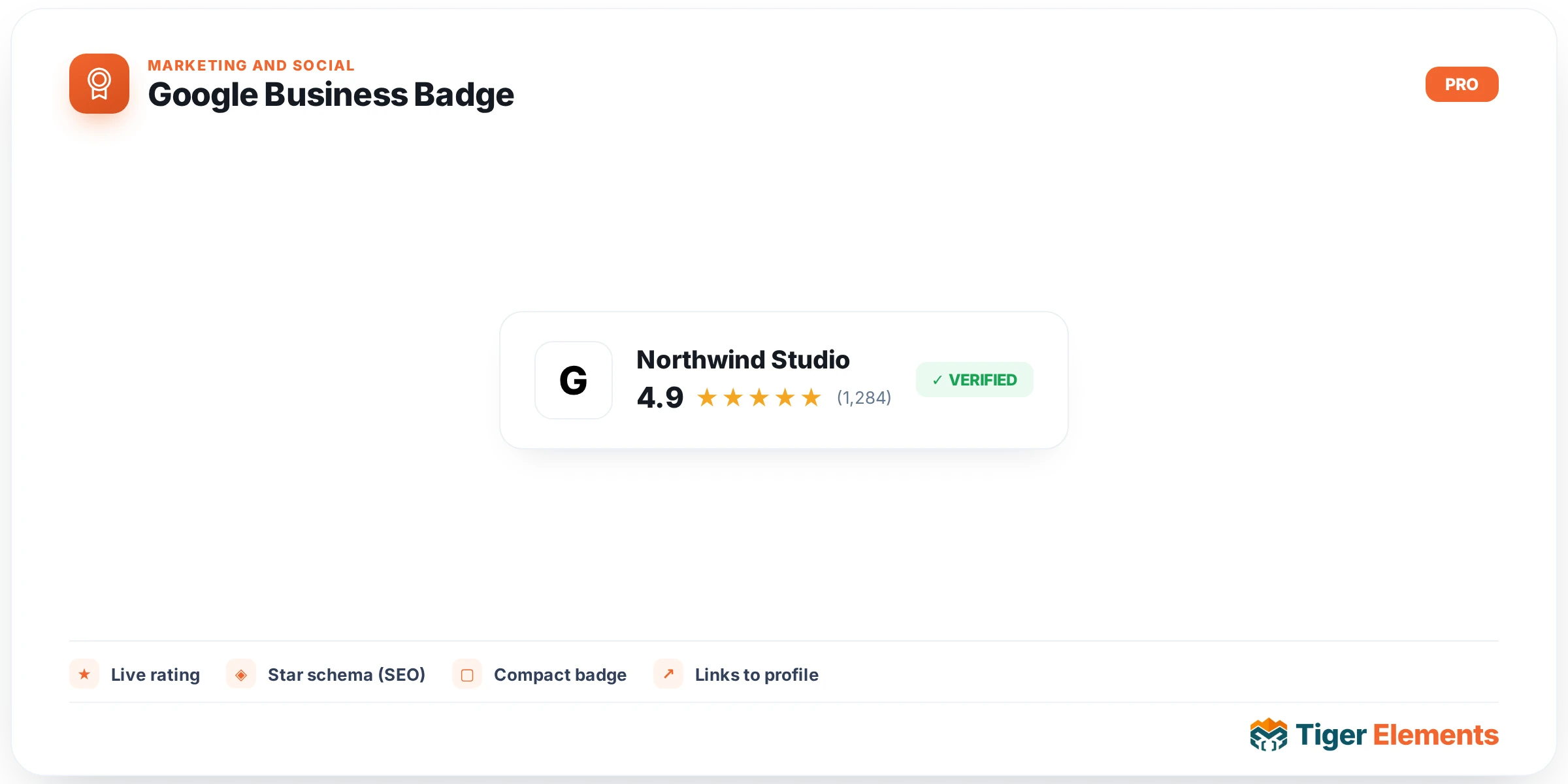
What the Google Business Badge does
The Google Business Badge widget is the compact counterpart to Tiger Elements’ full Google Reviews widget. Instead of listing individual customer reviews, it renders a small trust badge: your Google star rating, the rating number, the total review count, your business name, the Google logo, and an optional “Write a Review” button that links out to your Google review page. Think of it as a credibility stamp for a header, footer, hero section, or sidebar, rather than a content block meant to showcase what customers actually wrote.
Under the hood, the badge widget does not run its own separate integration with Google. The widget’s own source comment states that it “shares the same Place ID-keyed review pool as the Tiger Google Reviews widget via Tiger_Reviews_API_Handler, so pointing both widgets at the same Place ID does NOT double API spend.” If you already have the Google Reviews widget configured elsewhere on your site, you can drop this badge in and point it at the same Place ID, and it will read from the same cached data pool rather than triggering a second round of Google API billing.
Prerequisites
Because the badge is powered by the Google Places API, you need the same two things any Google Places integration requires: a Google Cloud project with billing enabled and the Places API turned on, plus an API key generated from that project; and the Place ID for your business listing (a string typically starting with ChIJ...). The API key needs an active billing account attached even if usage stays within the free monthly credit. Without both a valid key and Place ID, the widget cannot pull any rating data.
Setup, step by step
- Enter the API key. The widget’s Content section has a “Google API Key” field. By default it auto-fills from the plugin-wide setting stored under the
tiger_google_api_keyoption (managed throughTiger_Encrypted_Optionfor encrypted storage) — the same shared key used by Tiger Elements’ API Settings screen and by the Google Reviews widget. The placeholder text says “Enter key or sync from dashboard.” You can override it per widget if needed, but the simplest approach is configuring the key once under Tiger Elements → API Settings so every badge/review widget inherits it. - Enter the Place ID. Just below the API key field is a dedicated “Place ID” text control. Type the ID directly, or use the built-in “live search” helper immediately underneath it — search by business name and pick the matching result to auto-fill the Place ID field. There’s also a link out to Google’s own Place ID Finder tool.
- Optional: translation and display language. The “Translate Reviews” switcher (on by default) controls whether the business name and cached data pool are translated; when enabled, a “Display Language” dropdown appears, defaulting to whatever language is set globally under Tiger Elements → API Settings. Flipping this switch changes the cached review pool the badge reads from, since the handler caches data per language/translation combination.
- Let the cache populate. Rendering calls the shared handler with
force_refreshset to false, so the badge never forces a fresh Google API hit on a normal page view — it reads whatever is already in the shared per-Place-ID cache. The handler refreshes on a 12-hour cycle while the review pool is partial, then slows to a 48-hour cycle once the pool is full. If nothing is cached yet, the badge shows a fallback notice until the handler’s normal cycle fills it in.
Choosing a layout and toggling elements
The Display Settings section offers a “Design Preset” dropdown with four options: Minimal Badge (Floating), Full Business Card, Compact Pill, and Dark Professional. Presets drive which elements show by default — business name and the review button are hidden on the Minimal Badge preset even if their toggles are left on. Beyond the preset, independent switchers exist for “Show Business Name,” “Show Review Count,” and “Show Review Button,” plus a “Button Text” field (defaults to “Write a Review,” or “Review Us” on Compact Pill) and a “Write Review Link” URL control for the button’s destination.
Styling controls
The Style tab is broken into focused sections mirroring the badge’s visual parts:
- Badge Wrapper — box alignment, padding, border radius, inner gap, plus Normal/Hover tabs covering background (classic or gradient), border, box shadow, hover background/border color, a “Lift on Hover” slider, and a hover transition-duration slider.
- Google Logo — a responsive size slider for the Google icon.
- Business Name — color and typography (only shown when the business name is enabled).
- Rating & Stars — color/typography for the numeric rating, plus filled-star color (default
#fbbc04, Google’s yellow), empty-star color (default#e0e0e0), star size, and spacing between stars. - Review Count — color and typography for the “Based on X Google reviews” line.
- Review Button — typography, padding, border radius, and Normal/Hover tabs for text color, background, and border.
- A “Legacy Accent (Preset 3 border)” color control is kept for backward compatibility and drives the left-border accent on the Compact Pill preset.
Practical tips and troubleshooting
- Missing Place ID shows a plain notice. If the Place ID field is left empty, the widget renders “Tiger Badge: please enter a Place ID.” — check this first if the badge appears blank.
- An error message means the cache or API call failed. The badge shows “Tiger Badge:” followed by the returned message (or “Reviews temporarily unavailable.” as a fallback) — usually an invalid API key, unresolvable Place ID, or a Places API quota/billing issue in Google Cloud.
- Reuse the same Place ID to avoid extra API cost. The badge and the full Reviews widget share one cache pool keyed by Place ID, so use identical values across every instance rather than re-entering slightly different strings, or you’ll spin up separate cache entries.
- Don’t expect instant updates. Because rendering never force-refreshes, a change in your actual Google rating can take up to the handler’s 12-hour (or 48-hour, once the pool is full) cycle to show on the front end — expected caching behavior, not a bug.