
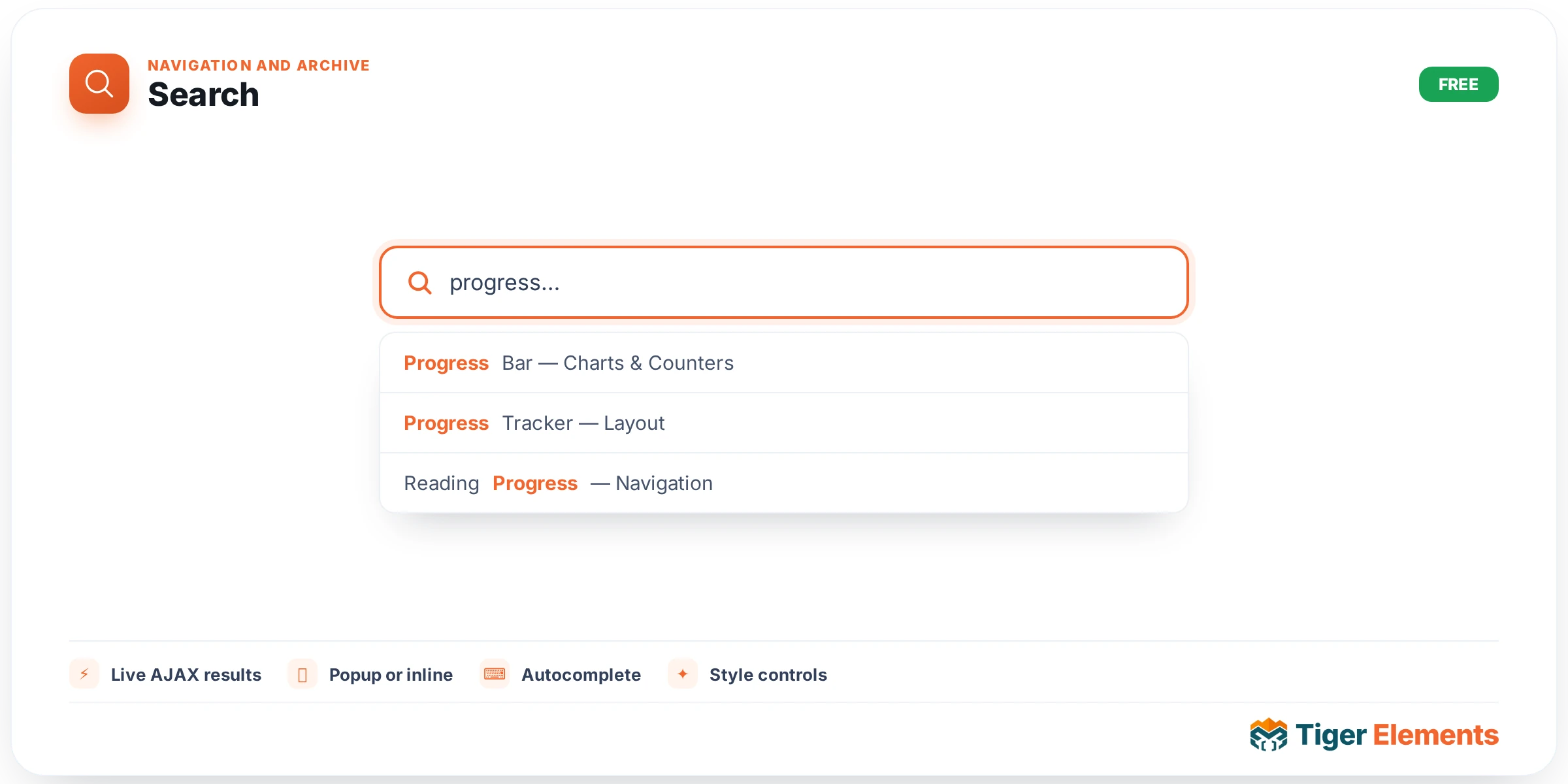
Tiger Search is the plugin’s live search widget: an input field that can either surface results instantly as a visitor types, or behave like a conventional search form that posts to WordPress’s normal search results page. It exists to replace the bare, unstyled search box that most themes ship with, and to give a site builder a fast, self-contained “search-as-you-type” experience without wiring up a separate search plugin. Under the hood the AJAX mode is powered by a debounced fetch in `tiger-search.js` with keyboard navigation (arrow keys, Enter, Escape), match highlighting, and cancellation of stale in-flight requests via `AbortController`; requests are routed through a nonce-protected admin-ajax action, with the widget’s per-instance configuration cached server-side in a transient keyed by a short fingerprint — the same pattern Tiger AJAX Grid uses.
Setting Up the Widget
The Search content section opens with Display Mode, a choice between Inline (an input with a results panel that drops down beneath it) and Popup (a trigger button or icon that opens a full-screen overlay containing the input and results). Right below it, Search Type chooses between Live AJAX (“results appear as you type”) and Standard / Native (“submits a normal search form”) — this single control fundamentally changes which of the widget’s other options are even visible, since most of the panel is conditioned on one or the other.
Basic text is set via Placeholder Text (defaults to “Search…”) and, in Popup mode only, a Popup Trigger Label for the button that opens the overlay, plus a Show Ctrl+K Shortcut switch that displays a keyboard-shortcut hint next to the trigger. When Search Type is set to Native, three extra controls appear: Button Label, a Show Icon in Button switch, and — only when combined with Inline display — Button Position, choosing between “Inside (attached)” and “Outside (separate)” layouts for the submit button relative to the input.
Regardless of mode, Post Types is a multi-select (defaulting to just “Post”) that scopes which public post types are searchable; this is the control to touch first if search results seem to be missing your Products, Portfolio items, or custom post types entirely. The AJAX-only block that follows is the heart of the widget’s tuning surface: Max Results (1–30, default 8) caps how many items the dropdown shows, Min Characters to Trigger (1–6, default 2) sets how many characters a visitor must type before a request fires, and Debounce (ms) (0–1500, default 250) controls the delay after the last keystroke before that request actually goes out — raising this on a large or slow catalog reduces server load at the cost of a slightly less “instant” feel.
Display of each AJAX result row is controlled by four switches — Show Thumbnail, Show Post Type Badge, Show Excerpt (off by default, unlike the others), and Show Price (WooCommerce) — plus Highlight Matched Keywords, which wraps matched text in a highlight colour so visitors can see why a result matched. Three text strings close out the content tab: “See All” Label (default: “See all results for “{q}””, where `{q}` is replaced with the live query — leaving it blank hides the link entirely), No Results Text, and Loading Text, all of which accept dynamic tags.
Styling and Non-Obvious Behaviour
The Style tab is split into five sections that map to the widget’s real markup: Input, Submit Button (native mode only), Popup Trigger (popup mode only), Results Panel (AJAX mode only), and Popup Panel (popup mode only). A subtlety worth knowing: several Input selectors deliberately exclude the input element when it sits inside the “native-inside” pill layout — for example the Border Color and Border Width controls target `.tg-search__input:not(.tg-search–native-inside *)` for the standalone case, and separately target `.tg-search–native-inside` for the attached-button pill, specifically to avoid rendering a double border where the pill wraps both the input and the button. Results Panel also distinguishes the inline dropdown from the popup panel in its selectors, since `Dropdown Max Height` only makes sense for the inline mode’s scrollable results list, not the full-screen popup.
When to Use It
Reach for Inline + Live AJAX on a content-heavy site — a blog, documentation hub, or knowledge base — where visitors expect to see matching articles the moment they start typing, without leaving the page. Popup + Live AJAX suits a header search icon on a marketing site or online store, where screen space is tight but you still want the instant-results experience once triggered, especially combined with the Ctrl+K shortcut for power users. Standard / Native mode is the right choice when you need search to integrate with an existing custom search-results template, or when AJAX isn’t desirable for accessibility, caching, or simplicity reasons — it degrades to a plain form submit that WordPress and any caching layer already understand.
Practical Tips
If AJAX results feel sluggish on a large catalog, raise Debounce before you touch Max Results — cutting the request frequency usually helps more than shrinking the result count. Always check Post Types after adding the widget to a WooCommerce or custom-post-type-heavy site; the default of “Post” only means products, pages, and everything else are silently excluded until you add them. When building a popup search trigger inside a sticky header, keep Popup Panel Max Width comfortably narrower than the viewport on mobile breakpoints, since the Style tab’s Panel Max Width control is responsive but won’t auto-shrink below whatever you set. Turn on Show Price only on stores where WooCommerce is active — the control is labelled for WooCommerce specifically and has no effect otherwise.