
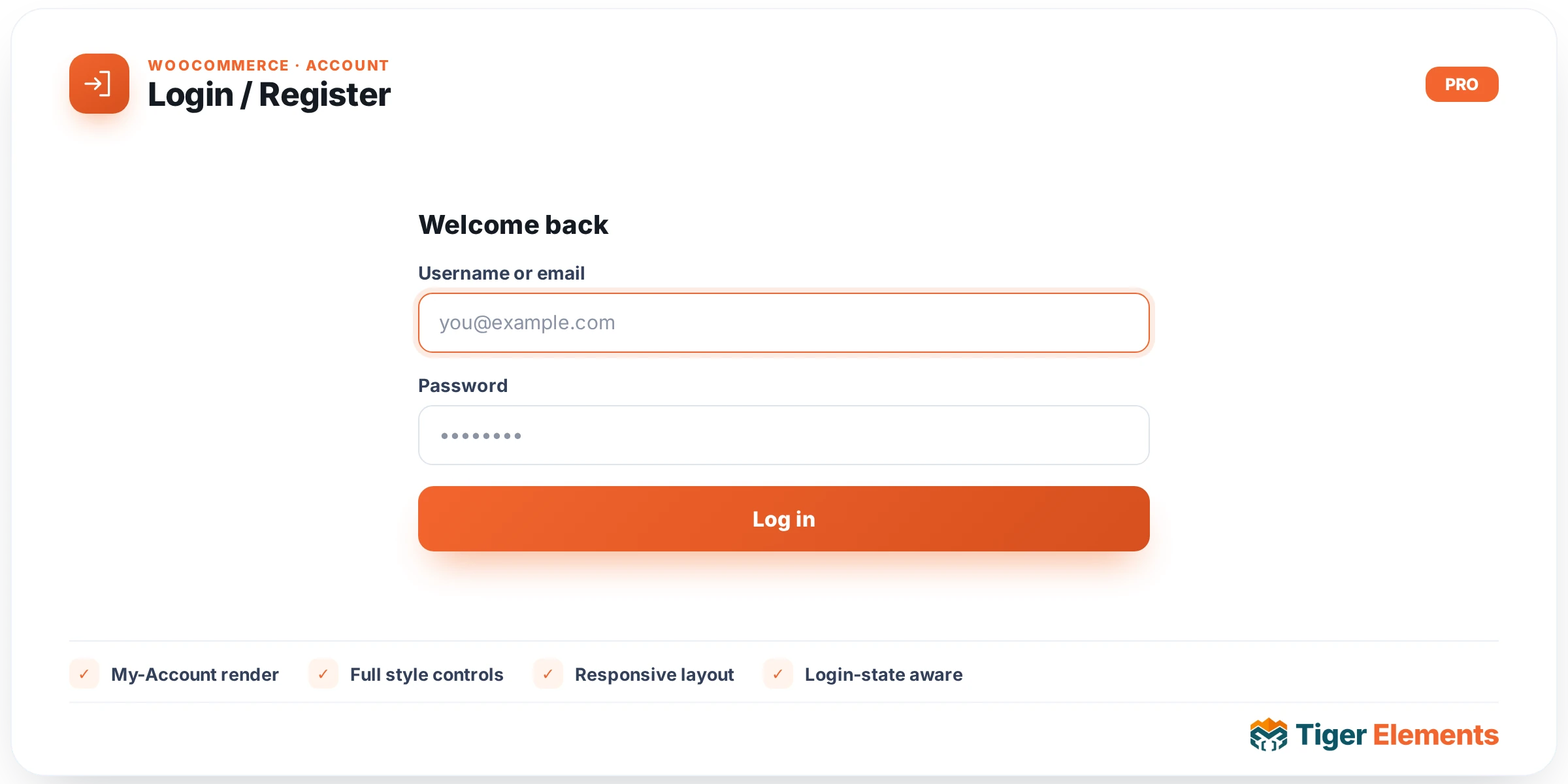
What the Login / Register widget does
The Login / Register widget is the WooCommerce-aware entry point into a customer’s account. It is one of six widgets defined in tiger-woo-account-widgets.php that all extend a shared base class, Tiger_Woo_Checkout_Base, and every one of them requires WooCommerce to be active and the site’s Woo Builder module to be turned on before they will do anything useful. When the widget renders, it does not build its own markup for the login and registration fields. Instead it calls wc_get_template( 'myaccount/form-login.php' ), which is WooCommerce’s own template for the My Account login screen. That single template already contains both a login column and, when WooCommerce → Settings → Accounts & Privacy → “Allow customers to create an account” is enabled, a registration column next to it — which is exactly why the widget is titled “Login / Register” rather than just “Login.” You are not choosing between login and registration behaviour in the widget itself; WooCommerce’s own settings decide whether the registration half of the template appears.
Why it is a separate widget from the site-wide Login Form
Tiger Elements ships a completely different, general-purpose “Login Form” widget (in the unrelated tiger-account module) that has nothing to do with WooCommerce — it posts through a hardened custom handler with its own nonce, throttling and honeypot protections, and it is meant for any site that needs a login box, store or not. This widget is the opposite: it is deliberately thin. It defers 100% of authentication logic, validation, and error messaging to WooCommerce core, so behaviour is byte-for-byte identical to what a shopper would see on the default WooCommerce My Account page. Use this widget only when you are building a custom WooCommerce account page with Elementor and want the native Woo login/registration experience — including any third-party plugins that hook into WooCommerce’s login/registration actions — to keep working exactly as installed. If you need a login box on a page that is not part of the WooCommerce account flow, or you want the extra anti-abuse hardening, the site-wide Login Form widget is the better fit.
Setting it up
Drop the widget onto a page inside your custom My Account layout (typically alongside the Account Navigation widget). In the Content tab there is a single “Login / Register” section with one meaningful decision to make: “When logged-in show”. This select control has three options — Nothing (the default: the widget renders empty output for a logged-in visitor), Dashboard link (prints a simple “Go to your account →” link pointing at the WooCommerce dashboard endpoint), or Custom message, which reveals a Message textarea (dynamic-tag enabled) so you can show something like “You’re already signed in.” This logic only runs on the live front end — Elementor’s editor preview mode is exempted, so you can still see and style the login form while logged in as an admin, rather than staring at your custom message while building the page.
Under the Style tab, the widget exposes a “Fields” section — inherited from the shared checkout base and reused across the account widgets — with controls for label colour, label typography, field background, field text colour, field border colour, field padding and field radius. These selectors target generic WooCommerce form classes (label, .woocommerce-form__label, input.input-text, textarea, .select2-selection) scoped to the widget wrapper, so they affect whatever fields WooCommerce’s template outputs, login and registration alike.
Non-obvious behaviour
If WooCommerce is missing, or the cart object isn’t available (checked via wc_ready(), which tests function_exists('WC') and WC()->cart), the widget silently renders nothing at all — there is no placeholder message here, unlike several of its sibling widgets. That is worth remembering if a page looks blank in the editor: it usually means WooCommerce isn’t loaded in that context. Because the template call is exactly WooCommerce’s own, any registration fields, password-strength meter, or “lost your password?” link that a theme or plugin normally injects into myaccount/form-login.php will appear here too — the widget doesn’t filter or strip anything.
Practical tips
- Pair this widget with the Account Navigation widget on the same page only when you’re logged out and building a combined “login gate” page; once a customer logs in you’ll want to route them to the Dashboard widget instead, since this widget deliberately shows little or nothing when already authenticated.
- Check WooCommerce’s own “Allow customers to create an account” setting before assuming registration fields will show — the widget has no toggle of its own for this.
- Use the “Dashboard link” logged-in option on pages that double as a generic “sign in” call to action (e.g. a header flyout), so logged-in visitors get a useful next step instead of an empty box.
- If you need brand-specific field styling beyond the Style tab’s Fields section, target
.tiger-woo-account-loginin your theme’s custom CSS, since the widget’s own controls only cover the common label/input set.