
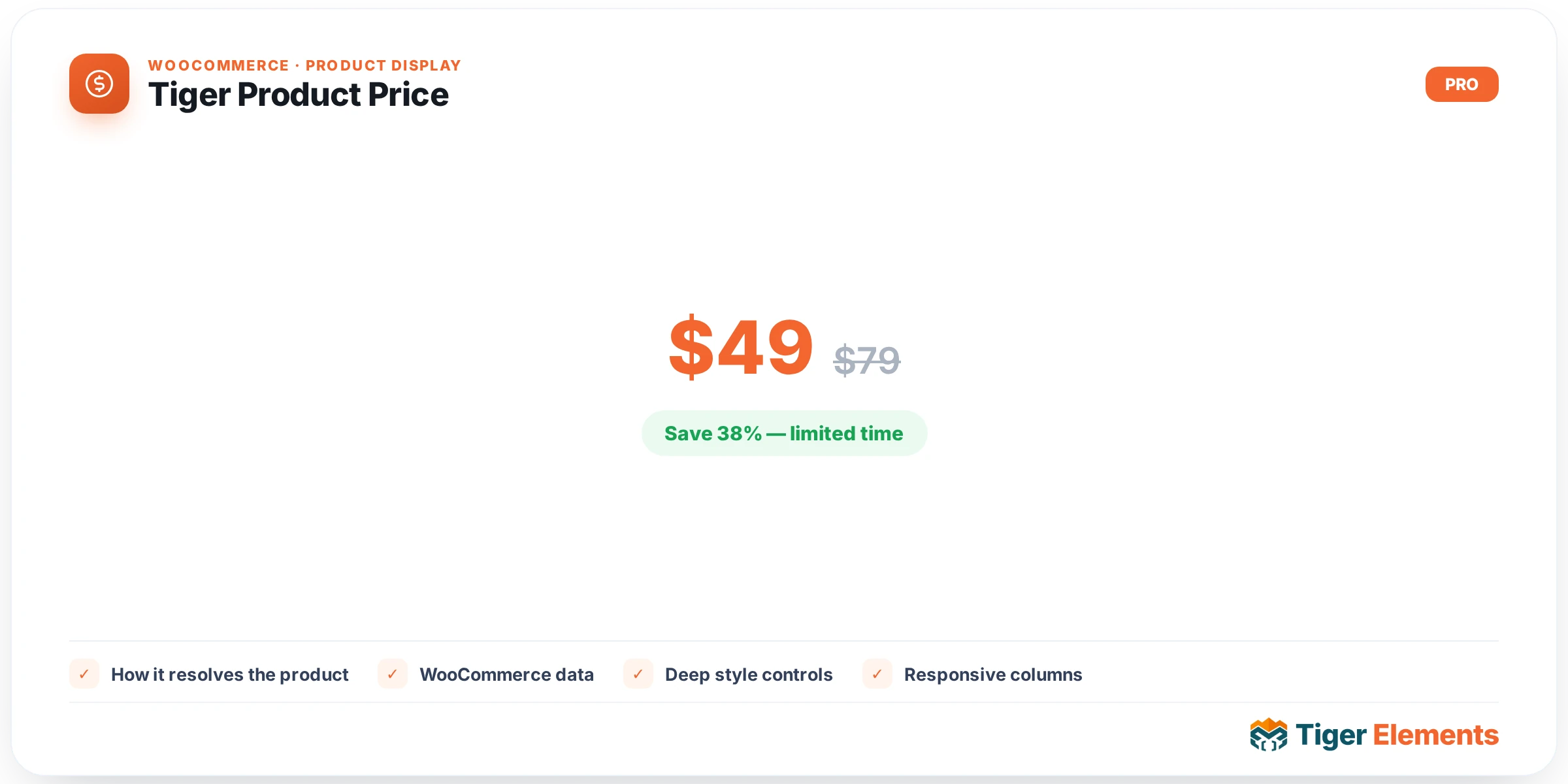
Tiger Product Price (widget key tiger_product_price) is a dynamic WooCommerce price display widget built for single-product templates and product loop/archive cards. Instead of reinventing price formatting, it calls WooCommerce’s own price HTML generator so sale ranges, variable-product price ranges, and tax suffixes stay exactly as accurate as core — then wraps that output in brand-scoped markup with a full Elementor-Pro-grade Style panel over every visible part: the container box, the active price, the struck-out “was” price, the currency symbol, the tax suffix, an optional computed discount badge, and prefix/suffix text. It requires WooCommerce to be active and needs product context to resolve a product — either the current post inside a single-product template, or the current loop item when placed inside a Theme Builder archive/loop card. It is registered as dynamic content, so its output re-renders per loop item rather than being cached statically.
How it resolves the product
On render, the widget first checks for wc_get_product — if WooCommerce isn’t active, it prints “WooCommerce is not active.” in the editor only (nothing on the live front end) and returns. It then resolves the product via a private resolve_product() method: it checks a global $tiger_loop_post_id first (set by the plugin’s loop/grid renderers when the widget sits inside a card), falling back to get_the_ID() otherwise. That means the same widget instance works correctly whether it’s dropped into a single-product page or nested inside a Products Grid/Dynamic Loop card — no separate “loop mode” toggle is needed.
Setting it up in Elementor
The single Content section, labeled “Price,” has all the functional controls. “Display” is a select with three real options: “Full (sale + struck)” (the default, using WooCommerce’s native get_price_html()), “Current price only” (shows the sale price if on sale, otherwise the regular price, via wc_price()), and “Regular price only” (always shows the regular price, ignoring any active sale). “Prefix” and “Suffix” are dynamic-tag-enabled text fields (placeholders “e.g. From” and “e.g. + VAT”) that wrap plain text before/after the price value — useful for “From” pricing language or manually noting VAT-inclusive pricing. “Discount Badge” is a switcher; when enabled it reveals “Badge Format” (Select: -{percent}%, Save {amount}, or plain Sale) and “Badge Position” (Before price / After price). “Hide if No Price” is a switcher that, when on, suppresses the widget entirely on the front end (not in the editor) if the resolved price HTML is empty after stripping tags — handling products with no price set gracefully instead of printing a blank box.
The Style tab breaks styling into logical sections: Container (Alignment, Inner Gap, Background, Padding, Margin, Border, Border Radius, Box Shadow — all applied to the outer .tg-price wrapper), Active Price (Color, Typography, Text Shadow, plus “Remove Sale Underline”, a switcher defaulting to “yes” that strips WooCommerce’s default <ins> underline), Struck-out (Was) Price (Color — note the control ID is kept as the legacy sale_color internally for backward compatibility with existing saved instances — plus Typography, Opacity, and Spacing), Currency & Tax Suffix (separate color/size controls for the currency symbol and the tax suffix text), Discount Badge (only visible when the Discount Badge switcher is on: Text Color, Background, Typography, Padding, Border Radius), and Prefix / Suffix Text (Color and Typography for the affix spans).
Non-obvious behavior
The discount badge is deliberately conservative: it only computes and shows a badge for products that are is_type('simple') and genuinely on sale with a valid regular price greater than the sale price — variable products, grouped products, and non-sale items never get a badge regardless of the switcher, since a single percentage wouldn’t be reliable across variations. If “Hide if No Price” is off and there’s genuinely no price, the widget still renders an empty .tg-price-value span rather than an error. In the editor, when no product can be resolved at all (e.g. widget dropped on a page with no product context), it shows a hardcoded $0.00 placeholder purely so you can see and style something while designing — that placeholder never appears on the live site.
When to use it vs. related widgets
Use Tiger Product Price when you want price display as its own standalone, independently positioned and styled element — for example, placing price above the title in a custom card layout, or styling it dramatically differently from the rest of a Products Grid card. If you’re building a full product grid and the built-in Products Grid card styling already covers your price needs (via its own “Price” style section), you don’t need this separate widget — Products Grid renders price internally as part of its card markup. Pair this widget with Tiger Add to Cart when hand-building a single-product layout piece by piece rather than relying on WooCommerce’s default template.
Practical tips
- Use “Current price only” with a “From” prefix on variable products to build simplified “From $X” pricing displays without WooCommerce’s full range/struck-price clutter.
- Because the widget is dynamic content, it correctly re-evaluates per card inside a loop — you don’t need one widget instance per product; a single instance inside a loop template drives every card.
- If a saved instance’s “was price” color looks unstyled after an update, remember the internal control ID is still
sale_coloreven though the section is now labeled “Struck-out (Was) Price” — this is intentional for backward compatibility, not a bug. - Turn on “Hide if No Price” for archive-style contexts where some products intentionally have no price (e.g. quote-only items) to avoid an awkward empty price box in the card.