
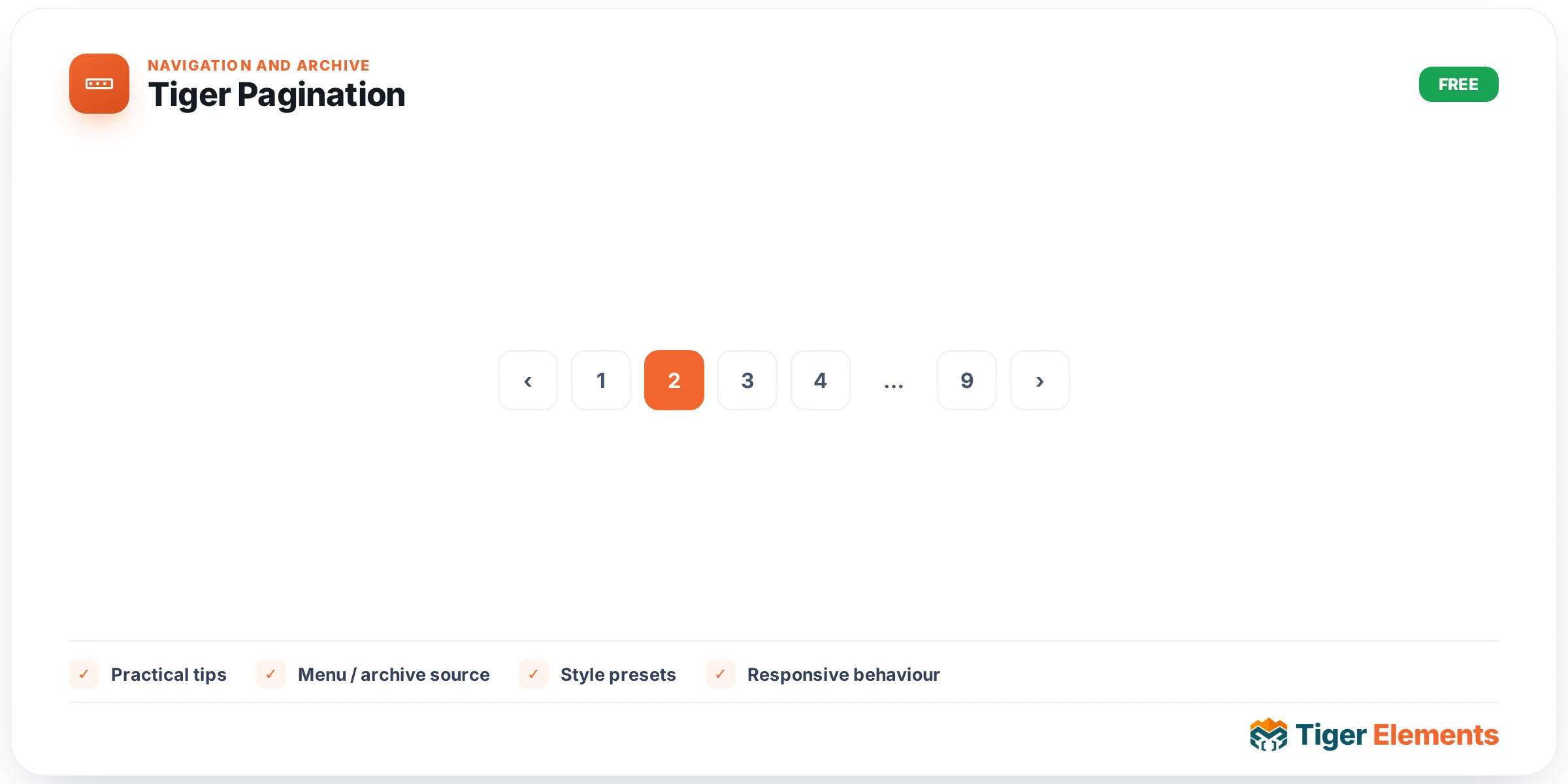
Tiger Pagination is the widget that turns a paginated main query — an archive, a search results page, a category listing, anything WordPress itself splits across multiple pages — into a clickable set of numbered links and Previous/Next arrows. It exists because Elementor’s own Theme Builder gives you loop grids and archive templates but leaves you to hand-roll the “page 1 2 3 … Next” control yourself, usually with a shortcode or raw PHP in an HTML widget. Tiger Pagination replaces that workaround with a proper Elementor control panel: drop it beneath a Dynamic Loop (typically one set to “Current Query (Archive)”) anywhere in an Archive or Search Results template, and it will read WordPress’s own $wp_query object and render links using core’s paginate_links() function. Because it delegates URL generation to WordPress itself, permalinks, rewrite rules, and the current-page detection all just work.
Setting it up
The Content tab, labeled “Pagination,” has a deliberately small set of controls because the widget’s job is narrow. Show Page Numbers is a switcher (on by default) that toggles the numeric links. Show Prev / Next is a second switcher (also on by default) controlling the arrow links, and turning it on reveals two dynamic-tag-enabled text fields: Previous Text (default “« Prev”) and Next Text (default “Next »”). Because those two fields support dynamic tags, you can swap in an icon shortcode or a translated string rather than being locked to plain text. Finally, Adjacent Numbers is a number control (0–6, default 2) that maps directly to paginate_links()‘s mid_size argument — it sets how many page numbers appear on either side of the current page before WordPress collapses the rest into an ellipsis (“…”). Raise it on a site with few total pages, where you want every number visible; lower it toward 0 on a site with dozens of archive pages, where a tight cluster keeps the control from wrapping onto multiple lines.
The Style tab, labeled “Items,” is a full Elementor styling panel: responsive Alignment (left/center/right, via flexbox justify-content), a responsive Gap slider between items, a Typography group control, responsive Padding, and a Border Radius slider, plus three state tabs — Normal, Hover, and Active — each exposing Text Color, Background, and (on Normal/Hover/Active) Border. The Active tab specifically targets the current page’s link (the .page-numbers.current class), so you can make the current page visually distinct from the resting state of every other number.
Non-obvious behavior worth knowing
The widget is self-hiding: if the underlying query has fewer than two total pages ($wp_query->max_num_pages < 2), render() returns nothing at all — no empty wrapper, no stray markup. This matters if you're building a template meant to serve both large and small archives; you don't need a separate condition to hide pagination on a category with only three posts, it disappears automatically. The one exception is the Elementor editor canvas itself: because the editor often has no real archive query to read, the widget detects edit mode and, when there's no query or fewer than two pages, falls back to a hard-coded three-number-plus-Next preview so you have something to style even while working on a single post or an empty draft. That preview is cosmetic only — it never appears on the live front end.
There's also a quiet interaction between the two Content switches: if you turn off "Show Page Numbers" but leave "Show Prev / Next" on, the widget doesn't just hide the numbers with CSS — it actually sets mid_size and end_size to 0 before calling paginate_links(), so the numeric links are never generated in the first place. That's cleaner than most pagination shortcodes, since it means no unused DOM nodes and no risk of a CSS override accidentally revealing hidden numbers. Current page detection reads both the paged and page query vars (falling back to 1), covering both regular archive pagination and the pagination WordPress applies to a single paginated post — though in practice you'll use this widget almost exclusively on archive-style main queries.
When to reach for a related widget instead
Tiger Pagination is specifically for the main query across an archive/search context. If you want prior/next links between individual entries — the reader is on one post and wants a link to the post right before or after it — that's covered by Tiger Post Navigation instead. Likewise, what happens when a search or filtered archive returns zero results is Tiger No Results' job, not Tiger Pagination's (it simply renders nothing in that case). And if you're building out the rest of an archive template's header, Tiger Archive Title and Tiger Archive Description cover the term/post-type heading and its description — pieces that typically sit above the loop, with Tiger Pagination below it.
Practical tips
- Because the widget returns nothing when there's no real second page, you can place it inside every archive-style template without a Display Conditions guard — there's no risk of an orphaned pagination bar under a three-post category.
- Style the Active tab deliberately: since it targets
.page-numbers.currentdistinctly from Hover, a strong background/border pairing here is what actually communicates "you're on page 4" to a visitor scanning quickly. - On sites with many archive pages, drop Adjacent Numbers toward 0 or 1 rather than the default of 2 — a lower mid_size keeps the row from wrapping awkwardly on mobile widths.
- Use the dynamic-tag support on Previous Text/Next Text for icon fonts or SVG glyphs instead of the literal « and » characters — there's no dedicated icon picker, but the fields accept dynamic tags.