
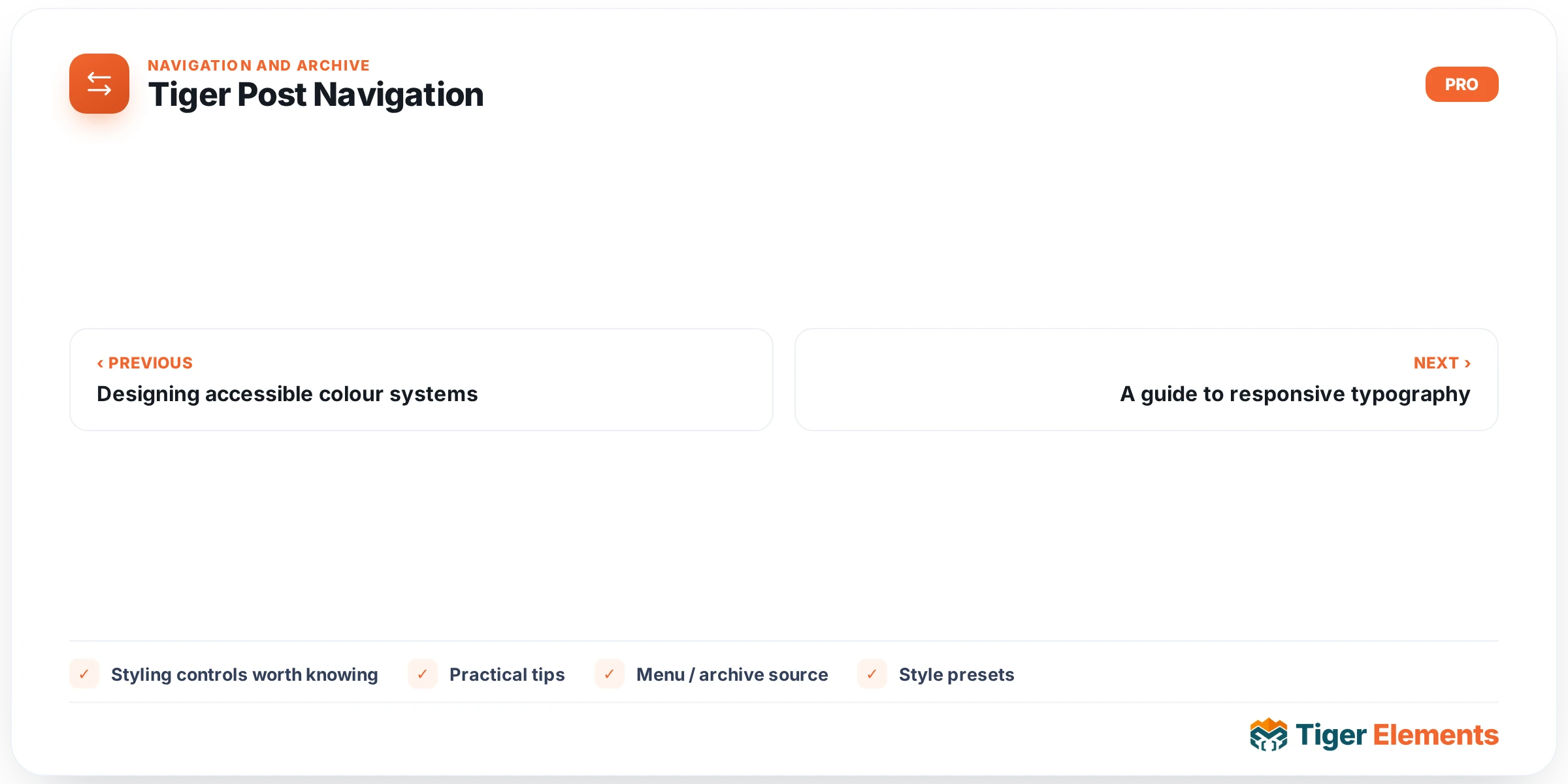
Tiger Post Navigation renders the classic “Previous post / Next post” pair that readers expect at the bottom of a blog article, but it does so as a fully styleable Elementor widget rather than a theme-hardcoded template tag. It exists because the native WordPress previous_post_link() / next_post_link() functions give almost no design control, while page builders that skip this feature force a fallback to plain-text theme output that clashes with an otherwise polished layout. Because the widget flags is_dynamic_content() as true, Elementor treats it as content that can change per request, so it is safe to place inside a Theme Builder single-post template and have it correctly reflect whichever post is being viewed, rather than being frozen to the post it was designed on.
The widget only makes sense on a singular post — its render() method checks is_singular() and bails out (returning nothing at all on the live site) if that condition fails. In the Elementor editor itself, though, it never renders blank: if there is no adjacent post or the check fails, it prints a labelled placeholder box with generic “Previous post title” / “Next post title” text so it can still be styled visually without needing two real posts side by side to test against. On the front end, if both a previous and a next post are genuinely absent (the only post in the query scope, for example), the whole wrapper is skipped and nothing is printed — it does not leave an empty shell in the DOM.
Setting it up
All of the functional options live in the single Navigation content section. Previous Label and Next Label are plain text fields (defaulting to “Previous” and “Next”) that sit above the post title in each link — leave them blank if you only want the title to show. Show Arrows is a switcher that, when enabled, exposes two icon pickers, Previous Arrow and Next Arrow, both defaulting to Font Awesome solid arrows; because these use Elementor’s standard Icons control you can swap in an SVG icon library or any other icon set the site has registered. Show Post Titles toggles whether the adjacent post’s actual title prints beneath the label — turn it off if you want a minimal “Previous / Next” arrow-only strip. Show Thumbnails does the same for the featured image, but only prints anything when the neighboring post actually has a featured image set (via has_post_thumbnail()) — posts without one simply render without a thumbnail rather than showing a broken placeholder.
The most important non-obvious control is Within Same Term, paired with the Taxonomy select that appears once it’s switched on. By default the widget walks chronologically through every published post regardless of category (the “adjacent post” behavior baked into WordPress core). Turning on Within Same Term constrains the previous/next lookup to only posts sharing at least one term in the chosen taxonomy — useful when a site’s “Previous/Next” should stay inside the same category or a custom taxonomy like Product Line. The Taxonomy dropdown is populated live from every public taxonomy registered on the site, so custom post type taxonomies show up automatically; if the toggle is off, the taxonomy control is hidden entirely and the query falls back to the ordinary sitewide adjacency.
Styling controls worth knowing
Style options are split across five sections — Container, Items, Arrow, Label, and Title — plus a conditional Thumbnail section that only appears once Show Thumbnails is on. Container controls the outer flex row: Layout switches between “Side by Side” and “Stacked” (row vs. column), and there’s a dedicated Divider sub-group (width + color) that only applies in row layout, drawing a vertical rule between the previous and next cells. Items exposes Normal/Hover tabs with independent background, border, shadow, and a Hover Lift (px) slider that animates the whole card upward on hover. The legacy typo typography control under the Title section applies to the whole anchor link for backward compatibility, while Title Typography targets just the post-title span and wins visually since it’s the more specific selector.
When to use this vs. a related widget
If you need next/previous navigation across a paginated archive or search results listing rather than between two single posts, use Tiger Pagination instead — that widget handles numbered/paged navigation for post loops, a completely different use case despite the similar “prev/next” vocabulary. If what you actually want is a list of thematically similar posts (not strictly the chronological neighbor), reach for Tiger Related Items. And if the goal is orientation within the site hierarchy rather than moving between posts, that’s what Tiger Breadcrumbs is for.
Practical tips
- Test Within Same Term against a post at the edge of a category — if it’s the newest or oldest in that term, one side legitimately renders empty on the live site, which is correct behavior, not a bug.
- Since the widget prints nothing once both neighbors are missing, avoid nesting it in a container with a fixed height or visible border; wrap it in a section whose background you’re comfortable disappearing on first/last posts.
- Show Thumbnails silently omits the image for posts with no featured image, so pair this widget with an editorial rule requiring featured images if a consistent thumbnail row matters — nothing here enforces a fallback image.
- Set Divider Width and Divider Color together — width alone renders no visible line until a color is chosen, since the underlying CSS custom property only takes effect once the color control’s selector is touched.