
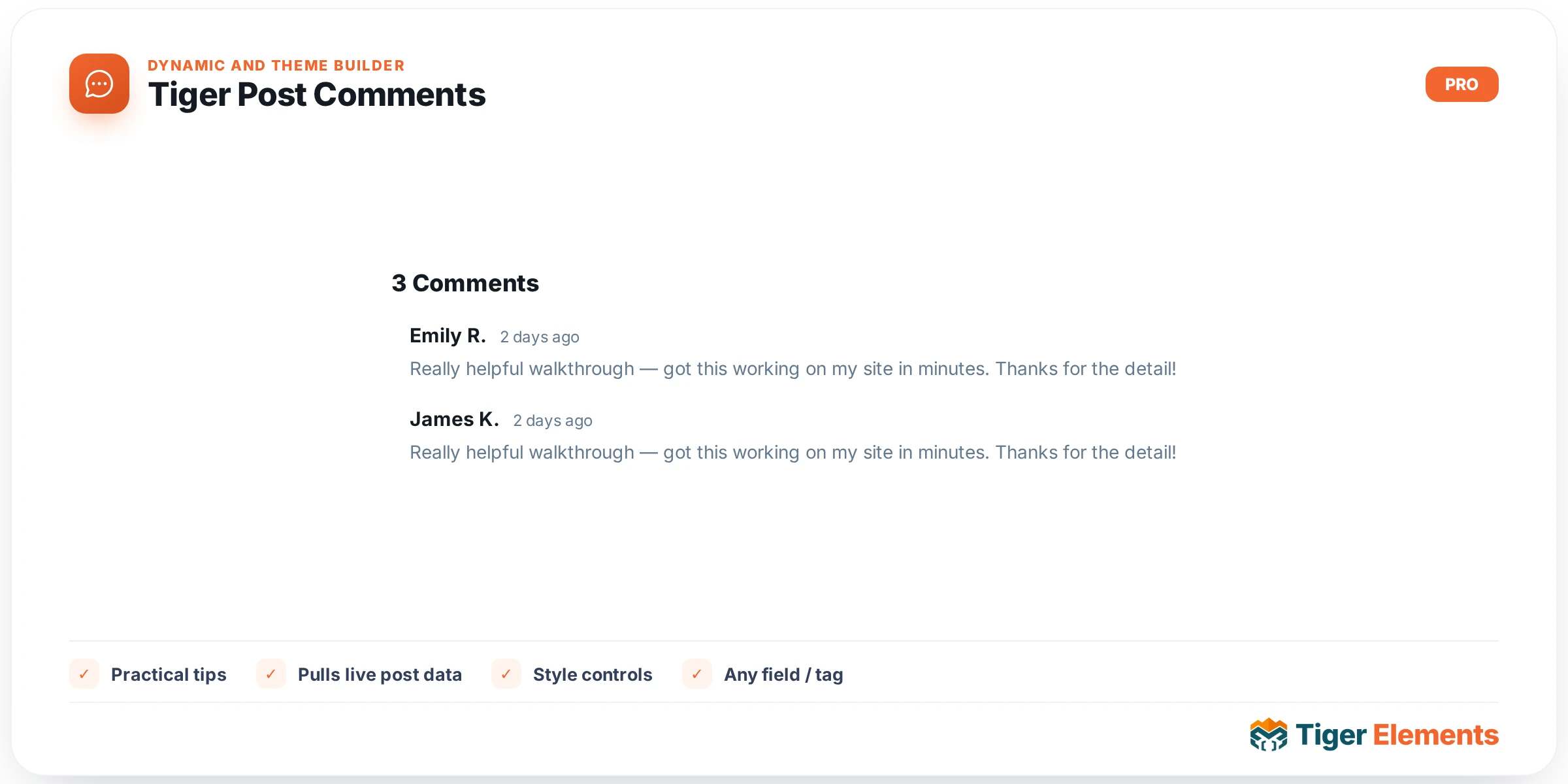
The Tiger Post Comments widget renders WordPress’ native comment list and comment form for the current single post (or any custom post type that supports comments) inside an Elementor layout. It exists because the default theme comment markup is tied to whatever CSS the active theme happens to ship, which makes it impossible to restyle consistently across a Theme Builder single-post template. Instead of reinventing threaded comments, the widget wraps the core wp_list_comments() and comment_form() functions and gives every visual element — the heading, each comment bubble, the avatar, the reply link, and every form field — its own dedicated style controls. Because it wraps real WordPress functions, threading, moderation, reCAPTCHA/Akismet integrations, gravatars, and nested reply URLs all continue to work exactly as they do in a classic theme; the widget only changes how they look.
Setting it up
All primary behavior lives in the single “Comments” content section. Show Heading toggles a heading above the list; when enabled, Heading Text accepts dynamic tags and defaults to “Comments (%s)” — the %s placeholder is swapped for the live comment count via number_format_i18n(), so a heading like “Discussion (%s)” or “Reader Feedback (%s)” will always show an accurate, locale-formatted number. Heading Tag lets you pick H2, H3, H4, or a plain div, which matters for keeping a template’s heading hierarchy sane when the widget sits below an H1 post title.
Show Comments List and Show Form are independent switches — you can build a form-only “leave feedback” block, a read-only list of prior comments, or both together. When the list is shown, Order chooses “Oldest First” (ASC) or “Newest First” (DESC), and Show Avatars plus Avatar Resolution (px) (24–200px, requested at the resolution set via get_avatar‘s size parameter, floored at 24) control the Gravatar/local-avatar image fetched for each commenter.
Styling is split into seven Style-tab sections that mirror the actual comment markup: Container (the outer .tg-comments wrapper — background, padding, margin, border, radius, box shadow, base text/link color), Heading, Comment Item (per-comment background, padding, gap between comments, reply indentation for nested threads, border, radius, shadow), Avatar (display size, radius, border — separate from the fetch resolution above), Author & Meta (name and timestamp color/typography), Comment Text, and Reply Link, which has Normal/Hover tabs for color and background. The Form section is the largest, with sub-headings for Form Title, Labels, Fields (Normal/Focus tabs covering text color, background, and border color across every text/email/url input and the textarea), and Submit Button (Normal/Hover tabs with full background-group and border-group controls).
Non-obvious behavior worth knowing
The widget renders nothing at all — not even an empty wrapper — when comments_open() is false and the comment count is zero. This means it silently disappears on pages where comments were never opened and no legacy comments exist, which is deliberate: it avoids empty “Comments (0)” boxes littering a theme-builder template applied across an entire site. If comments are closed but older comments already exist, the list still renders (so historical discussion isn’t hidden) while the form section is suppressed even if “Show Comment Form” is enabled, because the form render is separately gated on comments_open( $post_id ).
In the Elementor editor canvas, the widget never runs the real query — it always shows a static, hard-coded two-comment preview (“Jane Cooper” / “Marcus Lee”) plus a mock, non-submittable form, built from the exact same CSS classes as the live output. This is intentional so every single style control has something to preview against while editing, even on a fresh post with zero real comments; don’t mistake the sample text for actual site content. On the front end, when used inside a Theme Builder loop/archive item, the widget looks at a global $tiger_loop_post_id before falling back to get_the_ID(), so it correctly targets the looped post rather than the main queried post.
Practical tips
- Use the %s placeholder deliberately. If you rewrite Heading Text without including
%s, the count is simply dropped and the heading becomes static text — useful for a generic “Join the Conversation” label, but you’ll lose the live count, which some readers use as a signal that a post is worth discussing. - Reserve the Order control for editorial intent. “Oldest First” preserves the natural conversation flow for how-to and tutorial posts where later replies build on earlier ones; “Newest First” surfaces the most recent activity on high-traffic or news-style posts without requiring readers to scroll through dozens of older comments.
- Style Fields’ Focus state, not just Normal. Because the widget ships its own field CSS independent of the theme, a site with no visible focus ring can leave keyboard and screen-reader users unable to tell which field is active — set a distinct Focus border/background color rather than leaving it inherited.
- Pair with Tiger Pagination and Tiger No Results, not this widget, when building archive templates. Post Comments is scoped to a single post’s discussion thread; if you need pagination controls or an empty-state message for an archive or search results loop, use the Tiger Pagination and Tiger No Results widgets instead — both are built for the main WordPress query rather than a single post’s comment thread.