
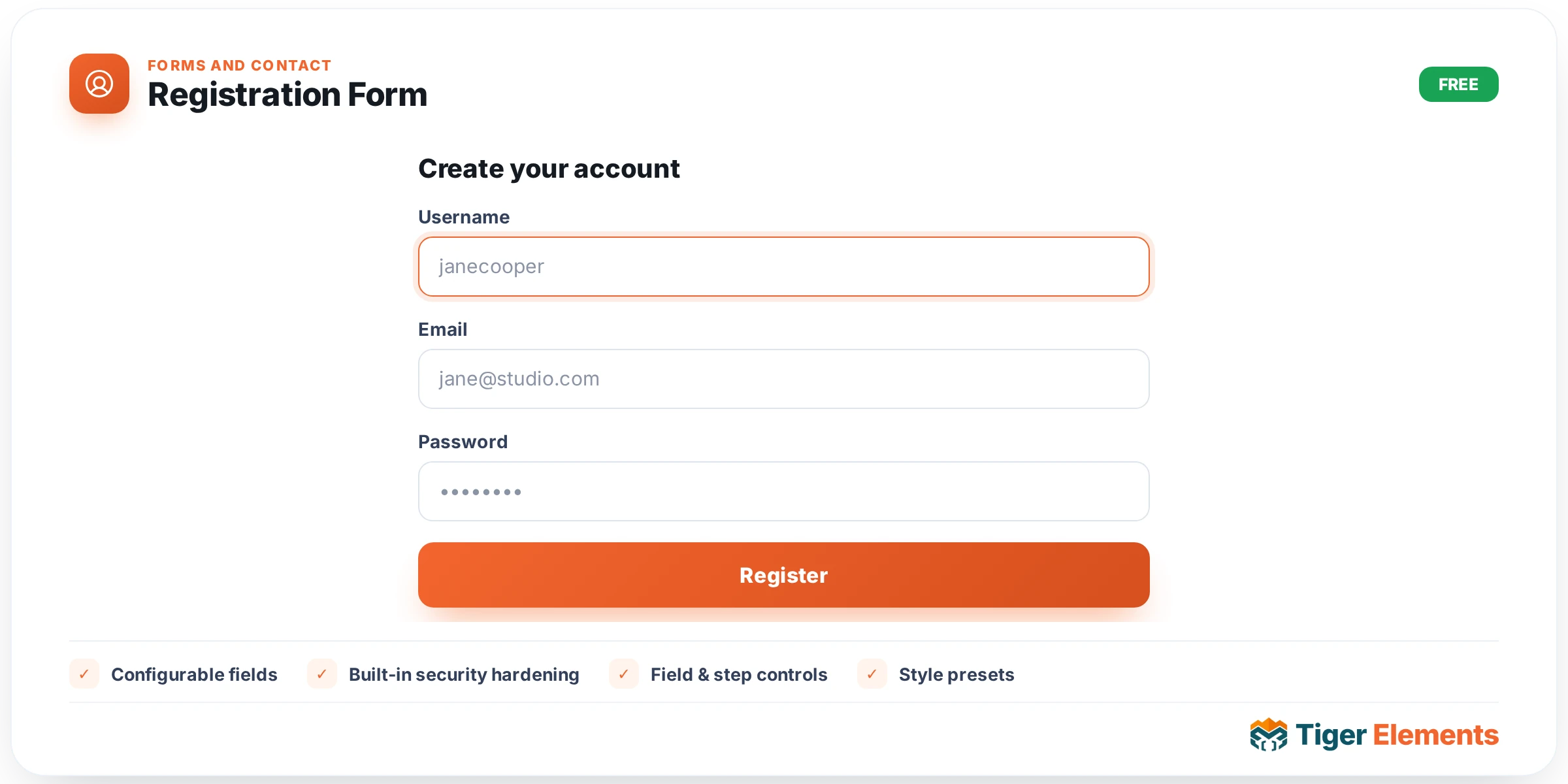
What the Registration Form widget does
The Registration Form widget is the sign-up counterpart to the site-wide Login Form, part of the same “Account” module and built on the same hardened backend. The widget class Tiger_Register_Widget forwards rendering to Tiger_Account_Forms::register_form(), while the actual account-creation logic — validating the submission, creating the WordPress user, sending the notification email — lives in Tiger_Account‘s POST handler behind admin-post.php. Unlike the WooCommerce-specific “Login / Register” widget, this one has no dependency on WooCommerce at all; it creates a standard WordPress user account and works on any site running the Account module, which ships active by default.
Configurable fields
Username and email are always present and cannot be hidden — they’re the minimum WordPress needs to create an account. Beyond that, the widget’s Content tab adds a “Fields” section (via its register_extra_content() hook) with three optional field groups, each controlled by a pair of switches: Show First & Last Name / Required, Show Phone / Required, and Show Address / Required. All three “Show” switches default to on, while their “Required” counterparts default to off — so out of the box, visitors see name, phone and address fields but are only forced to fill in username and email. These flags are passed straight through to the renderer as simple ‘1’/’0′ strings, so what you see in the editor is exactly what gets enforced server-side, not just cosmetic.
Built-in security hardening
Registration submissions carry a dedicated nonce (action tiger_account_register), verified the same way as login. The rate limiter throttles registrations more tightly than logins — 5 attempts per 10-minute window per IP/user-agent fingerprint — since account creation is a more sensitive action to spam. There’s also a honeypot: a hidden field (rendered visually hidden with tabindex="-1" and autocomplete="off") that a human visitor will never fill in but a naive bot script often will; if it arrives populated, the handler silently rejects the registration. On the response side, a duplicate username or email doesn’t produce a distinct “that email is taken” message — both cases collapse into one generic “registration unavailable” notice, which prevents an attacker from using the registration form to check whether a given email address already has an account on the site.
Setting it up
Notably, this widget does not expose a “Redirect after registration” control — the base class supports one, but Tiger_Register_Widget explicitly overrides has_redirect() to return false, because registration doesn’t log the visitor straight in; it creates the account and emails a password-setup link, so a post-submit redirect would misrepresent what actually happens next. The Style tab gives you the same Container / Fields / Button / Links & Notices sections shared across the whole account widget family — accent colour, sizing/background/border/shadow for the container, label and input styling with separate Normal/Focus states, button styling with Normal/Hover states, and notice colours for success and error states.
When to use it vs. related widgets
Use this widget for any general-purpose “create an account” flow that isn’t specifically tied to WooCommerce checkout — membership sites, gated content, community features. If the goal is specifically a WooCommerce customer account created as part of a shopping flow, the WooCommerce “Login / Register” widget (which renders WooCommerce’s own template, honouring its “allow customers to create an account” setting) is more appropriate, since it keeps registration consistent with checkout-flow expectations and any WooCommerce-specific plugins hooking into that process.
Practical tips
- If you don’t need phone or address collected at signup, switch off “Show Phone” and “Show Address” rather than just leaving them unrequired — fewer visible fields generally means a higher completion rate.
- Turning on “Required” for Name/Phone/Address only takes effect if the corresponding “Show” switch is also on — the Required control’s condition is tied directly to it in the editor, so a hidden field can’t be marked required.
- Don’t rely on a distinctive error message to debug “why didn’t my test registration go through” — the generic “registration unavailable” notice is deliberate and will show for both duplicate usernames and duplicate emails.
- Leave the honeypot field’s markup untouched if customising the form’s HTML structure via CSS — its invisibility depends on the CSS class applied to it, and removing that class would expose it to real visitors.