
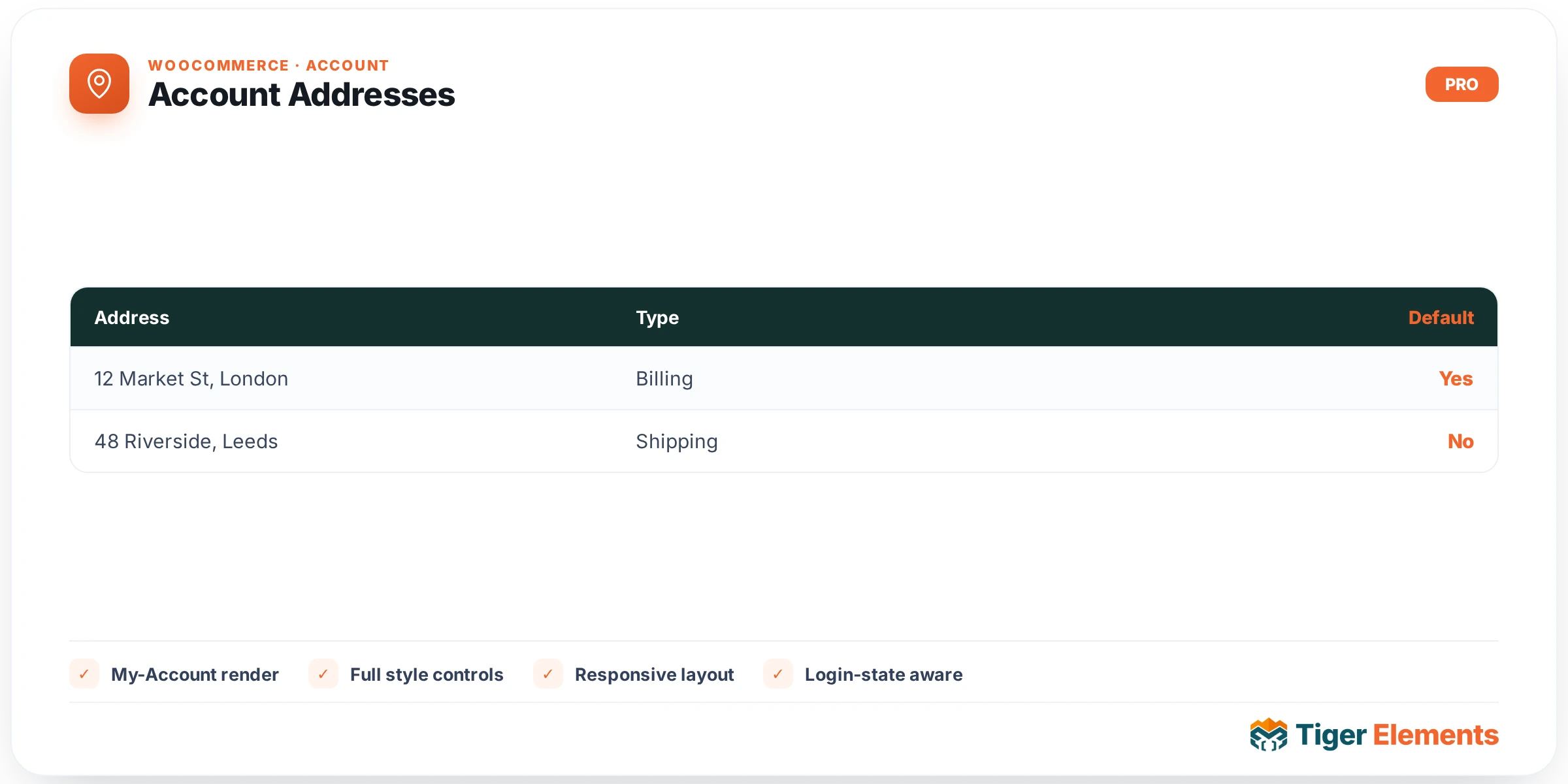
What the Account Addresses widget does
The Account Addresses widget renders the “Addresses” endpoint of WooCommerce’s My Account area — the screen where a customer views and edits their saved billing and shipping addresses. Like Account Dashboard and Account Orders, it’s one of the endpoint-specific widgets in tiger-woo-account-widgets.php, and its render() method is deliberately minimal: after confirming the visitor is logged in, it wraps a single call to wc_get_template( 'myaccount/my-address.php' ) inside <div class="tiger-woo-account-addresses woocommerce"> and lets WooCommerce’s own template do all the work. That template is what decides which address types to display (billing and, if the store sells shippable products, shipping), what the “Edit” links point to, and what happens when a customer submits an address change — none of that logic lives in the Tiger Elements widget at all.
Why it’s a separate widget
Splitting the address screen out from the dashboard and orders view follows the same reasoning as the other endpoint widgets: WooCommerce’s account area is built around distinct URL endpoints, and Tiger Elements gives each one its own Elementor widget so a designer can lay out a fully custom My Account page rather than being locked into WooCommerce’s default template structure. Placing this widget on a page only shows the address cards — nothing from the dashboard or order history will appear alongside it — so a complete custom account experience means assembling the Addresses widget together with Dashboard, Orders, Details and Navigation across the relevant endpoint pages or theme-builder templates.
Setting it up
There is nothing to configure. The Content tab registers a section titled “Addresses” but adds no controls to it, and — like Dashboard and Orders — there is no Style section for this widget either. Any visual changes to the address cards, the “Edit” buttons, or the two-column billing/shipping layout have to be made through Elementor’s Advanced tab (custom CSS/classes) or your theme’s WooCommerce styling, scoped to the .tiger-woo-account-addresses wrapper the widget outputs or to WooCommerce’s own address-card markup and classes underneath it.
Non-obvious behaviour
Because address editing is fully delegated to the native template, the actual “Edit address” form a customer sees after clicking through is WooCommerce’s own myaccount/form-edit-address.php — this widget only renders the address summary/list screen, not the edit form itself, so you don’t need (and this widget doesn’t provide) a separate “edit address” widget; WooCommerce’s own account routing handles the transition automatically as long as the page this widget lives on is correctly wired to the WooCommerce account endpoint structure. If the store only sells virtual/downloadable products with shipping disabled, the template will naturally omit the shipping address card — that’s WooCommerce core behaviour, not something the widget filters. A logged-out visitor sees the shared “Login required.” placeholder box from Tiger_Woo_Checkout_Base, identical in appearance to the placeholder used by Dashboard and Orders.
When to use it vs. related widgets
Use Account Addresses specifically for the address-management screen of a custom My Account layout — it is not a general-purpose address form for checkout (that’s handled separately by the WooCommerce checkout widgets in the tiger-woo-checkout family) and it is not meant to be used outside a logged-in account context. If your goal is simply to collect a shipping address during a purchase, this is the wrong widget; if the goal is letting an existing customer maintain their address book independent of any specific order, this is exactly the right one.
A note on validation and country fields
Because the form fields themselves come from WooCommerce core (the same field definitions used at checkout, including per-country state/postcode formatting and required-field rules), any address validation, format hints or country-specific field sets are governed entirely by WooCommerce’s own settings under Settings → General and Settings → Shipping, not by anything in this widget. If a store’s countries list or default location settings change, the address forms rendered by this widget update automatically the next time a customer visits, since nothing about the field structure is cached or duplicated inside the Tiger Elements plugin.
Practical tips
- Confirm WooCommerce’s shipping settings before assuming both billing and shipping cards will show — a store with shipping disabled will only render billing, which is expected, not a bug in the widget.
- Style through the
.tiger-woo-account-addresseswrapper or WooCommerce’s own address-card classes, since the widget itself exposes no colour or typography controls. - Pair this widget with Account Navigation so customers can move between Addresses and the other account sections without relying on browser back navigation.
- Test the full edit flow (list → edit → save) after any page-builder restructuring of the My Account page, since the edit form is a separate WooCommerce template reached via the account endpoint routing rather than something rendered inline by this widget.