
What Cart Totals does
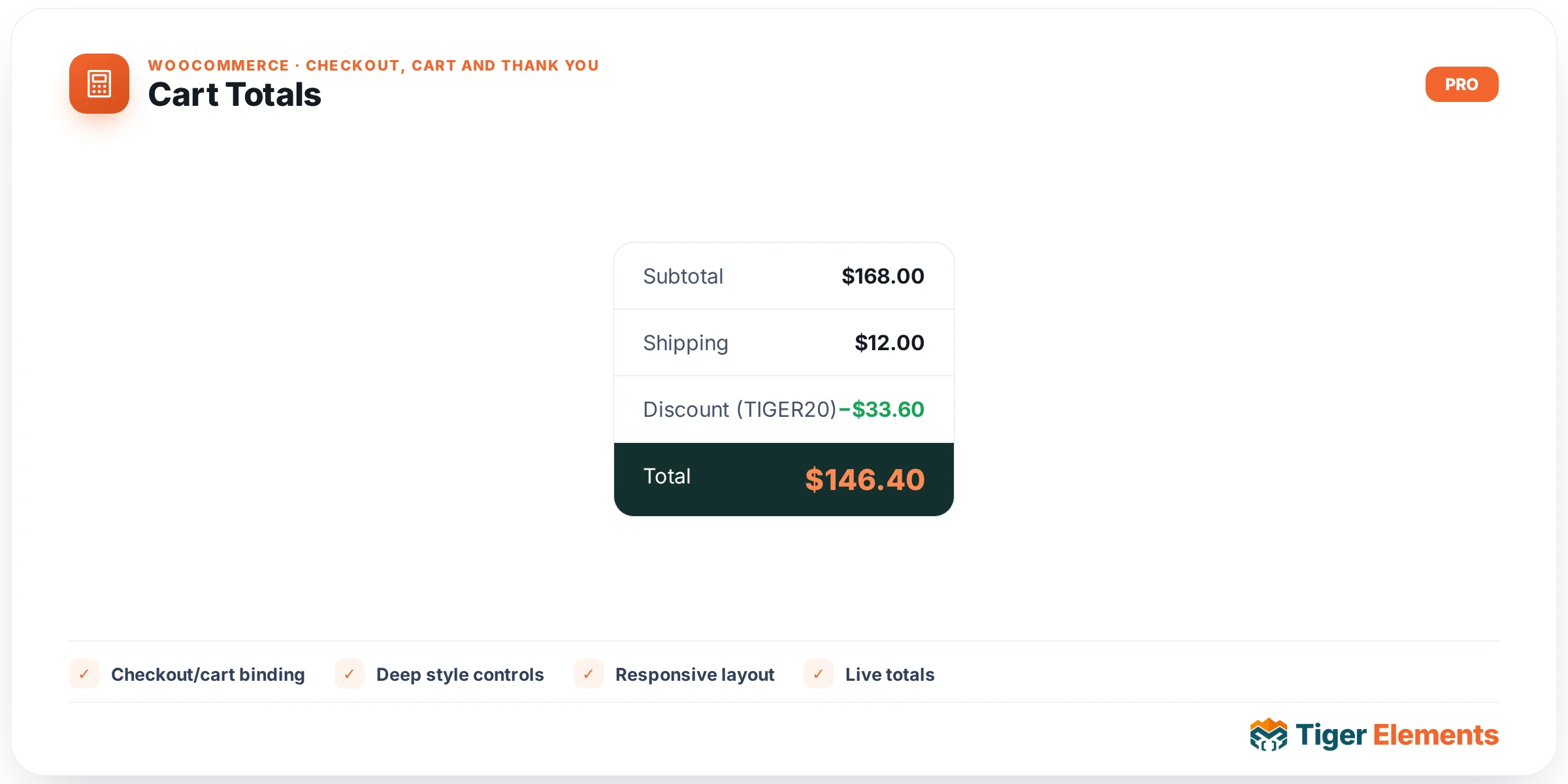
Cart Totals is the summary-and-checkout side of a custom cart page. It renders WooCommerce’s native cart totals block — subtotal, shipping/tax rows, coupon discounts, and grand total — followed by the “Proceed to checkout” button, inside its own Elementor widget so it can be placed as a standalone box next to (or below) a separately-placed Cart Table widget. It exists as its own piece rather than being bundled into the table widget because it’s a distinct visual unit on almost every custom cart design: a sidebar summary card, sticky panel, or bottom-of-page order box. Keeping it separate lets you resize, restyle, and reposition the checkout call-to-action independently of the editable line items.
How to set it up
The Content section has two text controls, both dynamic-tag enabled: Heading (default “Cart totals” — rendered as an <h3> above the totals table, only shown if non-empty) and Checkout Button Text (default “Proceed to checkout” — replaces the label on WooCommerce’s native checkout button without touching its link, classes, or behavior).
The Style tab gives four controls: Background (color, applied to .cart_totals), a responsive Padding control (dimensions, also on .cart_totals), and two button-specific colors — Checkout Button BG (sets both background and border-color on .checkout-button) and Checkout Button Color (text color on the same element). There is no typography group control or border-radius control on this widget — styling beyond these four properties requires the widget’s Advanced > Custom CSS panel.
Non-obvious behavior
The widget calls WooCommerce’s own woocommerce_cart_totals() function directly, so the entire totals table — shipping method selector, tax breakdown, coupon-applied rows — is native WC markup and behaves identically to the default cart page, including any AJAX recalculation when quantities or shipping options change elsewhere on the page. A few things worth knowing:
- The custom checkout-button text isn’t a template override — it’s a temporary filter on
woocommerce_proceed_to_checkout_button_textthat’s added immediately before callingwoocommerce_button_proceed_to_checkout()and removed right after. This means any other code also filtering that hook (for A/B tests, translations, etc.) will run alongside it, and whichever filter callback executes last wins. - Like Cart Table, this widget renders nothing when the cart is empty — except in the Elementor editor, where the empty-cart check is skipped so the widget stays visible and editable while you build the layout.
- It doesn’t call
ensure_checkout_setup()or bootstrap aWC_Checkoutinstance — it only needs the cart’s totals, not full checkout field data, so it’s a lighter render path than the checkout-form widgets in this plugin family. - Shipping calculator interactivity (the “Calculate shipping” toggle and address fields inside cart totals) is part of the native template output and works exactly as it does on the stock cart page — no separate configuration needed here.
Cart Totals vs. Cart Table vs. Cart Cross-Sells
Each of the three cart-page widgets owns one native WooCommerce region and nothing more:
- Cart Table — the editable product rows, quantities, and coupon-entry form. This is where the customer actually changes cart contents.
- Cart Totals (this widget) — the read-only summary and the checkout call-to-action. It reflects whatever is currently in the cart but doesn’t let the customer edit it directly.
- Cart Cross-Sells — the promotional “customers also bought” product grid, unrelated to totals or checkout.
Use Cart Totals whenever a page needs a checkout entry point tied to the live cart state — it’s the only one of the three with a “Proceed to checkout” button, so any custom cart layout needs it present somewhere to let customers actually complete their purchase.
Practical tips
- If you’re building a sticky-sidebar cart summary, set the Background and Padding controls to match your card design rather than relying on theme defaults —
.cart_totalsoften inherits unpredictable spacing from the active theme’s own cart stylesheet. - Keep the Checkout Button Text short. Because it’s injected via string replacement into the existing button markup, very long custom text can visually overflow buttons styled with fixed widths from a theme.
- If another plugin also hooks
woocommerce_proceed_to_checkout_button_text(e.g., a multi-step checkout add-on) and your custom text isn’t appearing, that plugin’s filter is likely running after this widget’s temporary filter — check filter priority. - Test the empty-cart case in a real browser session (not just the editor) before launch, since this widget deliberately renders nothing when the cart is empty outside of edit mode, which can look like a bug if you only ever preview inside Elementor.