
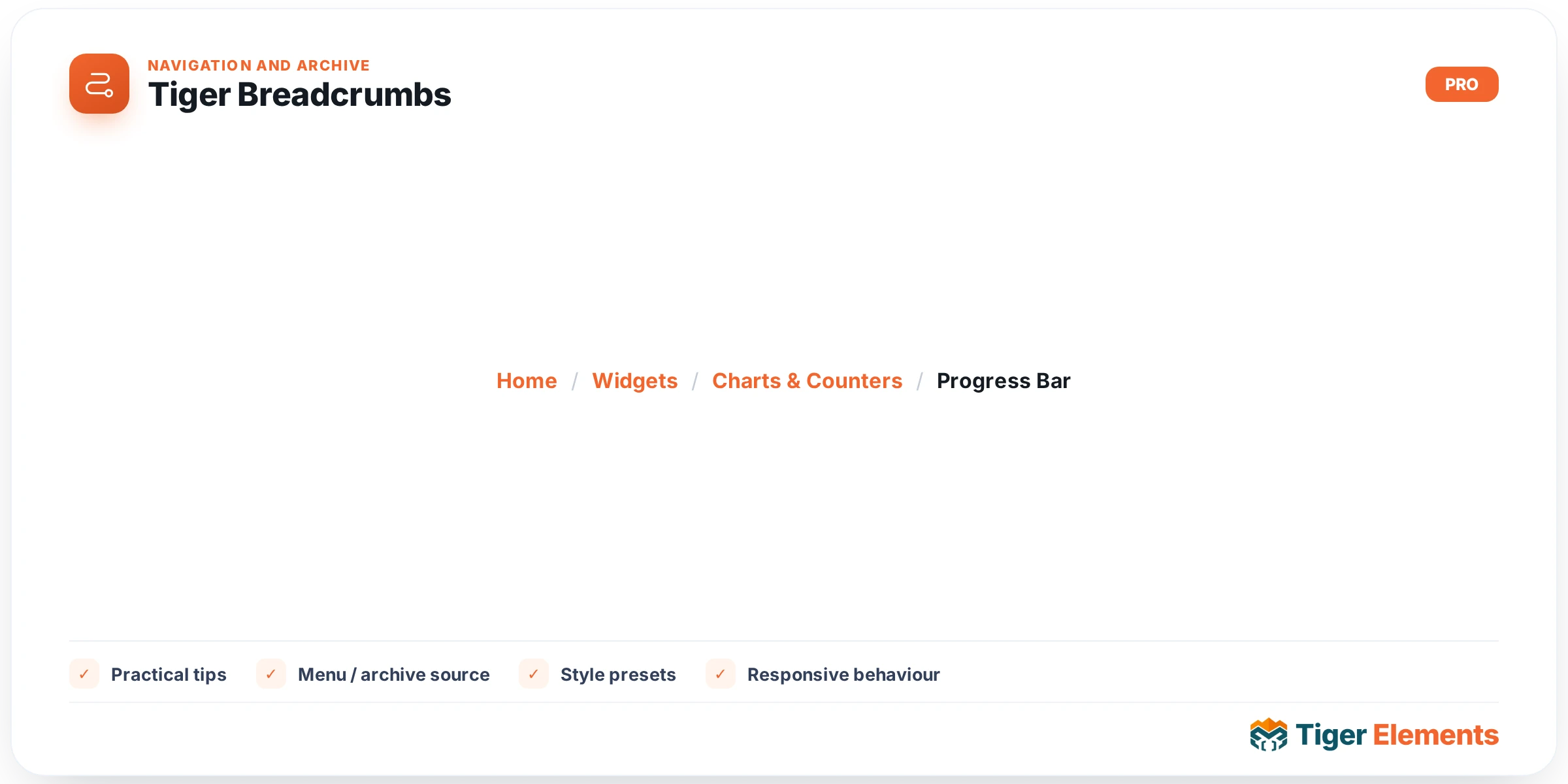
Tiger Breadcrumbs is a dynamic navigation widget that draws a trail of links showing where the current page sits inside the site’s structure — Home / Category / Post Title, or Home / Shop / Product, and so on. It exists because breadcrumb trails are one of the few pieces of UI that genuinely help both visitors and search engines at the same time: they let a user jump back up a hierarchy in one click, and when paired with structured data they let Google render the trail directly in search results instead of a raw URL. Rather than depending on the active theme’s built-in breadcrumb function, which varies between themes and often can’t be styled from Elementor, the widget is fully self-contained — it ships its own flex layout and icon sizing through the plugin’s shared tiger-core.css asset, so it looks and behaves the same regardless of theme.
The widget is context-aware: it inspects the current query and builds a different trail depending on what kind of page it’s rendered on. On a singular post or page it walks up parent pages for hierarchical post types, or prepends the primary category (and that category’s own parent terms) for non-hierarchical types like standard posts. On a post-type archive (e.g. a WooCommerce shop) it links back to the archive root; on a taxonomy, category or tag archive it lists the term’s ancestor terms as links with the current term as the unlinked final crumb; on search results it shows a “Search: [query]” label; and on any other archive it falls back to whatever get_the_archive_title() returns. In the editor itself, where there’s no real query to inspect, it shows a static “Category / Current Page” placeholder purely so you can see and style the layout.
Setting it up
All content controls live in the single Breadcrumbs section. Show Home Link toggles the leading Home crumb; when it’s on, two more fields appear — Home Text (which accepts Elementor dynamic tags, so you could pull the label from a custom field or translation string instead of hardcoding “Home”) and Home Icon, an optional icon rendered just before the text. Show Category Trail only affects non-hierarchical post types: when enabled, a single post’s trail is prefixed with its primary category and that category’s parent terms; the widget’s own tooltip is explicit that this only applies “on single posts.” Show Current Item controls whether the final, unlinked crumb (the page or term you’re actually on) is rendered at all — turning it off is useful if you only want the ancestor links and are showing the page’s own title somewhere else on the layout.
Below that, Separator Type switches between Text (a literal Separator string, defaulting to “/”, also dynamic-tag capable) and Icon (a Separator Icon picker defaulting to a solid Font Awesome chevron). Finally, Breadcrumb Schema (SEO) is a switcher, on by default, that emits a BreadcrumbList JSON-LD block alongside the visible trail. Its description spells out the one real reason to switch it off: if another SEO plugin (Yoast, Rank Math, etc.) already outputs breadcrumb schema, or if you’ve placed more than one breadcrumb widget on the same page, you’ll want only one source of that structured data to avoid duplicate/contradictory markup.
Non-obvious behavior worth knowing
The schema output is smart about noise: it silently skips itself if fewer than two crumbs would end up in the list, since a single-item “trail” isn’t meaningful BreadcrumbList data for Google, and it never fires while editing. The last item in the JSON-LD is allowed to omit its item URL, matching Google’s guidance that the current page doesn’t need a self-referencing link. Every dynamic piece of text is escaped at construction time, and the whole trail is echoed as one pre-built string rather than passed through wp_kses_post() — deliberate, because that function would strip the inline SVG the icon renderer produces for the home and separator icons.
Choosing this widget vs. a related one
Breadcrumbs is one of several dynamic widgets in this catalog that read page context rather than accept static content. Tiger Archive Title and Tiger Archive Description print just the current archive’s title or description as a standalone block — use those for a big page-title treatment, and Breadcrumbs for the trail underneath it; they’re commonly placed together. Tiger Pagination and Tiger No Results handle the bottom-of-list mechanics of an archive loop and don’t overlap with breadcrumb navigation. Tiger Post Navigation (prev/next post links) and Tiger Related Items serve the opposite end of a single post — helping a reader go sideways to adjacent content — whereas Breadcrumbs helps them go up the hierarchy.
Practical tips
- If you place the Breadcrumbs widget in both a header template and a page template, turn Breadcrumb Schema (SEO) off on one instance so search engines only see one BreadcrumbList per page.
- For WooCommerce-style catalogs, remember the category trail only kicks in for non-hierarchical post types with Show Category Trail on; if a product’s primary category has parent categories, all of them render as separate linked crumbs automatically via the ancestor walk, so don’t recreate that hierarchy manually with static text.
- Style the current (non-clickable) crumb distinctly using the dedicated Current Item section — separate typography, color, background, padding and text-shadow controls exist specifically so the final crumb doesn’t look like a dead link.
- Because Home Text and Separator both accept dynamic tags, you can localize or personalize them per page without touching the widget’s static default.