
What Tiger Product Stock Does
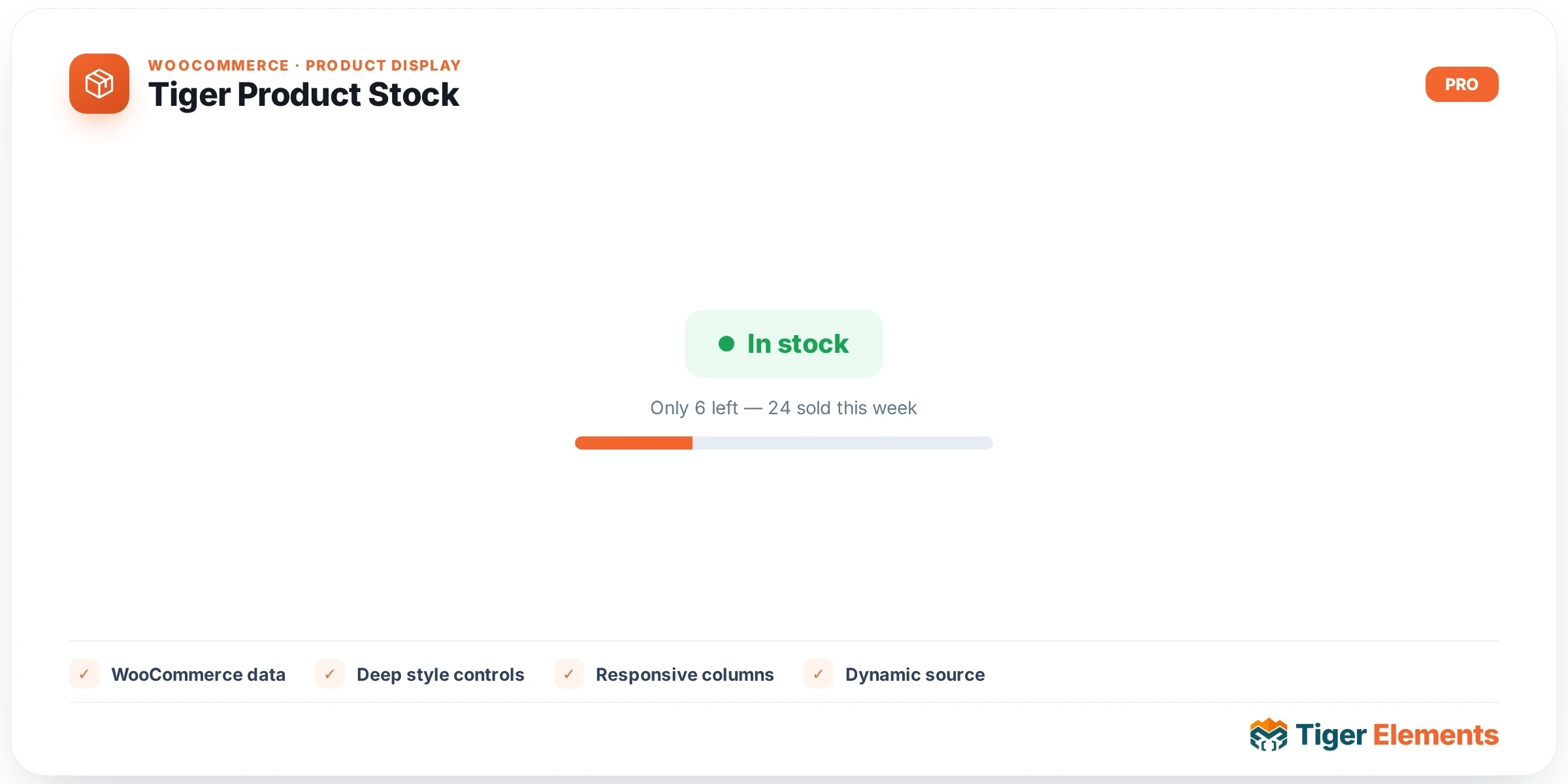
Tiger Product Stock is a small, focused Elementor widget that displays a WooCommerce product’s stock availability — in stock, out of stock, or on backorder — as styled text or a pill-shaped badge. Like the other Tiger dynamic product widgets, it requires WooCommerce to be active and needs a resolvable product in context: it checks the global $tiger_loop_post_id first (for use inside a Tiger loop/archive card), then falls back to get_the_ID() (for single-product templates). If no product resolves, nothing renders.
It exists to give theme builders full visual control over stock messaging without touching code — brand-specific colors per status, an optional status dot, custom label text, and an optional quantity suffix — all of which WooCommerce’s own default markup doesn’t expose through the UI.
Setting It Up in Elementor
The “Stock” content section starts with “Show Quantity (when managed)”, a switcher (off by default) that appends the remaining quantity in parentheses to the label — but only when the product has stock management enabled (managing_stock()) and only while the status is “in stock”. Next, “Show Status Dot” (on by default) toggles a small colored circle before the text. Then come three plain text fields for overriding the default wording: “In-stock Label” (placeholder “In stock”), “Out-of-stock Label” (placeholder “Out of stock”), and “Backorder Label” (placeholder “On backorder”). Leave any of these blank and the widget falls back to the WooCommerce-standard English wording.
The Style tab’s “Appearance” section has “Display As”, a select with two options — “Text” (default, plain inline text) or “Badge (pill)” (adds a `tg-stock–badge` class enabling background/border styling). A responsive “Alignment” choose-control (left/center/right) controls both the wrapper’s text-align and the inner flex justify-content. Below that: a full typography group, a responsive “Dot/Text Gap” slider (default 7px), responsive “Padding” and “Border Radius” (default 4px) controls that only visually matter in badge mode, a responsive “Dot Size” slider (4–24px, default 9px, only shown when “Show Status Dot” is on), and a box shadow group.
Three more Style sections follow — “In Stock”, “Out of Stock”, and “On Backorder” — each with an identical set of four controls: a “Text Color” picker (defaults: green #1a7f37, red #b32d2e, amber #bf7e1a respectively), a “Dot Color” picker (falls back to the text color when left empty), a “Badge Background” color (only shown in badge display mode), and a border group (also badge-mode only).
Non-Obvious Behavior
The quantity suffix logic is stricter than it might appear: even with “Show Quantity” enabled, the quantity only appears if the product actually has stock management turned on ($product->managing_stock()) and the current status is specifically “instock” — it never appends a quantity to out-of-stock or backorder labels, since WooCommerce typically doesn’t track a meaningful positive quantity in those states. If a custom label is set but the field is empty/whitespace-only, the widget still falls back to the WooCommerce-style default text rather than rendering nothing, so blank fields are always safe.
Each per-state “Dot Color” control has an explicit UI hint that it defaults to that state’s text color when left empty — so most builders only need to set the three “Text Color” fields and can skip the dot colors entirely unless they want the dot and text to diverge visually. If WooCommerce isn’t active, the editor shows a “WooCommerce is not active.” notice styled with the “in-stock” class; the live front end just renders nothing.
When to Use vs. Related Widgets
Tiger Product Stock is narrowly scoped to the stock-status line only — it doesn’t touch price, add-to-cart, or rating. Pair it with Tiger Product Rating (for reviews) and WooCommerce’s native/Tiger add-to-cart elements to assemble a full product-card meta row. Use “Badge” display mode when you want stock status to stand out as a colored pill (e.g. on archive/shop cards), and “Text” mode when you want it to sit inline as plain copy inside a single-product layout matching surrounding typography.
Practical Tips
- Set custom labels (“In-stock Label”, etc.) if you sell in a niche where “In stock” reads oddly — e.g. “Ready to ship” or “Available now” — since the widget accepts any plain text, not just WooCommerce’s defaults.
- If you enable “Show Quantity” but nothing shows up, check that stock management is actually turned on for that specific product in WooCommerce’s Inventory tab — the widget deliberately won’t show a quantity otherwise.
- In Badge mode, remember Background and Border controls per state only take effect when “Display As” is set to “Badge (pill)” — they’re invisible/no-ops in Text mode, so don’t waste time tuning them if you’re using Text display.
- For archive cards, keep “Show Status Dot” on and set distinct dot colors per state — the compact colored dot reads faster at a glance in a grid than text alone.