
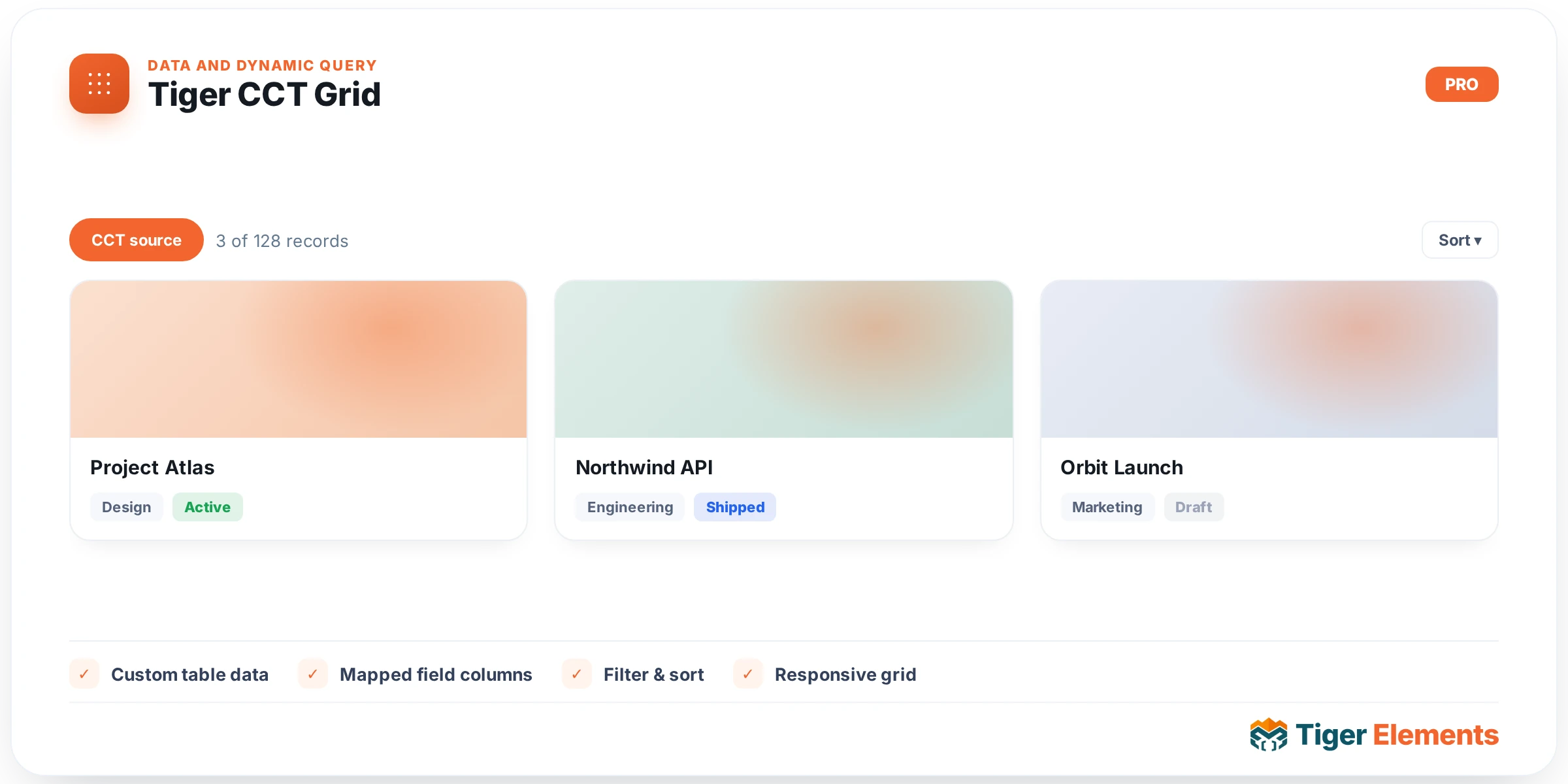
Tiger CCT Grid is the widget that turns a Tiger Custom Content Type (CCT) from an admin-only data store into real front-end content — it lists rows from a chosen CCT in a responsive card grid with real, link-based (SEO-friendly) pagination. A CCT in Tiger’s data engine is a JetEngine-style structured content table: a set of typed fields (text, image, gallery, and so on) that isn’t tied to WordPress posts at all. Where Tiger Query Grid queries WP_Query and posts, CCT Grid queries the CCT store directly through Tiger_CCT, and every field it renders is formatted through the same Tiger_CCT::field_display() helper the CCT dynamic tag uses — so the grid and the dynamic tag are guaranteed to render fields identically.
Choosing the Content Type and Fields
The Content section starts with Content type, a dropdown of every CCT defined under Tiger Elements → Content Types (if none exist, the widget shows an inline notice telling you to create one there first). Fields to show is a repeater where each row has a Field key (the column key from the content type — validated against the real field list at render time, so an unknown or mistyped key is silently skipped rather than breaking the page), a Label override, and a Show label switcher. Leave the repeater empty and every field defined on the type is shown, in definition order.
Card style controls the auto-layout: Cover (image on top + title), Profile (avatar beside text), Minimal (editorial list, no card chrome), or Plain (a flat label/value list — the only preset that shows every field as label+value rather than trying to promote one field to a title). Cover and Profile both auto-detect the first image field as the media and the first non-media field that renders something as the title; this detection logic runs field-by-field, so field order in your CCT definition directly determines what becomes the cover image and title. All of this is bypassed the moment you set Item template to an Elementor Loop Item or Tiger Template — inside that template you use the “CCT Field” / “CCT Image” dynamic tags to pull this item’s data, and the Fields to show and Card style controls both disappear (they’re conditioned on Item template being empty).
Ordering, Paging, and Filtering
Image size (Thumbnail/Medium/Large/Full) governs image and gallery field rendering. Order by offers Newest first, Oldest first, ID (high→low), ID (low→high), or Custom field…, the last revealing Order field key and a Direction select — the render code allow-lists the orderby column against real CCT columns, so a bad custom key falls back safely to newest-first. Items per page (1–100, default 9) and Pagination (on by default) control paging; pagination here is real numbered links that preserve the URL’s other query args and use a per-type query variable, so multiple CCT Grids of different types on one page paginate independently.
The separate Filter section adds a Match (AND/OR) control plus a Conditions repeater (Field key, Operator — Equals, Not equals, Greater/Less than or equal, Contains, Does not contain, In list, Not in list — and Value, which supports dynamic tags), plus a standalone Search field (also dynamic-tag enabled) that free-text matches across all text fields. This filtering is entirely configured in the editor by the builder; there’s no front-end filter UI exposed to visitors.
Style Controls
CCT Grid has the deepest style surface of the data-listing widgets: Layout (responsive Columns as a slider, Column gap, Gap between fields, Alignment), Card (border radius, padding, an Accent color driving links and pagination via a CSS variable, and full Normal/Hover tabs for background/border/box-shadow plus a hover Lift), Field Label (color, typography, text-transform, spacing below), Field Value (color, typography, link color and link hover color), Images (image radius, gallery thumbnail size, gallery gap), and a dedicated Pagination section with Normal/Hover/Active tabs for the pager buttons.
When to Use CCT Grid vs. Related Widgets
Use Tiger CCT Grid whenever your data lives in a Custom Content Type rather than a WordPress post type — team directories, product specs, testimonials, or any structured dataset built purely for display rather than as posts. Use Tiger Query Grid instead for actual WP posts/custom post types with meta or taxonomy filtering. Use Tiger CCT table-row tools (Add/List/Update row) for admin-side data management rather than front-end display. Compare against Tiger Repeater or Tiger Repeater Loop when the “rows” are hand-authored directly inside the widget instance rather than pulled from a shared, reusable CCT data source — CCT Grid is for content that’s managed once and displayed in multiple places, while a repeater is for content that’s local to one widget instance.
Practical Tips
- If cards look empty or a field silently vanishes, check the Field key spelling in the Fields to show repeater — unknown keys are dropped without warning, by design, to prevent rendering arbitrary columns.
- The Cover/Profile presets depend on field order in the CCT definition to guess the title and cover image; if the wrong field becomes the title, reorder fields in the content type itself rather than trying to force it from the grid widget.
- Empty fields are hidden automatically on a per-row basis (via
render_field_row()), so sparse CCT data won’t leave visible blank label/value pairs on cards. - Because pagination uses a per-type query variable, you can safely place two CCT Grids of different content types on one page without their pagers conflicting — but two grids of the *same* type on one page will share pagination state.