
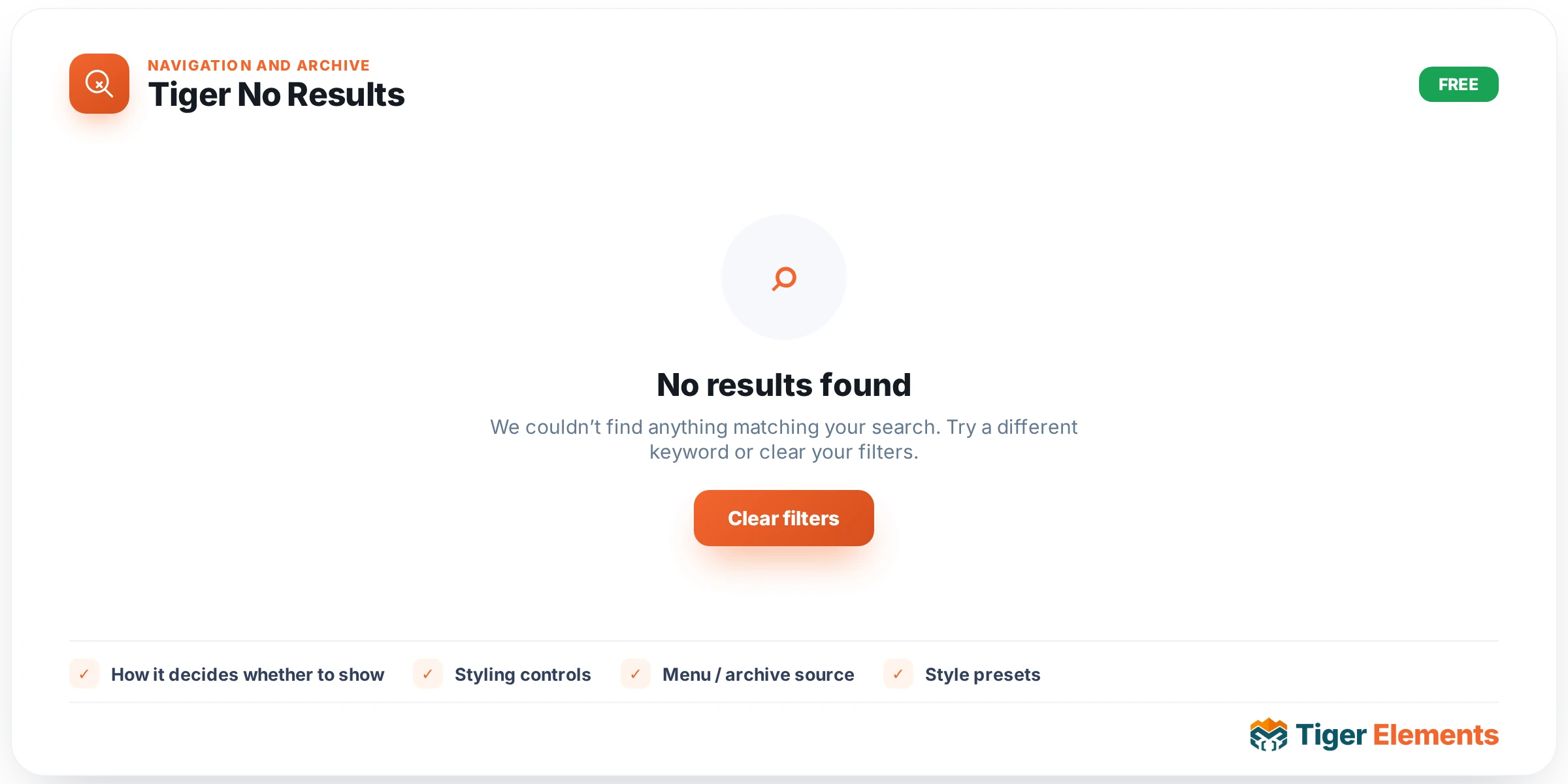
Tiger No Results is the empty-state block for Archive and Search templates. It exists to solve a problem that every archive-based layout eventually runs into: a Dynamic Loop bound to the main query renders nothing when the query is empty, and an Elementor canvas with nothing in it looks broken rather than intentional. Instead of leaving a blank gap where the post grid should be, you drop this widget into the same template as your loop, and it stays invisible until the moment the query genuinely comes back empty — a filtered category with zero posts, a search with no matches, a tag archive that was just emptied out. At that point it quietly appears with a heading, a message, and an optional call-to-action button, turning a dead end into a normal part of the page.
How it decides whether to show
The widget’s render logic checks the global $wp_query object and compares found_posts against zero. If the main query has posts, the widget renders nothing on the front end — it never outputs markup, so it costs nothing on a normal archive page. If found_posts is zero, it prints its wrapper. Inside the Elementor editor this check is bypassed: is_edit_mode() forces the widget to always render so you can style it without needing to fake an empty search result every time you touch a control. This is worth remembering if a client ever says “it always shows in the editor but never on the live site” — that is expected behavior, not a bug.
Setting it up
All content controls live in the No Results section under the Content tab. Show Icon is a switcher (on by default) that reveals an Icon picker defaulting to the Elementor magnifying-glass icon (eicon-search) — appropriate since the widget’s most common home is a search-results template, though you can swap in anything from the icon library or an SVG. Below that sit Heading (default text “Nothing found”) and Message (default: “Sorry, no results matched your criteria. Try a different search or browse another section.”), both plain text fields with Elementor’s dynamic-tag toggle enabled, so you can pull in a dynamic value — for example concatenating the current search term via a dynamic tag — instead of a static string.
The action button is controlled by Show Button (on by default), which reveals Button Text (“Back to Home” by default) and Button Links To, a select with two options: Home Page or Custom URL. Choosing Custom URL reveals a Custom URL field (an Elementor URL control, so it also carries “open in new window” and “nofollow” options that get honored on the rendered link). If you leave it on Home Page, the widget always resolves to home_url('/') regardless of what’s typed elsewhere — there’s no need to hardcode your domain.
Styling controls
The Style tab is split into four sections: Box (responsive alignment, background color, responsive padding defaulting to 48px top/bottom and 24px left/right, a full border group, and responsive border radius), Icon (color, a responsive size slider from 16–120px, and spacing below the icon), Text (separate color and full typography groups for the heading and the message, plus heading spacing), and Button (spacing above, typography, padding, radius, and Normal/Hover tabs each with independent text color and background). Every section maps directly onto real CSS classes — .tg-noresults, .tg-noresults-icon, .tg-noresults-heading, .tg-noresults-message, .tg-noresults-btn — so if you ever need to override something from a theme stylesheet instead of the widget panel, those are the selectors to target.
Choosing this widget over a related one
Tiger No Results is not a replacement for Tiger Pagination, Tiger Archive Title, or Tiger Archive Description — those widgets describe the current archive context (title, taxonomy description, page numbers) and render only when there is content to describe. No Results is the inverse: it is the placeholder for when the query described by those widgets comes up dry. In practice they’re commonly stacked in the same Archive template: Archive Title and Archive Description at the top, the Dynamic Loop and Pagination in the middle, and No Results placed right after the loop so it fills the same visual slot the moment the loop has nothing to show.
Practical tips
- Because the empty check reads the live
$wp_query, this widget only behaves correctly on templates that actually run the main query — an Archive or Search results template in the Theme Builder. Dropping it into a static page where the main query is a single post will show it constantly, sincefound_poststhere is effectively irrelevant to your intended use case. - Use the Message field’s dynamic-tag support to echo back the visitor’s search term (e.g. “No results for ‘{{search_query}}’”) rather than a generic message — it reads as far more helpful and is a one-control change.
- If you’re building a filtered shop or portfolio archive where AJAX filtering swaps results without a full page reload, remember this widget’s visibility is decided server-side at render time; it won’t react to client-side filter JavaScript unless your filter also triggers a real query reload.
- Keep the button pointed at Home Page for general search pages, but switch to a Custom URL — such as an unfiltered version of the same archive — when the widget sits inside a heavily filtered category view, so visitors land somewhere more relevant than the site root.