
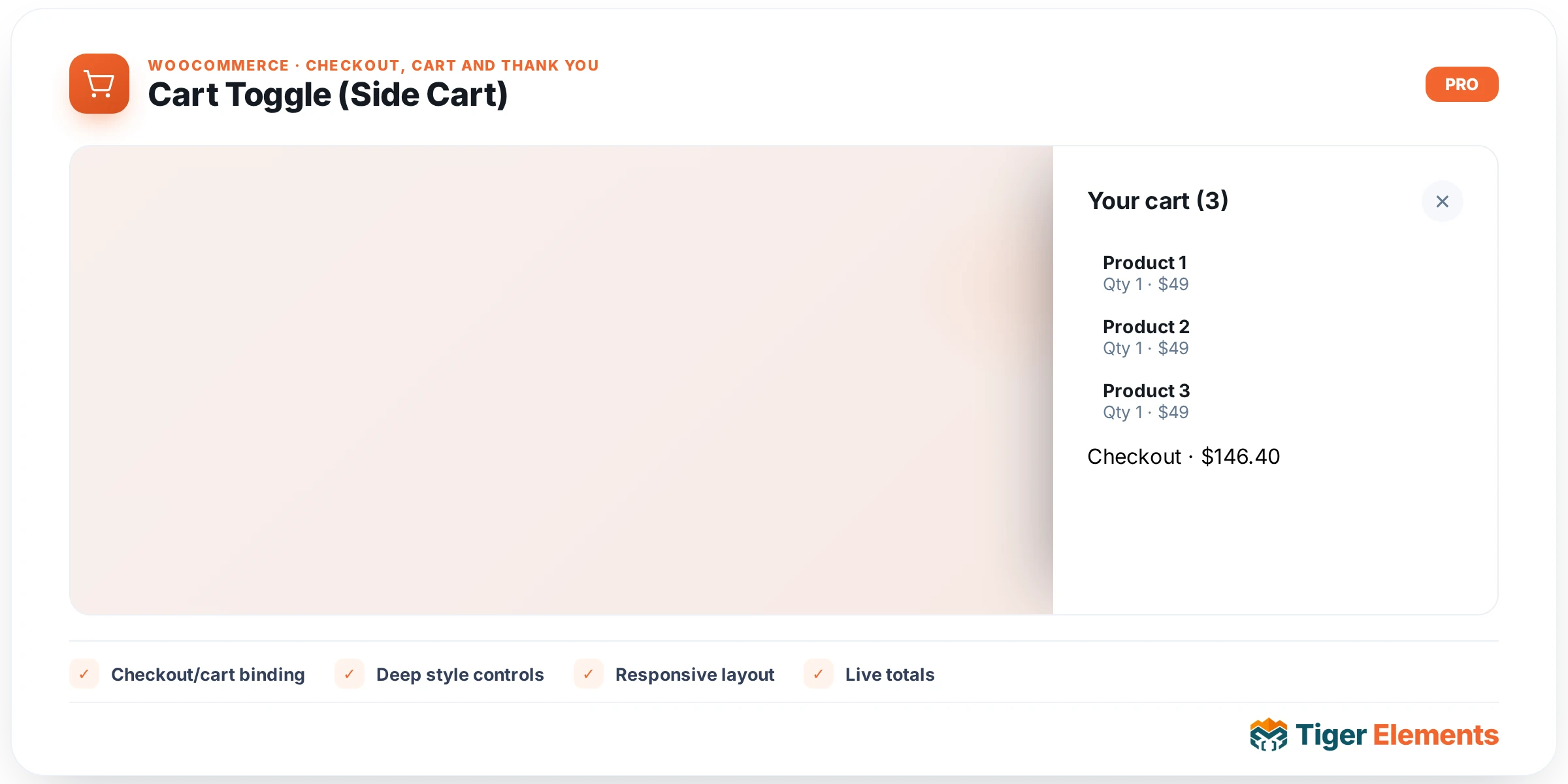
What the Cart Toggle widget does
Cart Toggle is a small trigger widget: a button — typically placed in the header — that opens Tiger’s off-canvas side cart drawer (.tiger-sidecart) so shoppers can review or edit their cart without leaving the page they’re on. It doesn’t render any cart contents itself; it’s purely the icon-and-badge control that toggles the drawer open and closed. This split matters because it lets you drop a compact cart icon anywhere in your header or a sticky bar while the actual line-item list, quantities, and totals live in the separate side cart drawer markup that the theme/plugin renders once, globally.
The widget class extends the same Tiger_Woo_Checkout_Base used by the checkout-page widgets (for the WooCommerce-readiness guard), even though it isn’t a checkout form field itself — it lives in the same widgets folder because it’s part of the overall cart-to-checkout conversion flow rather than the checkout page specifically.
How to set it up
Drop the widget into your header template. Content controls are: Icon (an Elementor icon picker, defaulting to a solid shopping-bag icon — swap it for a cart or bag icon that matches your brand), Show Count Badge (a switcher, on by default, that displays the current cart item count as a small badge), Show “Cart” label (off by default — a switcher that reveals a text label next to the icon), and Label (the text shown when the label switcher is on, default “Cart”, and dynamic-tag enabled).
Style controls are simpler than the field-widgets: a plain Style section with Color (applies to the whole .tiger-cart-toggle element, covering icon and label together) and Icon Size, a slider from 12–60px that sizes the icon/SVG. This widget does not call the shared add_common_style_controls() Fields section — there’s no form field here to style, just an icon button.
Non-obvious behavior
The count badge is not static markup frozen at page load — a script listens for WooCommerce’s own wc_fragments_refreshed, updated_wc_div, added_to_cart, and removed_from_cart events and rewrites the badge’s number from the side cart’s own fragment-refreshed count every time. That means adding a product from any AJAX add-to-cart button elsewhere on the site — not just from the drawer itself — updates this badge instantly, with no full page reload, because it’s riding on WooCommerce’s existing cart-fragments mechanism rather than implementing its own polling.
Clicking the toggle button doesn’t submit a form or navigate anywhere; a delegated click handler (bound to both the .tiger-cart-toggle class and a [data-tiger-cart-toggle] attribute, so any custom element carrying that data attribute can also open the drawer) opens the side cart drawer and its overlay, and clicking the drawer’s own close button or the overlay closes it again. Because the click handler is delegated at the document level rather than bound per-instance, you can safely place more than one Cart Toggle widget on the same page (for example, one in a desktop header and a second in a mobile menu) and both will open the same shared drawer correctly.
If WooCommerce isn’t active or ready, the widget renders nothing at all (it returns early rather than showing a placeholder) — so on a site without WooCommerce it silently disappears rather than showing an error, which is the right behavior for a header element that should never look broken to a visitor who isn’t shopping.
When to use this widget vs. related widgets
Cart Toggle is the trigger, not the destination — it’s the button that opens the drawer, not a widget that lists cart contents, computes totals, or lets someone check out. If you need a page that actually displays line items, quantity steppers, and subtotal/total math (a full cart page or a review-order block), that’s a separate cart-table/cart-totals-style widget, not this one. Use Cart Toggle anywhere you want a persistent, always-visible cart affordance — typically the site header or a sticky mobile bar — and pair it with your cart drawer/cart page widgets that handle the actual contents. Placing more than one instance across breakpoints is fine and expected; placing this widget on the checkout page itself is unusual, since checkout already shows order review inline.
Practical tips
- If you disable Show Count Badge, consider whether shoppers still have another visual cue that items are in their cart — the icon alone gives no state feedback once the badge is off.
- Because the badge relies on
wc_fragments_refreshed, if a custom add-to-cart integration on your site bypasses WooCommerce’s fragments API entirely, the badge won’t update from that action — stick to standard WooCommerce AJAX add-to-cart flows for the badge to stay accurate. - It’s safe and common to add a second Cart Toggle instance in a mobile-only header row; both instances share the same drawer, so there’s no risk of them getting out of sync.
- Set Icon Size and Color to match your header’s other icon-only controls (like a search or account icon) so the toggle doesn’t stand out as visually inconsistent in a row of header icons.