
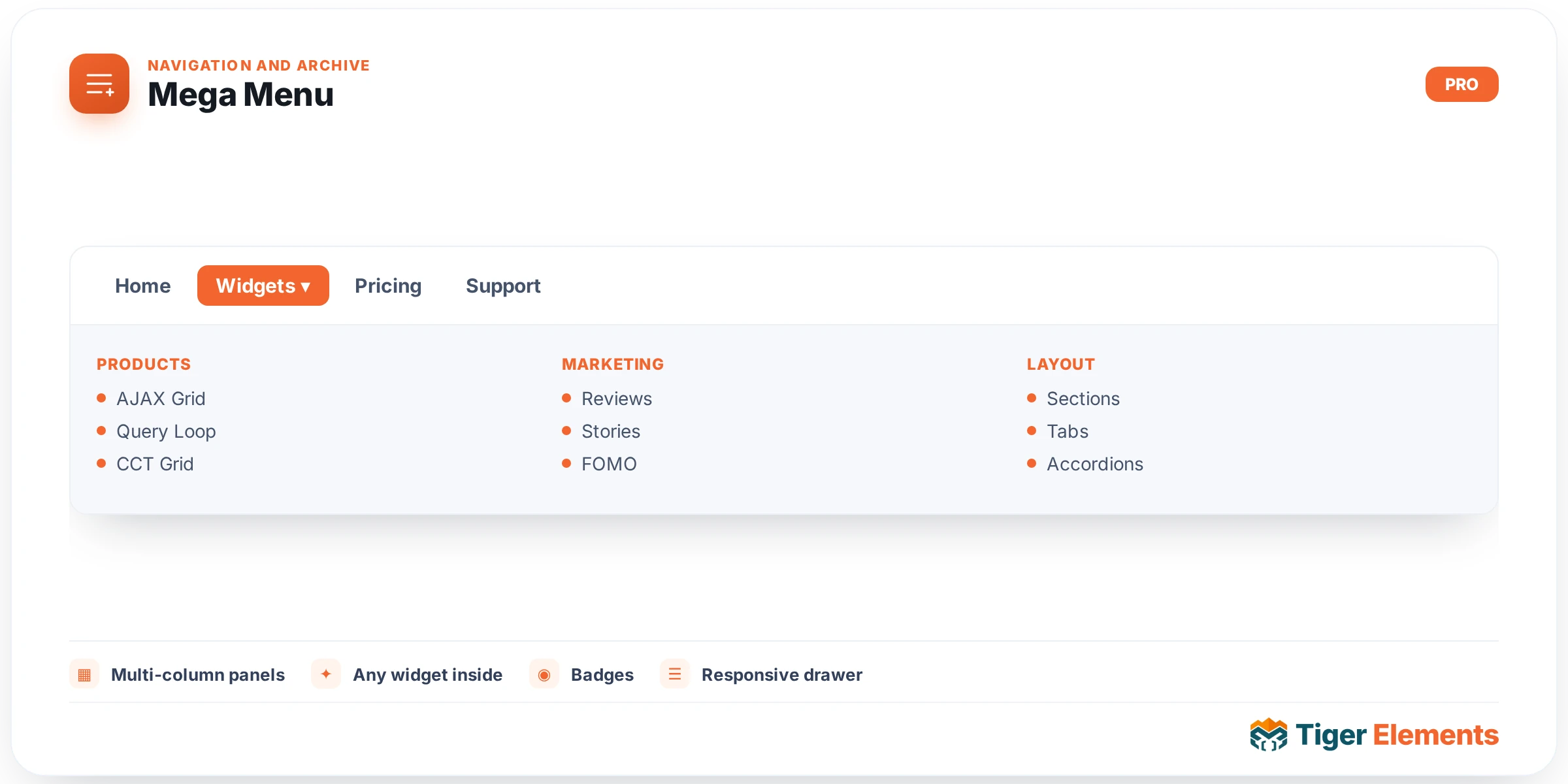
Turns a standard WordPress navigation menu into a multi-column dropdown mega menu without leaving Elementor or hand-coding any custom markup. A conventional dropdown menu is limited to a simple vertical list of links per item — fine for a small site, but genuinely restrictive once a store or content-heavy site needs to surface images, multiple columns of related links, or a promotional block the moment a visitor hovers over a top-level nav item like "Shop" or "Services".
Choosing which menu to enhance
Start by selecting the Menu this widget should render — any menu already created under Appearance → Menus, the same menus WordPress uses everywhere else on the site. This means the mega menu widget doesn’t require building a separate, parallel navigation structure just to get mega-panel functionality; it enhances a menu you likely already have, keeping menu-item management in the familiar WordPress menu editor rather than scattering navigation content across two different systems.
Assigning mega panels per item
The core of the widget’s power is the Assign Mega Panels repeater, which lets you pick a specific Target Menu Item from that menu (via a searchable select) and pair it with a Select Tiger Section — a saved section template built through the Theme Builder — that becomes that item’s dropdown content in place of the default simple link list. Critically, this pairing happens per menu item, not for the whole menu at once: a "Shop" item can be assigned a rich, multi-column mega panel showing product categories with thumbnail images and a featured promotion, while an "About" item right next to it stays a completely ordinary single-link dropdown (or no dropdown at all, if it has no sub-items). This mixed approach matters in practice because forcing every single menu item into a mega-panel format regardless of whether it actually needs that complexity tends to make simple destinations feel unnecessarily heavy, while genuinely content-rich sections benefit enormously from the extra real estate.
Why a section, not a fixed panel layout
As with the Off-Canvas widget, the mega panel content is a real Elementor section rather than a set of predetermined fields — meaning a mega panel isn’t limited to, say, a fixed 3-column link grid the widget author anticipated. It can contain product-category cards with images, a limited-time offer banner, a newsletter signup, or any combination of ordinary widgets a designer wants to place inside that dropdown, because it’s genuinely just a saved section being rendered in a different context than usual.
Lazy-loading mega panels
Lazy-load mega panels is a meaningful performance decision, not just a minor toggle. Without it, every assigned mega panel’s full markup, images, and any scripts they depend on load as part of the initial page render, even for panels a visitor may never open during their visit — a real cost on a site with several rich mega panels attached to different menu items. With lazy-loading on, each panel’s content only loads the moment a visitor actually hovers or taps to open that specific menu item, meaning the page’s initial load carries none of that weight, and only the panels a visitor genuinely interacts with are ever fetched.
Practical tips
- Reserve mega panels for menu items that genuinely benefit from the extra space — a large product catalog, a services list with several distinct categories — and leave straightforward destinations (Home, Contact, About) as ordinary simple dropdowns or plain links.
- Turn on Lazy-load mega panels whenever more than one or two menu items carry a mega panel, since the combined weight of several rich panels loading up front on every page view adds up quickly.
- Design each mega panel section at the actual width it will render at inside the dropdown — building it at full page width first and squeezing it into a dropdown afterward tends to require rework.