
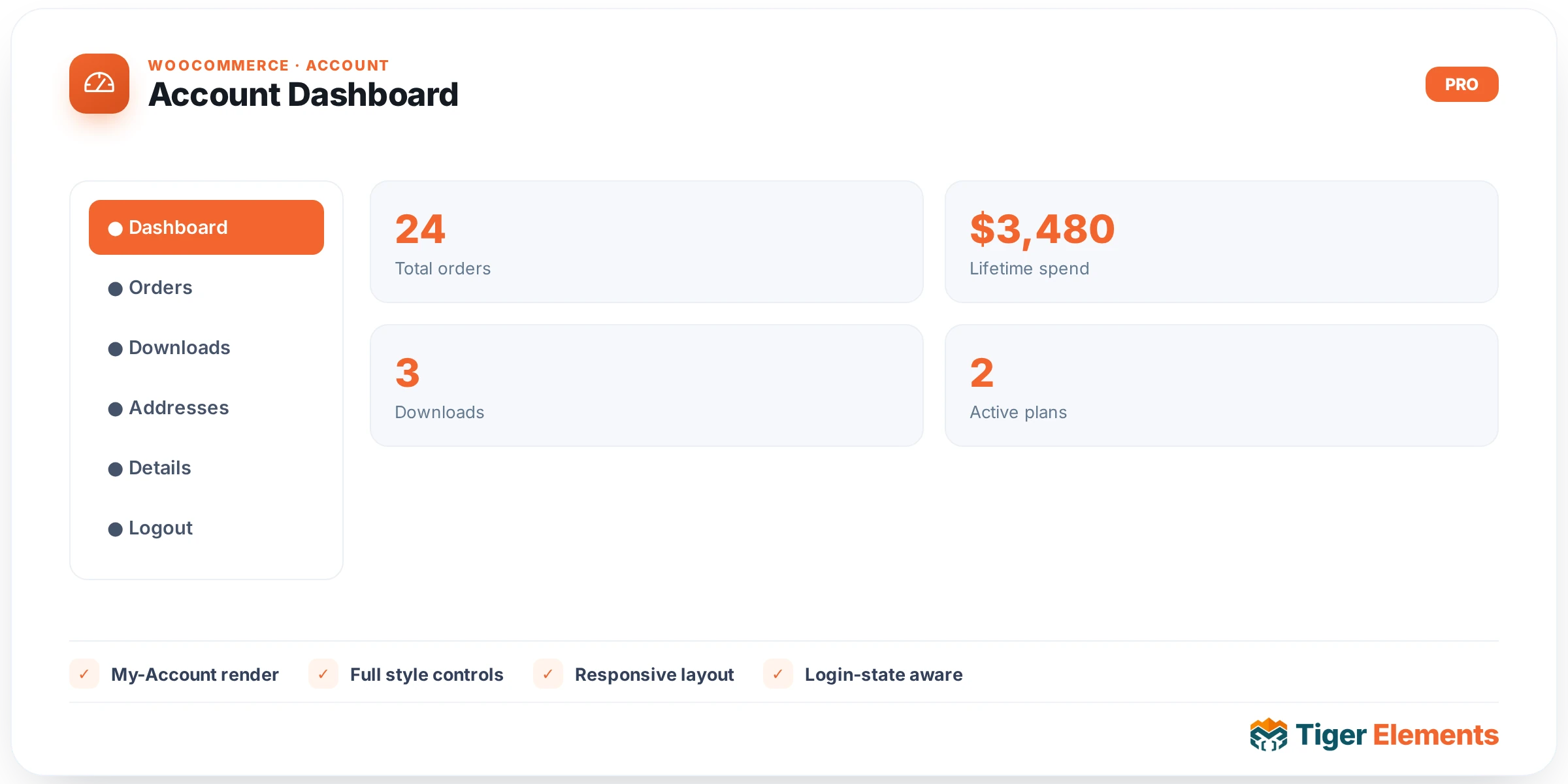
What the Account Dashboard widget does
The Account Dashboard widget is the WooCommerce “welcome” screen for a logged-in customer — the page that greets a shopper the moment they land on My Account and shows a short summary along with links to recent orders, addresses, and account details. Like its siblings in the tiger-woo-account-widgets.php file, it is a thin Elementor wrapper: its render() method does not build any HTML of its own beyond a wrapping <div class="tiger-woo-account-dashboard woocommerce">. It hands off entirely to WooCommerce’s native myaccount/dashboard.php template via wc_get_template(), passing the current WP_User object as current_user — exactly the variable the stock template expects. Whatever the dashboard normally shows on a default WooCommerce install — the “Hello, {name}” greeting, the account summary paragraph, and any content that other plugins hook into the woocommerce_account_dashboard action — will show here unchanged.
Why it exists as a separate widget
WooCommerce’s My Account page is really a router across roughly seven separate “endpoints” (dashboard, orders, addresses, edit-account, and so on), each with its own template and its own URL segment. Tiger Elements mirrors that separation by giving each endpoint its own Elementor widget — Account Dashboard, Account Orders, Account Addresses, Account Details, plus a login widget and a navigation widget. That granularity is the entire point: it lets you design a fully custom My Account page layout in Elementor, placing the navigation widget in a sidebar and swapping in whichever endpoint widget matches the current URL segment, rather than being stuck with WooCommerce’s built-in page structure and CSS. Because Dashboard only calls the dashboard template, dropping it onto a page that also happens to have the Orders widget will not merge their content — each widget renders only its own endpoint’s markup regardless of what else is on the page.
Setting it up
The widget’s Content tab is intentionally empty — there is a “Dashboard” section in register_controls() but it contains no controls at all, and no style controls are added either (unlike the Login/Register and Account Details widgets, which pull in a shared “Fields” style section from the checkout base class). That means the Dashboard widget has zero configuration surface in Elementor: you place it, and it renders. Any visual customization has to happen through Elementor’s generic Advanced tab (margin, padding, custom CSS/classes) or through your theme’s own WooCommerce account styling, since there are no widget-specific colour or typography controls to reach into the dashboard markup.
In practice this widget is almost always used together with the Account Navigation widget, since a real My Account page needs a way to move between dashboard, orders, addresses and details. It’s typically the widget placed on whatever page or template corresponds to the bare /my-account/ URL, with the other endpoint widgets living on parallel page/section variants triggered by the matching WooCommerce endpoint.
Non-obvious behaviour
If the visitor isn’t logged in, the widget doesn’t try to render anything from WooCommerce at all — it calls the shared render_placeholder() helper from Tiger_Woo_Checkout_Base, which prints a simple dashed-border “Login required.” box (inline-styled, not themeable through widget controls). That’s a deliberate difference from the Login/Register widget, which checks WooCommerce readiness rather than login state. In the Elementor editor, this placeholder will show for any admin who happens to be logged out of the front end session being previewed, which can be confusing the first time you see it — it does not mean the widget is broken, it means the preview needs an authenticated session.
Practical tips
- Because this widget has no style controls, don’t spend time hunting for a “Style” tab — customize it with Elementor’s Advanced → Custom CSS on the widget, or via global WooCommerce account CSS in your theme.
- Always test this widget while logged in as a real customer account, not just as an admin, since role capabilities can otherwise mask problems in third-party dashboard hooks.
- If you want a short account summary somewhere other than the main My Account page (e.g. a header dropdown), this widget is the right building block — just remember it still requires WooCommerce and a logged-in session to render anything.
- Pair it with the Account Navigation widget so customers always have a way back to the dashboard from the orders/addresses/details views.