
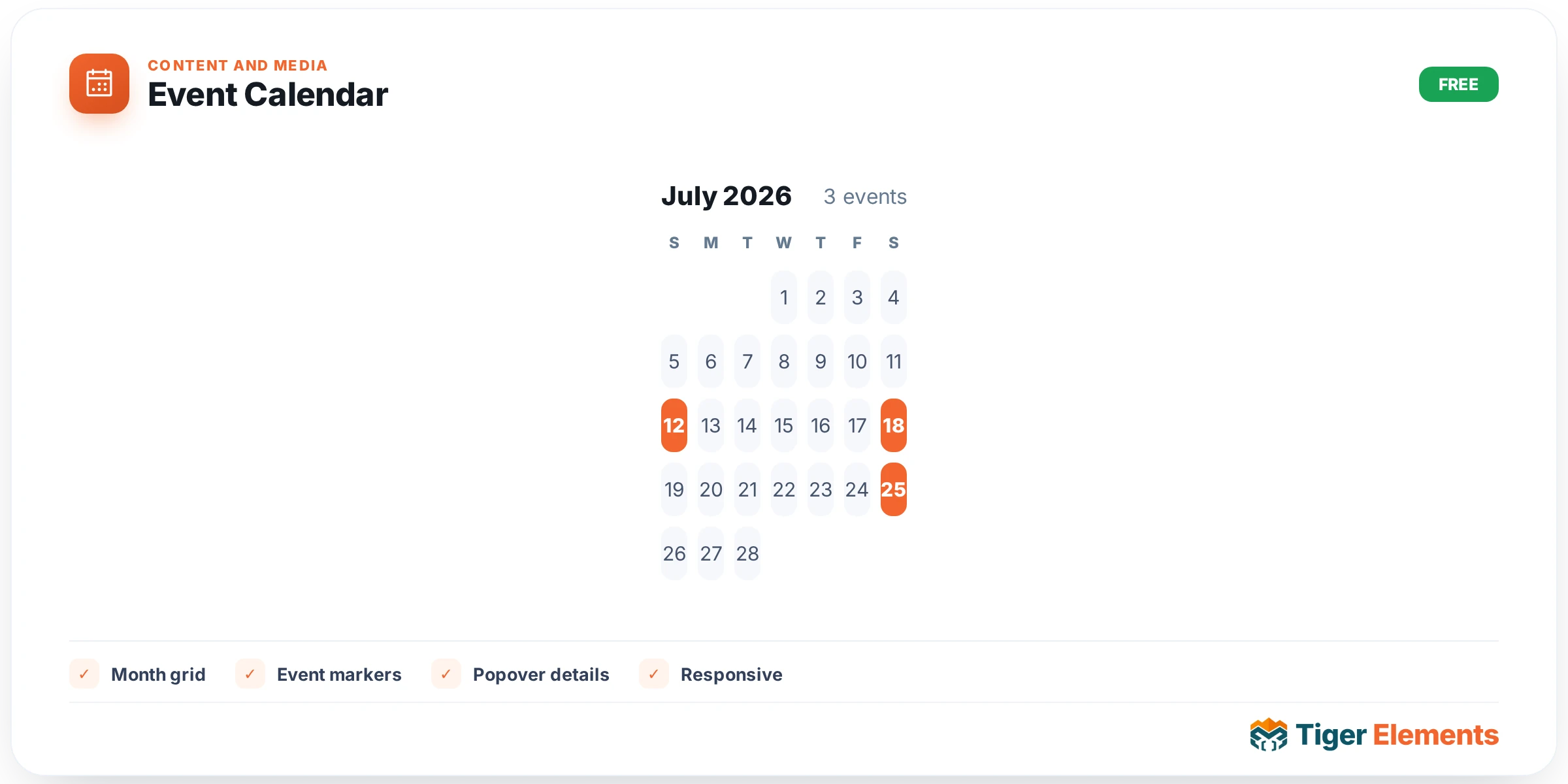
The Event Calendar widget renders a genuine month-grid calendar on the front end — the kind of component that closes a real gap in Elementor’s default toolkit versus plugins like JetEngine Calendar or Essential Addons’ Event Calendar. Rather than a static list of upcoming dates, it draws a full weekday grid with day cells, lets visitors click through months without a page reload, and can optionally show an agenda list underneath the grid. It is built for anyone who needs to publish a recurring schedule — a studio’s class timetable, a church’s service calendar, a restaurant’s special nights, a conference’s session dates — without reaching for a dedicated events plugin.
Choosing a Source
Everything starts in the Events content section with the Source control, a simple choice between Manual events and Dynamic (post type + query). Manual mode exposes an Events repeater where each row has a Title, Date, an optional End Date (explicitly meant “for multi-day events”), a free-text Time Label (e.g. “6:00 PM”), a Description, an Image, a Link, and a per-event Colour. This is the fastest path for a handful of hand-curated events, and the per-event colour is genuinely useful for colour-coding categories (workshops in orange, socials in blue, and so on) directly on the calendar pills.
Switching Source to Dynamic reveals the widget’s more powerful mode, and this is where the Saved Tiger Query integration lives. A new Query Source control appears with two options: Build here, which keeps the classic inline configuration, or Saved Tiger Query, which lets you drive the whole calendar from a reusable query created elsewhere in Tiger’s Query Builder (this control only shows up when the `Tiger_Query` class is available, i.e. the Query Builder module is active). Choosing Saved Tiger Query reveals a Saved Query select populated from `Tiger_Query::choices()`, listing every query you’ve saved. The widget’s own description is explicit about the mapping rules: Posts and Relation queries are placed on the calendar using the Date Meta Key field below the query picker; CCT (Custom Content Type) queries use that same field as a CCT field key instead; and Users, Terms, or Comments source queries have no natural “event date” concept and are simply skipped. When a saved query is selected, the inline Post Type control and the entire “Query Filter (Include / Exclude)” taxonomy/author filter section are hidden — the reasoning baked into the code is that a saved query already defines its own source and filters, so showing both would be redundant and ambiguous.
If instead you leave Query Source on “Build here,” you configure the dynamic feed manually: Post Type (any public, non-attachment post type), Date Meta Key (the custom field holding the event date, in Y-m-d or timestamp format — leave blank to fall back to each post’s publish date), Time Meta Key, and toggles for Use Excerpt as Description and Use Featured Image, plus a Max Events cap (default 100). A full include/exclude Query Filter section (by taxonomy and author) sits right below, reusing Tiger’s shared query-filter component so the behaviour matches other dynamic widgets like Query Grid or AJAX Grid.
Calendar Behaviour and Rendering
The Calendar section controls how the grid behaves: Default View switches between “Month Grid” and “Agenda List” as the initial view, Week Starts On defaults to the site’s own `start_of_week` option (Sunday or Monday), and Max Pills Per Day (1–10, default 3) caps how many event pills show before a cell overflows. Switches control Month Navigation (prev/next arrows), a “Today” Button (only shown when navigation is on), a Grid / List Toggle, an Agenda List Below Grid panel, Highlight Today, and Thumbnails in Agenda. Architecturally, the widget’s own header comment explains that the server emits every event as a single JSON payload once, and client-side JavaScript rebuilds the grid per month — so month navigation is instant with no server round-trip. There’s also an Output Event Schema (JSON-LD) switch, on by default, which emits structured Event data for SEO rich results; the description notes to turn it off if another plugin already emits event schema, or if the events are placeholder/demo content.
The Style tab is unusually thorough for a calendar widget, with dedicated sections for Container (accent colour, background, padding, border, radius, shadow, grid line colour), Header & Navigation (title alignment and typography, plus normal/hover tabs for the nav buttons), Weekday Row, Day Cells (including a distinct “Other-Month Background” for days outside the current month and separate Today marker colours), Event Pills, and the Agenda List.
Practical Tips
Set the Date Meta Key precisely to match how your data is actually stored — if it’s off by one character the dynamic source will silently show zero events, since there’s no validation feedback in the panel. When using a Saved Tiger Query against a CCT, remember the Date Meta Key field is repurposed as the CCT field key, not a WordPress post-meta key, so double-check you’re pointing at the CCT’s actual column name. For colour-coded manual events, set the per-event Colour on each repeater row rather than relying only on the global Event Pills background, since per-event colours intentionally override the style-tab default. Finally, if you’re publishing genuinely public events (open to search engines), leave Output Event Schema on — it costs nothing and improves the odds of rich snippets — but switch it off for internal, staff-only, or demo calendars to avoid emitting misleading structured data.