
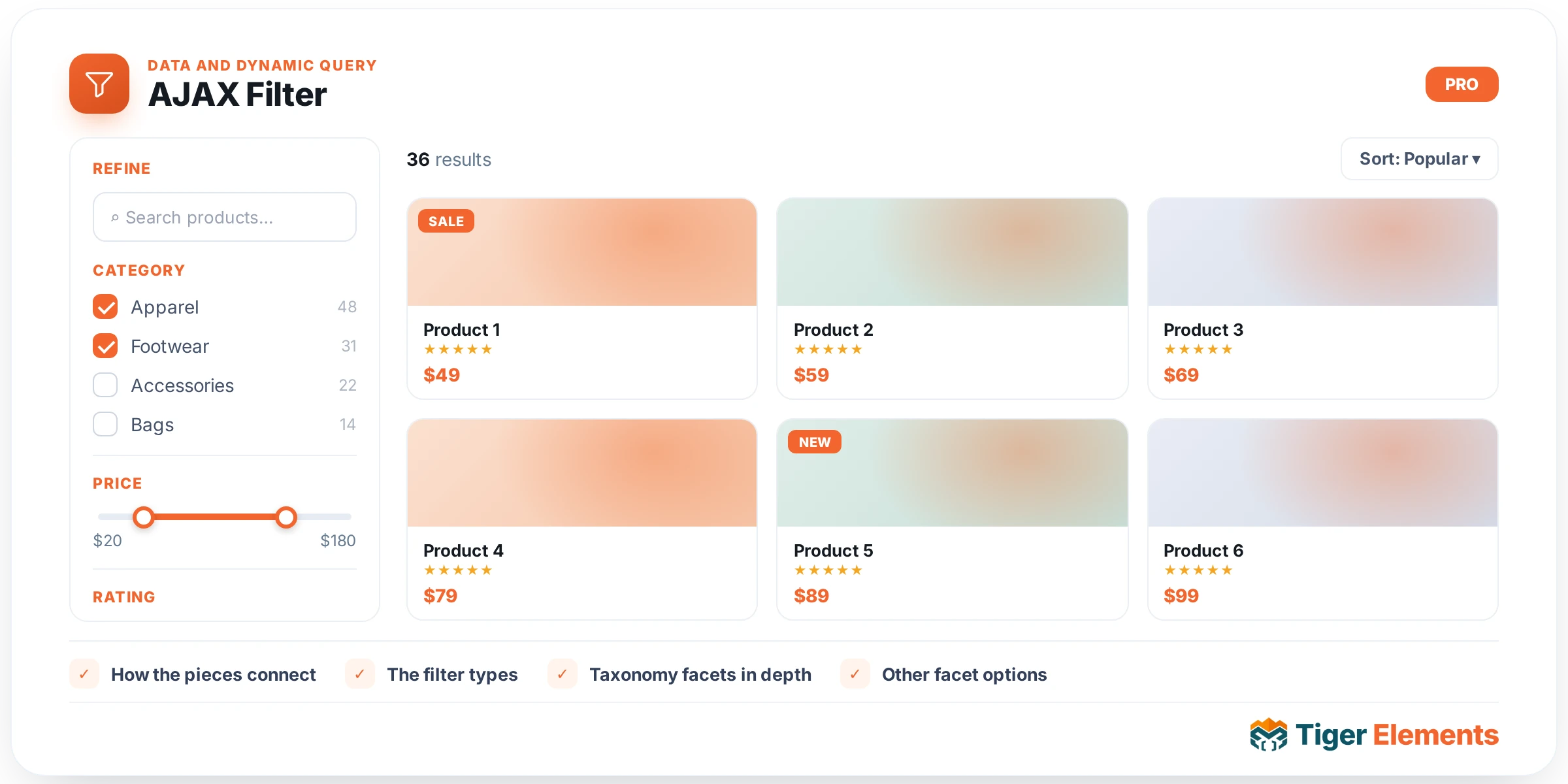
The Tiger AJAX Filter is a companion widget for the Tiger AJAX Grid. Each filter is a single widget set to one Filter Type; drop several of them onto the page, give them all the same Connection ID as the grid, and together they form a complete faceted-search bar that refreshes the grid over AJAX — no page reload.
Where: Elementor editor → search for Tiger AJAX Filter (Tiger Elements category). Pair it with a Tiger AJAX Grid on the same page.
How the pieces connect
Every filter and the grid it drives share a Connection ID (set in the filter’s Sync section). When a visitor interacts with a filter it emits a standard event on that connection — a taxonomy filter, a search string, or a sort choice — and the grid debounces those events and re-runs its query. You can mix as many filters as you like on one Connection ID: a search box, two taxonomy facets, a price range, a sort dropdown, a results counter and a reset button all cooperating to filter the same grid.
Turn on Sync to URL to reflect the active filter state as query parameters (e.g. ?category=news&s=launch), which makes filtered views shareable and bookmarkable.
The filter types
Pick one per widget from the Filter Type control:
- Taxonomy Buttons — one-click pill buttons. Optionally Allow Multi-Select (OR logic), and lay them out as a wrapping block or a single scrollable Slider row with arrows.
- Taxonomy Dropdown — a compact
<select>for the same terms. - Taxonomy Checkboxes — multi-select list; the Multiple Terms Match control chooses ANY (OR) or ALL (AND) logic.
- Taxonomy Radio — single-select, with accessible radio-group semantics.
- Search Input — a debounced keyword box (optional icon and clear button).
- Sort Dropdown — lets visitors reorder results (newest, title, most discussed, random, and more).
- Price / Numeric Range — min/max filter against any numeric meta key (defaults to
_pricefor WooCommerce). - Date Range — from/to date pickers against the published or modified date.
- Active-Filter Chips — shows every applied filter as a removable chip.
- Results Counter — a live “N results” readout.
- Clear / Reset Button — clears all active filters at once.
Taxonomy facets in depth
The four taxonomy modes (Buttons, Dropdown, Checkboxes, Radio) share a rich set of options:
- Taxonomy, plus an optional “All” option with a custom “All” Label.
- Show Post Count — renders “(N)” beside each term.
- Live Result Counts — true faceted search: as visitors filter, each term shows how many results it would return given the other active filters, and zero-match terms can grey out & disable, grey out but stay clickable, or hide completely.
- Searchable Terms — adds a search box above a long term list (brands, locations, tags).
- Hide Empty Terms, Hide Uncategorized, and Term Order By (Name, Post count, Slug, Term ID).
Other facet options
- Search — Placeholder, Show Search Icon, Show Clear Button, and a Debounce (ms) delay (default 350) so it queries only after typing stops.
- Sort — choose which Sort Options to expose and an optional Label.
- Price / Numeric Range — Meta Key, Default Min / Max, Step, a Value Prefix ($) and an Apply Button Label.
- Date Range — Date Field (published or modified) with custom From / To labels.
- Active-Filter Chips — optional Empty-State Text; leave blank to hide the widget until a filter is applied. Each chip’s × removes just that filter.
- Results Counter — a Counter Template using the tokens
{found},{current}and{max}, plus Loading and No-Results text. - Clear / Reset — a Button Label, optional icon, and Hide When No Filters Active so it only appears once something is applied.
Building a filter bar (walkthrough)
- Add a Tiger AJAX Grid and note (or set) its Connection ID.
- Add a Tiger AJAX Filter, choose a Filter Type, and set the same Connection ID in its Sync section.
- Repeat for each facet you want — e.g. a Search input, a Taxonomy Checkboxes facet with Live Result Counts, a Sort dropdown, a Results Counter and a Clear button.
- Optionally enable Sync to URL on the filters so the state is shareable.
Tips
- Turn on Live Result Counts on your taxonomy facets for a true faceted experience — visitors never hit a dead-end zero-result combination.
- Always add a Clear / Reset button and an Active-Filter Chips widget so people can see and undo what they’ve applied.
- For product attributes and tags where items carry several terms, use Checkboxes with Multiple Terms Match → ALL (AND).
Troubleshooting
“Set a Connection ID matching the target AJAX Grid…”
The filter shows this placeholder until you enter a Connection ID. Copy the exact ID from the grid into the filter’s Sync section — the two must match character-for-character.
The filter renders but the grid doesn’t change.
Confirm both widgets share the same Connection ID and are on the same page, and that the grid is a Tiger AJAX Grid (the filter only drives that grid). Mismatched IDs are the most common cause.
Live counts aren’t updating.
Live counts require the Live Result Counts switch on the taxonomy facet; they recompute against the other active filters on that connection each time the grid re-queries.
Turning the suite on or off
Every filter widget — the AJAX Filter, all 15 discrete facet widgets and the mobile Filter Drawer — is controlled by a single Filter Suite module switch under Tiger Elements → Settings → Modules. Switching it off unregisters the whole suite in one place (their code stops loading entirely) instead of toggling seventeen widgets by hand. Your grids are unaffected: the AJAX Grid, Product Grid and Dynamic Loop keep rendering normally without any filter attached.