
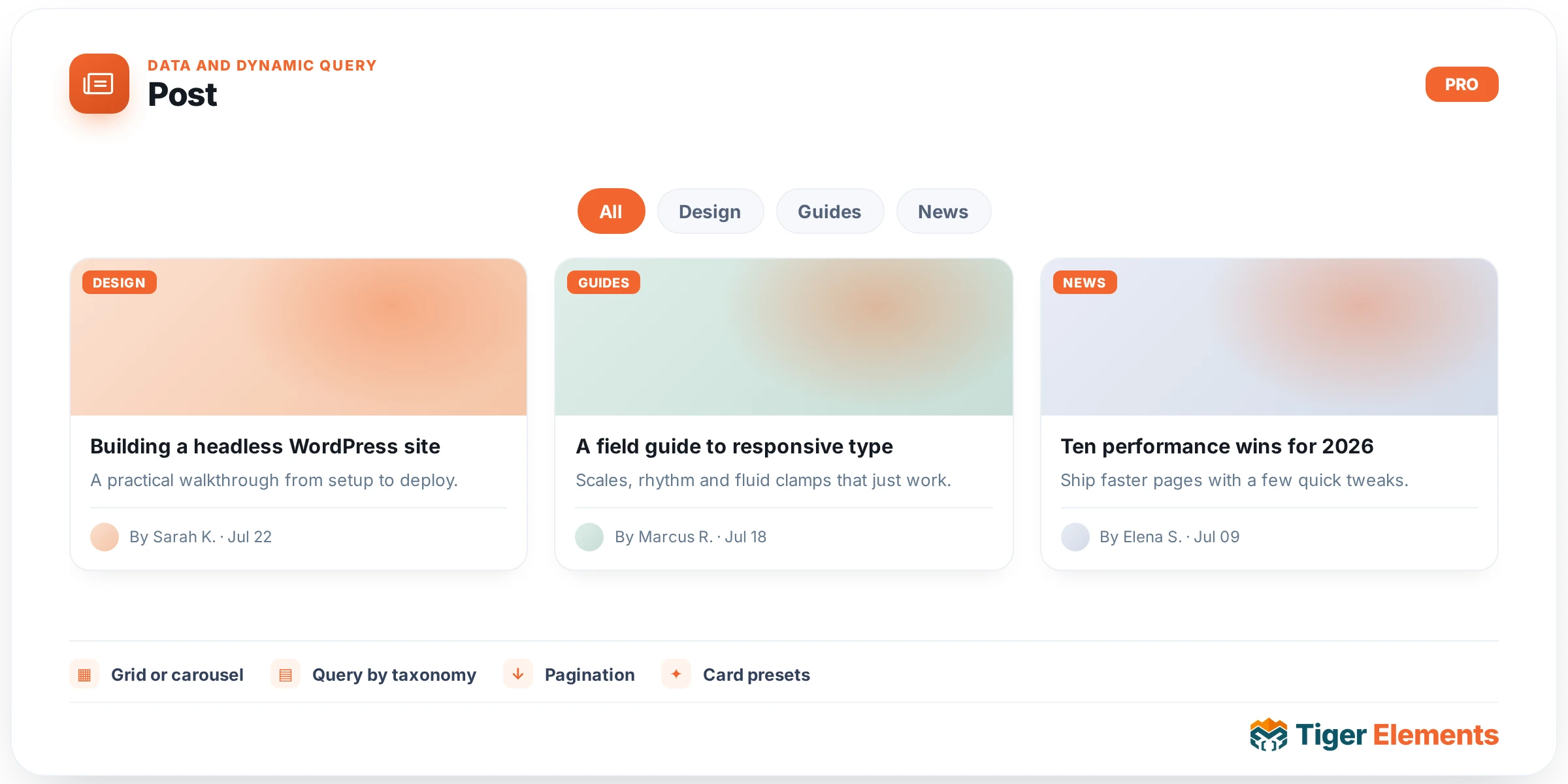
The Tiger Post widget is the plugin’s dedicated blog/post display block: a purpose-built way to pull WordPress posts (or any public post type) into a carousel or grid, with the trimmed card fields — thumbnail, title, excerpt, author, date, a Read-More button, and category badges — that a blog listing actually needs. It exists because generic query widgets (Tiger Query Grid, AJAX Grid, Dynamic Loop) are template-driven and open-ended, while Tiger Post is opinionated: it ships its own card markup, its own carousel engine (the bundled Tiger Swiper, fully isolated from Elementor’s own Swiper build so there’s no version conflict), and a matching Style tab built specifically for blog cards. If you want a fast, no-template blog feed or featured-posts carousel, this is the widget built for that job.
Setting Up the Query
Everything starts in the Posts Query content section. The Layout control is the first decision: Carousel or Grid. This single switch reshapes the rest of the panel — choosing Grid reveals the Columns (a responsive control with independent Desktop/Tablet/Mobile values, default 3/2/1) and Rows (Grid Only) controls, while Carousel unlocks an entirely separate Carousel Settings section further down. Next is Source, a dropdown populated dynamically from every public post type registered on the site (not just “Post” — if you have Products, Portfolio, or a custom post type, they all appear here), defaulting to Post. Number of Posts caps the query at 1–100 items (default 4). Order By offers Date, Title, Random, or Post ID, paired with an Order control for Descending/Ascending.
Category and tag filtering is deliberately not duplicated inside this section — the widget defers to a shared component, Tiger_Post_Query_Filter, which appears as its own section below the Posts Query panel. That shared filter is post-type aware: because it reads whatever you picked in Source, its Include/Exclude taxonomy pickers automatically adjust to show the correct taxonomies for that post type (so picking a custom post type surfaces that type’s own taxonomies rather than blog categories).
Card Content Toggles
Below the query settings are the card-content switchers: Show Author and Show Date (both default on), and a Show Read-More Button switcher. When the button is enabled, three dependent controls appear: Button Text (a dynamic-tag-enabled text field defaulting to “Read More”), Button Icon (an icon picker), and Icon Position (Before Text / After Text — this control itself only shows once an icon value is actually set). Finally, Show Category Badge toggles the small category label rendered on each card.
Carousel Settings
When Layout is set to Carousel, the separate Carousel Settings section appears with its own responsive Slides View control (how many cards show at once — default 3/2/1 across breakpoints) and responsive Space Between (a pixel slider for gutter width, default 30/20/10px). Beyond sizing, there’s Autoplay, Show Navigation Arrows (which reveals Prev Arrow Icon and Next Arrow Icon pickers defaulting to solid FontAwesome arrows), Show Pagination (dot indicators), and Loop for infinite looping. None of these carousel controls apply in Grid mode — Elementor’s condition system hides them entirely so the panel stays uncluttered when you’re building a static grid instead.
Style Controls
The widget carries five dedicated style sections beyond Content: Carousel Style, Content Style, Navigation Style, and Pagination Style, covering things like carousel background (solid and gradient), title typography and color, and card padding. This is meaningfully more style surface than a bare query-grid widget offers, because Tiger Post’s markup is fixed rather than template-driven — there’s a known DOM structure to target with polished, purpose-built controls, rather than leaving styling to whatever template the user builds.
When to Use Tiger Post vs. Related Widgets
Reach for Tiger Post when you want a blog/news feed or featured-posts carousel with standard fields and don’t need custom per-item layouts — it gets you there in minutes with real Style tab coverage for the card, navigation, and pagination. Reach for Tiger Query Grid instead when you need conditional filtering by custom fields or taxonomies with AND/OR logic, or when you want each result rendered through a fully custom Elementor loop-item template rather than the fixed Tiger Post card — Query Grid supports meta/taxonomy condition repeaters and an optional per-result template, which Tiger Post does not. Reach for AJAX Grid or AJAX Filter when the audience needs to filter or paginate results client-side without a page reload. Tiger Post’s own pagination is carousel-only (dot indicators inside the Swiper), not the numbered link-based pagination those other widgets use for grid layouts.
Practical Tips
- Because Source lists every public post type, this widget doubles as a lightweight “featured items” carousel for custom post types (e.g., Products, Portfolio, Team) as long as those types don’t need custom fields shown — it only prints title, excerpt, author, date, and a button.
- If cards look identical across Desktop/Tablet/Mobile, check that you’ve set values in the responsive fields for Columns, Slides View, and Space Between — leaving a breakpoint blank falls back to the responsive default rather than inheriting your desktop value.
- The Icon Position control for the Read-More button only appears after you’ve actually picked an icon in Button Icon — if you don’t see it, that’s why.
- Use the shared Include/Exclude filter section (appearing right after Posts Query) rather than hunting for category controls inside the main panel; it’s intentionally centralized there and adapts automatically to your chosen Source post type.