
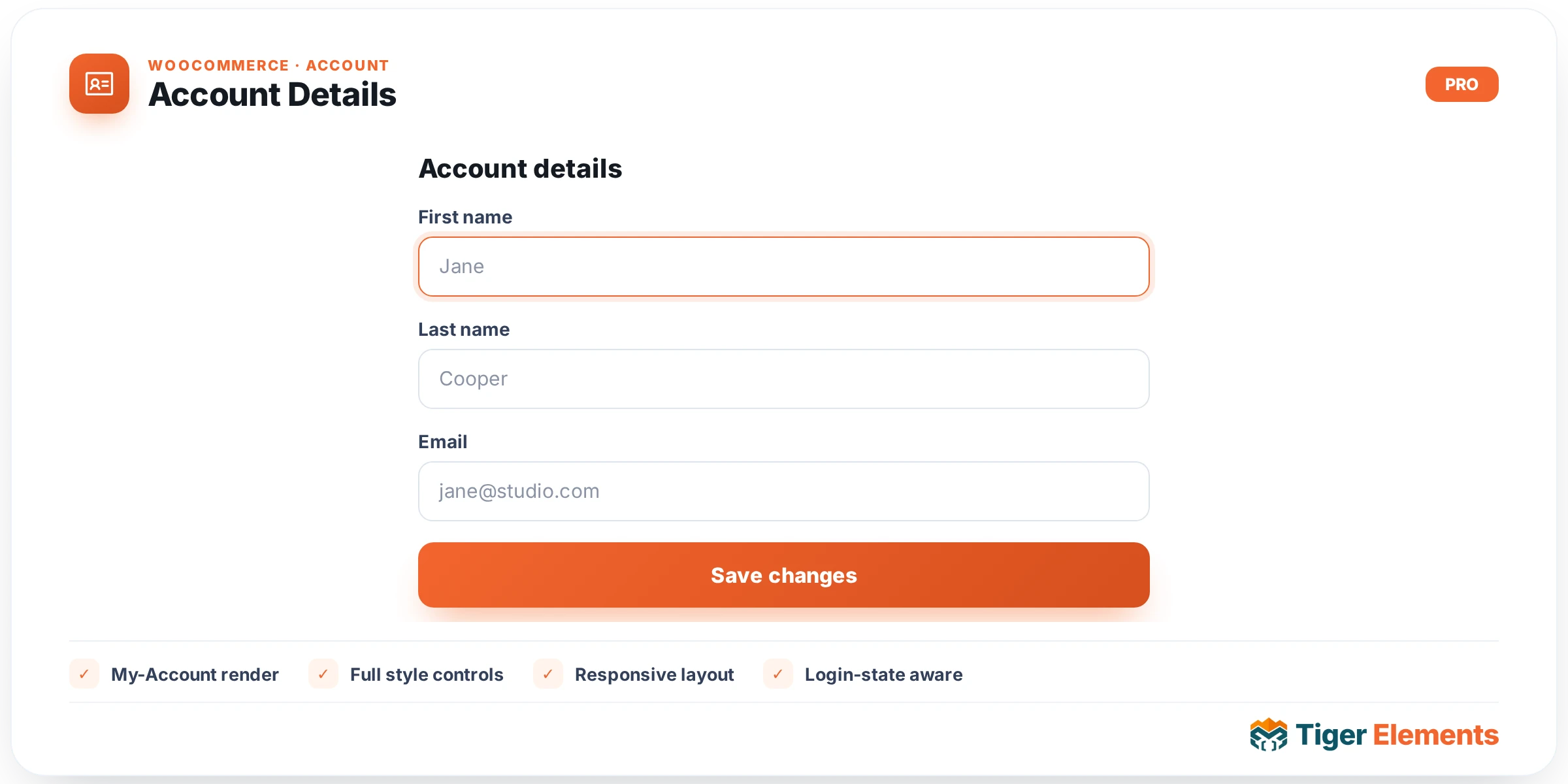
What the Account Details widget does
The Account Details widget renders WooCommerce’s “Account Details” endpoint — the form where a customer edits their display name, email address, and password. In tiger-woo-account-widgets.php, its render() method requires a logged-in session, then wraps a call to wc_get_template( 'myaccount/form-edit-account.php', [ 'user' => get_user_by( 'id', get_current_user_id() ) ] ) inside <div class="tiger-woo-account-details woocommerce">. The passed-in user object is exactly what the stock WooCommerce template expects, so the fields, validation, and “Save changes” behaviour are unchanged from what you’d get on a default, non-customised My Account page — including the password-change fields, which only submit and apply a new password when the customer actually fills them in.
Why it’s a separate widget
Account Details completes the set of endpoint-specific widgets — Dashboard, Orders, Addresses, Details, and Navigation — that together let a designer rebuild the entire WooCommerce My Account page in Elementor while keeping each endpoint’s underlying logic untouched. Keeping “edit my details” as its own widget means it can be placed on its own dedicated section or page (matching the WooCommerce edit-account endpoint) without pulling in order history or address cards, and it can be styled independently from the rest of the account experience.
Setting it up
The Content tab’s “Account Details” section has no controls — there’s nothing to configure about what fields show or how the form behaves, since that’s entirely WooCommerce’s domain. Where this widget differs from Dashboard, Orders, and Addresses is that it does call add_common_style_controls() from the shared Tiger_Woo_Checkout_Base class, which adds a “Fields” section under the Style tab with genuinely useful controls: Label Color and a full label Typography group (targeting label and .woocommerce-form__label), Field Background, Field Text Color, Field Border Color (targeting input.input-text, textarea, and .select2-selection), responsive Field Padding, and Field Radius. These are the same style controls shared with the Login/Register widget, so if you want a visually consistent look across the login screen and the account-details form, set them the same way on both widgets.
Non-obvious behaviour
Because the password fields are part of WooCommerce’s stock template, leaving them blank on submit simply skips the password change — the widget doesn’t add any extra confirmation step or strength meter of its own; whatever WooCommerce version is installed determines that behaviour. A logged-out visitor sees the shared “Login required.” placeholder box, consistent with the other account-endpoint widgets in this file. There’s no email-change confirmation flow added by the widget either — if a store uses a plugin that requires email-change verification, that plugin’s hooks into WooCommerce’s account-details save process will fire exactly as they would outside Elementor, since nothing about the save handler is bypassed or duplicated.
When to use it vs. related widgets
Use Account Details specifically for self-service profile editing inside a logged-in My Account layout. It is not a registration form — for new-account creation, WooCommerce’s registration fields live inside the Login/Register widget’s template instead, or, for non-WooCommerce use cases, the separate site-wide Registration Form widget from the tiger-account module. Don’t reach for this widget if you need a public-facing profile form for logged-out users; it hard-requires an authenticated session and will show only the login placeholder otherwise.
Style controls in a bit more depth
The “Fields” style section deserves a closer look because it’s the only real customisation surface this widget has. The label typography group control is a full Elementor typography set (font family, size, weight, line-height, letter spacing, transform), so headings like “First name” or “Display name” can match a theme’s form styling without any custom CSS. The field colour and border controls apply broadly — they’ll style the name, email, and password inputs identically, since WooCommerce’s template doesn’t distinguish field types in its markup beyond the shared input.input-text class. Because the border-radius control is a single slider rather than per-corner dimensions, expect uniform rounding across every field rather than asymmetrical corners; if a design calls for that level of control, custom CSS targeting .tiger-woo-account-details input is still the fallback.
Practical tips
- Reuse the same Field style settings (colors, typography, padding, radius) across this widget and Login/Register for a consistent look between the sign-in and profile-editing screens, since both pull from the identical shared control set.
- Remember the password fields are optional on save — don’t assume a customer submitting the form without touching them indicates an error; that’s expected WooCommerce behaviour.
- If a security or membership plugin hooks into account-details save (e.g. to enforce 2FA or re-verification), test that flow through this widget specifically, since it’s a real code path, not a mockup — the save handler is WooCommerce’s own.
- Place this widget on the dedicated edit-account endpoint page/template rather than mixing it into the main dashboard, to keep the account layout’s URL structure aligned with what WooCommerce’s own links (e.g. “Edit account details” in the Dashboard widget) expect to route to.