
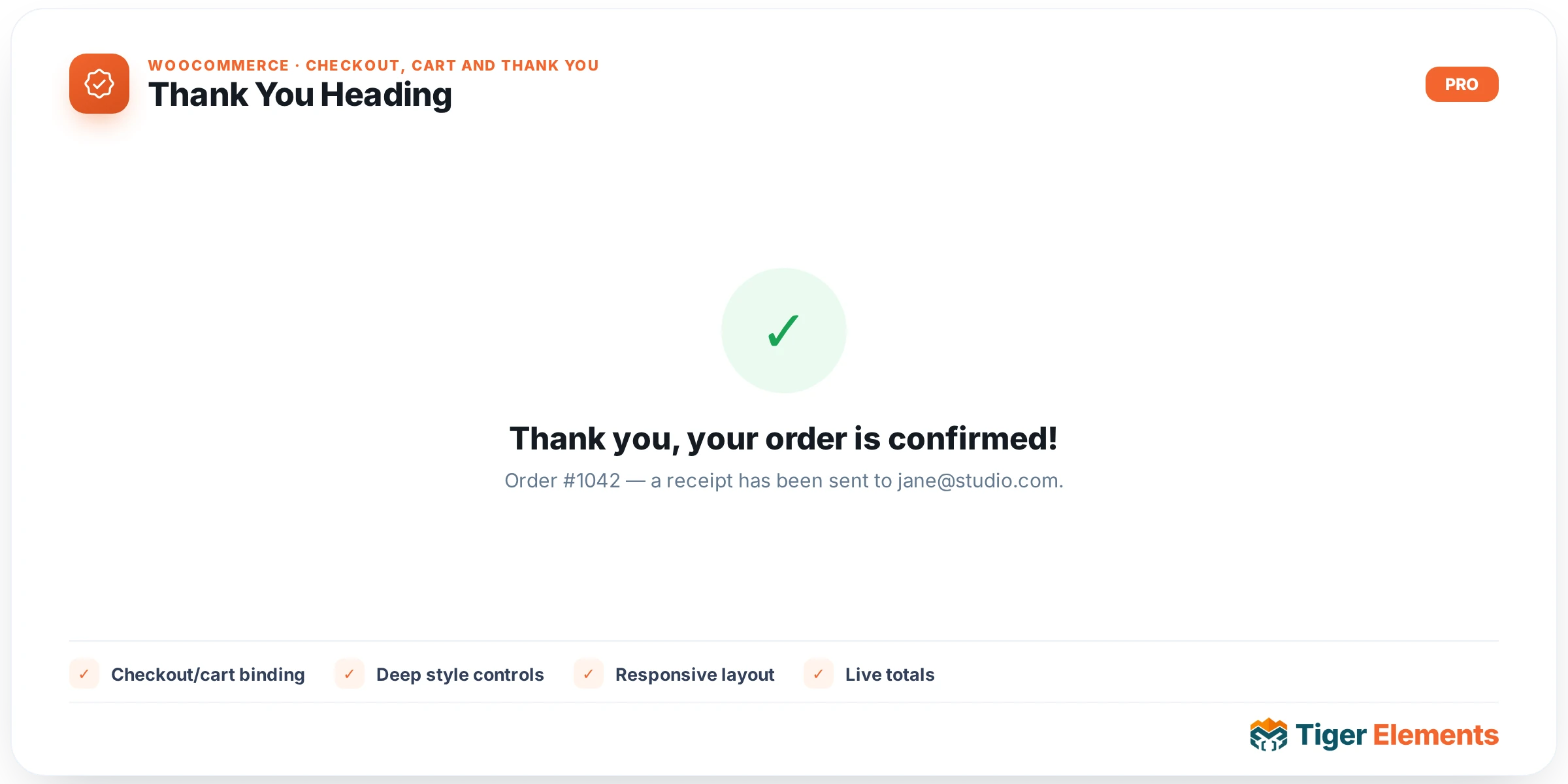
What Thank You Heading does
Thank You Heading renders a single dynamic headline on the order-received page — the classic “Thank you, [name]! Your order #1234 is confirmed.” message — but built from a token-based text template and full Elementor typography controls, rather than the theme’s hardcoded WooCommerce thank-you text. It exists as its own widget separate from Order Details, Customer Details, and Downloads because a headline needs different placement and styling than a data table: it’s usually large, centered, and the first thing a customer sees after paying, while the other thank-you widgets are dense, tabular, or conditional content placed further down the page.
How to set it up
The Content section has two controls: Text (a dynamic-tag-enabled text field, default "Thank you, {first_name}! Your order #{order_id} is confirmed.") and HTML Tag (a select of H1/H2/H3, default H1). The Text field’s description documents the available tokens: {first_name}, {last_name}, {order_id}, {total}, and {email} — all substituted from the live WooCommerce order at render time. You can rewrite the whole sentence, drop tokens you don’t want, or reorder them freely; anything in the field that isn’t a recognized token is left as literal text.
The Style tab has a Color control and a full Typography group control (font family, size, weight, spacing, line-height, etc.), both scoped to the rendered .tiger-ty-heading element — the widget doesn’t expose the shared Fields style section (label/field colors, borders, padding) since it isn’t rendering any form inputs.
Non-obvious behavior
The order the heading pulls data from isn’t hardcoded to “the current page” — it’s resolved by a shared helper function (tiger_woo_current_order()) used across all four thank-you widgets in this family, with a specific fallback chain:
- First it checks the
order-receivedquery var (the standard WooCommerce order-received URL structure), then falls back to a raw?order=GET parameter if present. - If neither resolves to a real order and you’re inside the Elementor editor, it falls back to the single most recent order in the store, purely so you have real data to preview and style against while building — this preview fallback never happens on the live front end.
- If no order can be resolved at all outside the editor (e.g., someone visits the thank-you page URL directly with no order context), the tokens simply aren’t substituted and the raw default text with unresolved
{tokens}would show — so this widget is only meant to live on an actual order-received template/page, not a generic page. - The
{total}token runs throughwc_price()and then strips HTML tags, so it renders as a plain formatted amount (e.g., “$49.99”) rather than the styled price markup WooCommerce normally wraps totals in — you can’t independently style the currency symbol or decimals within this token.
Thank You Heading vs. Order Details / Customer Details / Downloads
All four thank-you widgets share the same order-resolution logic but render completely different WooCommerce regions:
- Thank You Heading (this widget) — a single customizable headline built from order tokens; the only one of the four with no dependency on WooCommerce’s own templates beyond reading order fields directly.
- Order Details — renders WooCommerce’s native
order-received.phpmeta strip (order #, date, total, payment method) plus the fullorder-details.phpline-item table, with a toggle to show/hide the meta strip. - Customer Details — renders WooCommerce’s native billing/shipping address block from
order-details-customer.php. - Downloads — renders the downloadable-file links table, and only appears at all when the order actually contains downloadable products.
Use Thank You Heading purely for the personalized greeting/confirmation line; reach for the other three widgets when you need the actual structured order data (line items, addresses, download links) rather than a headline.
Practical tips
- Don’t rely on this widget alone to confirm order success to the customer — if it’s placed on a page with no resolvable order context, the tokens won’t substitute, so always pair it with real testing against a completed checkout, not just editor preview (which silently substitutes the latest store order).
- Keep the HTML Tag semantically correct for the page: since this is usually the primary heading of the order-received page, H1 is the right default — reserve H2/H3 for cases where this widget sits below another true page H1 elsewhere in your layout.
- If you want a shorter confirmation (no order number, just a name), simply remove the
{order_id}token from the Text field — unused tokens don’t need to be “disabled” anywhere else. - Because
{email}pulls the order’s billing email directly, avoid using it in headings on shared/public-facing screens (like an in-store kiosk) where displaying a customer’s email address might not be appropriate.