
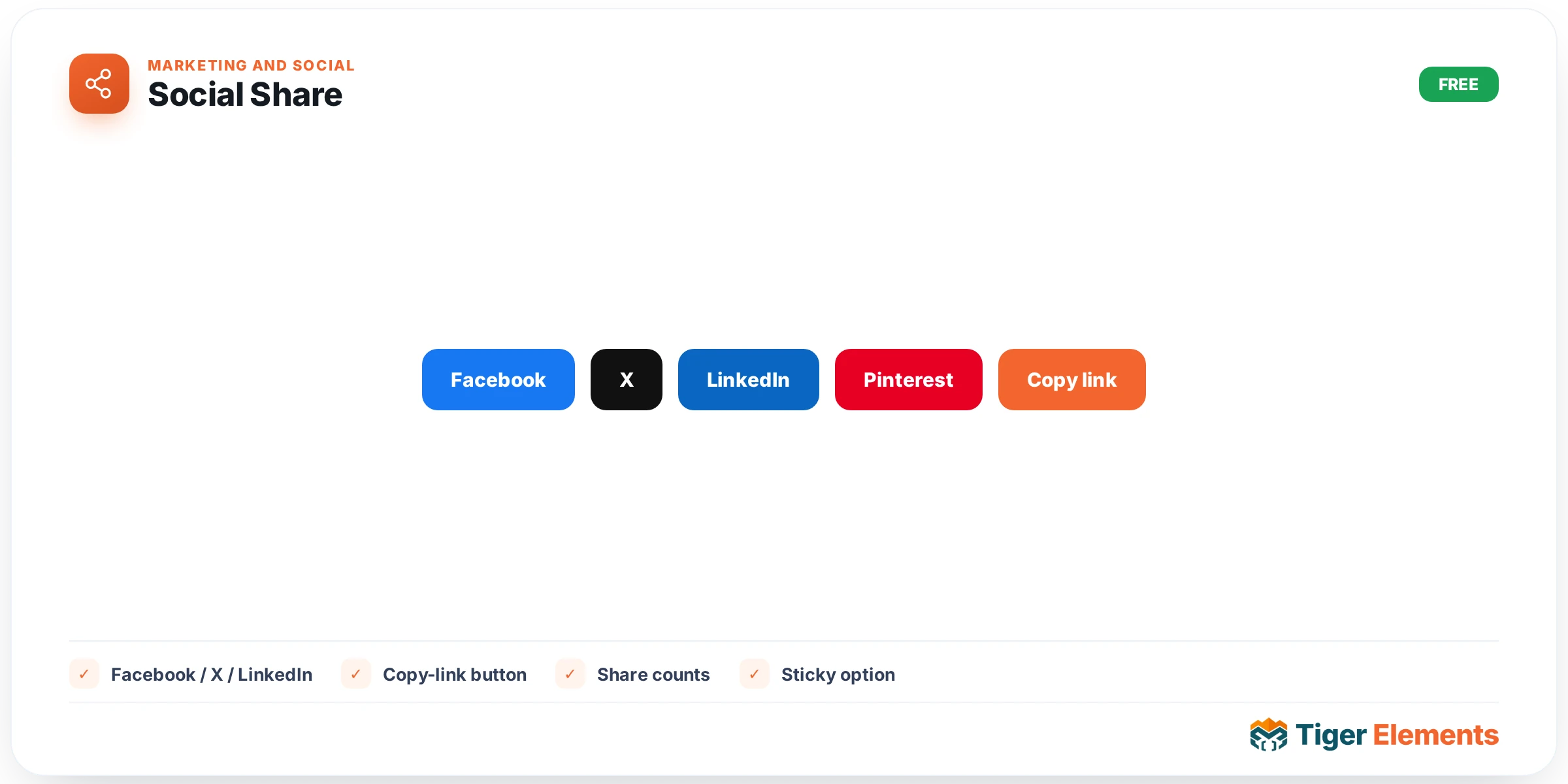
Social Share is built for the opposite job to Social Icons: instead of inviting visitors to follow your brand’s own profiles, it lets a visitor push the page they’re currently reading out to their own social network, chat app, or email. It supports eight networks — Facebook, X, LinkedIn, WhatsApp, Pinterest, Telegram, Reddit, and Email — plus two extras that go beyond the usual static button row: a Copy-link button with clipboard feedback, and native device sharing through the Web Share API on phones and tablets that support it.
Choosing a layout
The Layout control offers two modes. Inline places the share buttons directly in the page flow wherever you drop the widget — typically under a blog post title or at the end of an article — and in this mode you can also set an optional Heading text (e.g. “Share this”; it supports dynamic tags) that appears next to the buttons. Floating sticky bar detaches the buttons from the page flow and pins them to the viewport; when this is selected, a Floating position control appears with three choices — Left edge, Right edge, or Bottom bar — the classic sticky share rail you see running down the side of long-form articles. Note the Heading field is only shown when Layout is Inline, since a floating bar has no room for a heading.
Choosing which networks appear
Under a “Networks” heading in the Content tab there is one on/off switcher per network — Facebook, X, LinkedIn, WhatsApp, Pinterest, Telegram, Reddit, and Email — so you enable exactly the networks relevant to your audience rather than being stuck with a fixed set. By default Facebook, X, LinkedIn, and WhatsApp are switched on; Pinterest, Telegram, Reddit, and Email start off and need to be manually enabled. Under an “Extras” heading, two more switchers control Copy-link button (on by default) and Native device share (on by default). The Copy-link button uses the browser Clipboard API to copy the page URL and shows a “Copied!” confirmation message. The native-share button is hidden by default in markup and only revealed by JavaScript on devices where navigator.share actually exists — so on a desktop browser without share-sheet support, that button simply never appears, no dead UI left behind.
Shape and brand colors
Shape offers four presets — Rounded (default), Circle, Square, and Pill + label. The first three render icon-only buttons at different corner radii; Pill + label is the one mode that shows the network’s text label alongside its icon, useful when you want the share row to be self-explanatory rather than icon-only. Brand colors is a switcher, on by default, that colors each button in its network’s real brand color (Facebook blue, WhatsApp green, and so on); turning it off falls back to the flat colors defined in the Style tab’s Normal/Hover tabs instead.
Style tab
Sizing is controlled by responsive Button size (32–64px) and Gap (0–24px) sliders, plus a responsive Corner radius slider (px or %) that explicitly overrides whatever the Shape preset would otherwise apply. Colors are organized into Normal and Hover tabs: Normal exposes Background and Icon color (only actually visible when Brand colors is switched off), while Hover exposes its own Background and Icon color for the rollover state. A Hover scale slider (1 to 1.4) adds a lift-and-scale transform on hover for tactile feedback. There are also two dedicated Typography group controls — Label typography (only relevant when Shape is Pill + label) and Heading typography plus a Heading color picker (only relevant when the Heading field is filled in).
When to use it
Reach for Social Share on blog posts, news articles, product pages, or any long-form content where organic sharing drives traffic — Inline under the title or at the article’s end for a simple ask, or Floating sticky bar for content-heavy sites where you want share buttons persistently visible as the reader scrolls. Enable Copy-link whenever you expect sharing into channels the button row doesn’t cover, like Slack or Discord, and enable Native device share for sites with heavy mobile traffic so phone visitors get their OS’s own share sheet instead of being limited to the networks you’ve hard-coded.
Practical tips
- Deliberately curate the network switchers rather than leaving all eight on — a share row with every network enabled is visually noisy and dilutes clicks; pick the two or three networks your actual audience uses.
- If you use Pill + label, budget horizontal space carefully in Inline layout — labeled buttons for all four default networks take up considerably more width than icon-only Rounded/Circle/Square buttons, and can wrap awkwardly on narrow columns.
- Turn off Brand colors when the share row needs to match a tightly controlled design system rather than looking like a generic plugin add-on — the Normal/Hover Background and Icon color pickers then give you full control to match your palette.
- For Floating sticky bar, Bottom bar position tends to work best on mobile-heavy sites since a left/right rail can crowd narrow viewports or overlap content; consider switching float position responsively rather than using one position at every breakpoint.