
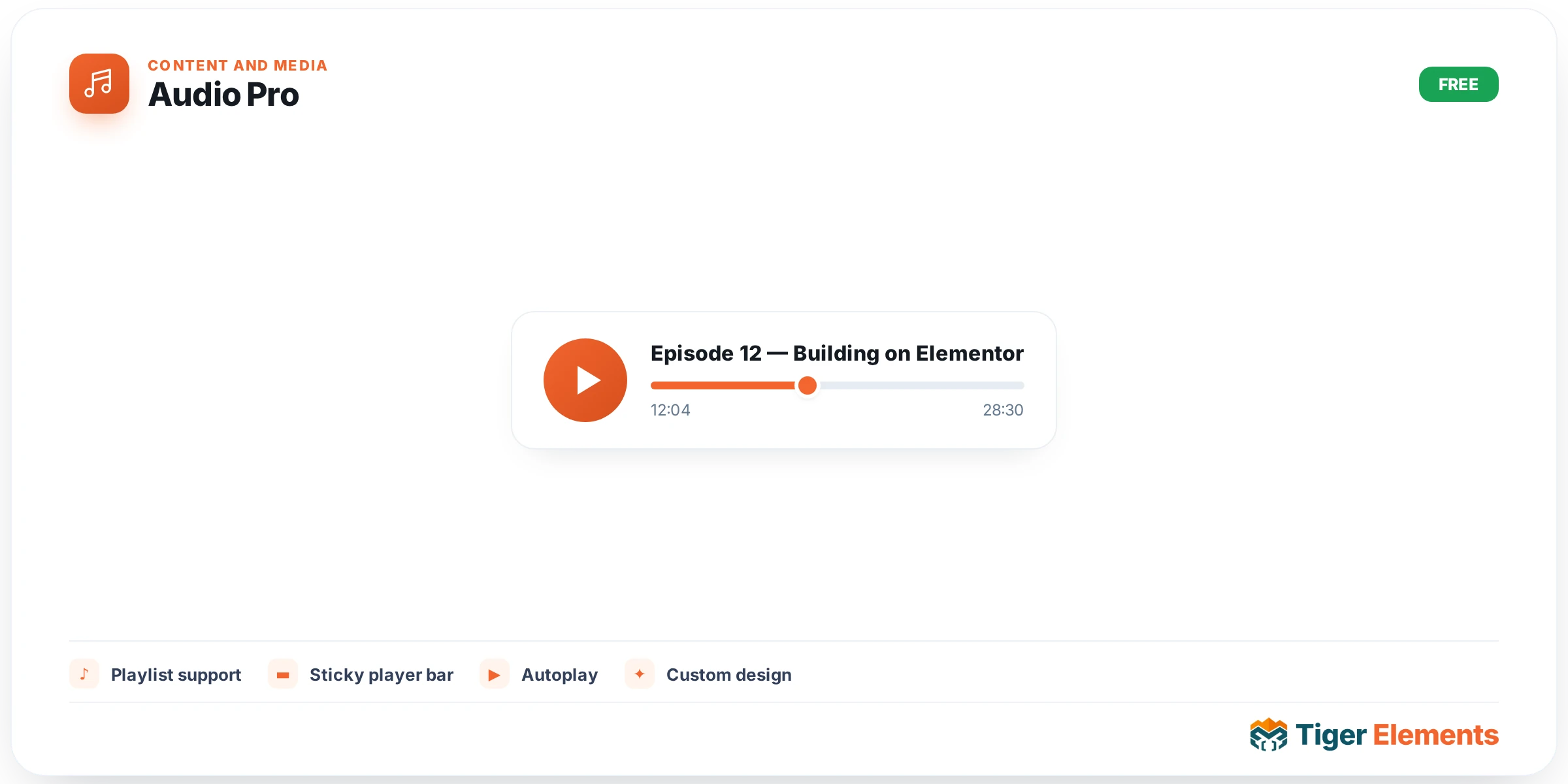
Tiger Audio Pro is the audio counterpart to Video Pro: a performance-first player and playlist that renders a lightweight facade and only loads Plyr.js — plus, if enabled, the waveform engine — after the first play click, so an unplayed page carries almost no extra JavaScript. It goes further than a simple MP3 embed by unifying several very different sources into one playlist and by treating things most audio widgets ignore, like honest autoplay behaviour and lock-screen controls, as first-class features.
Building the playlist
The Source section’s Source Type switch offers Manual Playlist or Podcast RSS Feed (the latter is a Pro-only feature and is clearly labelled as such in the panel on free-tier installs). The manual repeater, Tracks, lets each row pick a Provider: Self-Hosted (Media Library), External File URL, SoundCloud, or Spotify — so one playlist can mix an uploaded MP3, a direct file link, a SoundCloud track and a Spotify track or episode. Self-hosted rows use an Audio File media control; the other three share a Track URL text field that accepts a direct MP3/OGG link, a SoundCloud track URL, or a Spotify track/episode link — the widget parses Spotify URLs, spotify: URIs, and bare IDs automatically. Every row also carries a Title, Artist / Author, and an Artwork image that doubles as the cover shown in the player, the playlist row, and the OS lock screen via the Media Session API. Self-hosted and URL rows additionally get a Start Time / End Time clip window in seconds.
Free-tier installs are capped at a limited number of playable tracks (an in-panel notice states the exact number and points at the Pro upgrade for unlimited tracks, the podcast source, the sticky bar and waveforms); extra rows beyond the cap are silently dropped on the front end rather than rendered broken. The Podcast RSS Feed source (Pro) fetches episodes server-side from a Podcast RSS URL, capped by Max Episodes (1–50), cached for 12 hours, with a Sync Now button to force an immediate refresh after you publish a new episode.
Layout and the playback engine
The Layout section picks between Classic (artwork plus controls), Compact Bar and Card presentations, with independent switches for Show Player Cover, Show Title in Player, and Show Artist in Player — useful when you want the now-playing details visible only in the playlist rather than duplicated in the player card. Show Playlist and its Playlist Position (right or bottom, default bottom) work the same way as Video Pro, and Row Leading Element chooses whether each playlist row starts with a Track Number, a Song Cover thumbnail, or nothing.
The Playback section is the widget’s real depth. Auto-Play on Load exposes an honest Auto-Play Mode choice, because browsers block audio-with-sound on load: Muted start always plays instantly but muted with a tap-to-unmute badge, while Smart tries sound first and otherwise starts on the visitor’s first interaction with the page. Beyond that there’s Auto-Advance, Loop, Shuffle, a Default Volume slider, a Speed Control switch (0.5×–2×, aimed at podcasts and audiobooks), Skip Buttons with a configurable Skip Amount in seconds, Keyboard Shortcuts, OS Lock-Screen Controls (play/pause/next/prev plus artwork via the Media Session API — so a visitor can control playback from their phone’s lock screen or a headset), a Download Button for self-hosted and direct-URL tracks, and Preload (None / Metadata / Auto).
The Advanced tab is where Pro differentiation concentrates: Waveform Visualisation renders a clickable waveform for self-hosted and direct-URL tracks (loaded only on first play, so it doesn’t cost anything on an unplayed page); Sticky Mini-Bar docks a compact playback bar to the top or bottom of the viewport when the player scrolls out of view, so audio keeps playing while the visitor keeps reading; and Resume Across Pages remembers the current track and position as the visitor navigates the site — the widget’s own description suggests pairing it with the sticky bar placed in a Theme Builder footer so it persists on every page. SEO Schema (Audio / Podcast) outputs JSON-LD AudioObject or PodcastEpisode structured data for rich results.
Styling and when to use it
Style controls cover the player card (background, accent color driving the progress bar and waveform, border, radius, padding, shadow), artwork (size, radius, shadow), title/artist/time typography and color, buttons (size, Normal/Hover tabs, equalizer bar color, speed-button color), and the playlist (width, background, item and artist color, song-card background/radius, active/hover background, and thumbnail size/radius/border/shadow). Use Audio Pro for a podcast episode page, a musician’s discography page mixing SoundCloud demos with Spotify releases, or a training site where audiobook-style speed control and skip buttons genuinely matter.
Practical tips
- If autoplay silently doesn’t work, that’s expected — check Auto-Play Mode is set to Smart or Muted start rather than assuming the browser is broken; unmuted autoplay is never possible.
- Pair Resume Across Pages with the Sticky Mini-Bar in a Theme Builder footer to build a genuine site-wide, cross-page audio player.
- Waveform Visualisation only works for self-hosted or direct-URL tracks — SoundCloud and Spotify rows play through their own embeds and won’t show a waveform.
- Remember the free-tier track cap silently truncates the playlist; if tracks seem to be missing on a live page, check whether the site has a Pro license before assuming the repeater is misconfigured.