
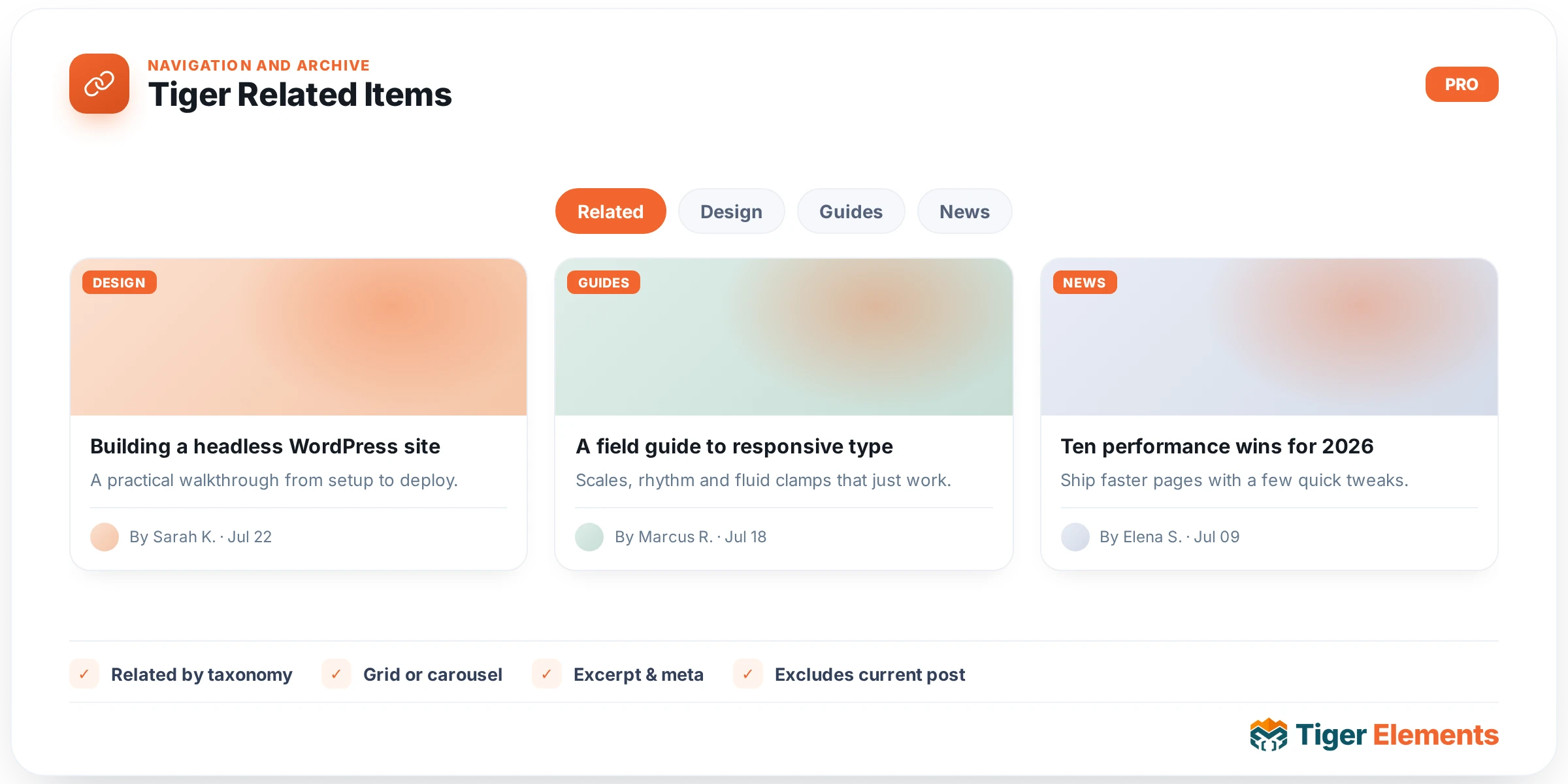
Tiger Related Items is a dynamic-content widget built for CPT Builder relationships. Where most “related posts” widgets on the market guess at similarity using shared categories or tags, this one reads an actual relationship field you defined on your custom post type and renders the exact posts that field points to — as a styled card grid, with an image, a linked title, and full control over layout and hover states. It exists specifically to close the loop on Tiger’s CPT Builder: once you’ve built a relationship field between, say, a “Case Study” and its “Services”, you need a front-end way to display that connection without writing a custom query, and that is this widget’s entire job.
Direction: Forward vs. Reverse
The first and most important decision is the Direction control, which offers two options: “Forward — items this post links to” and “Reverse — items that link to this post.” Forward mode is the simple case: the current post has a relationship meta field storing an array of related post IDs, and the widget reads that field directly via get_post_meta(). Reverse mode is the more powerful, less obvious feature — it lets you display bidirectional relationships without storing a second field anywhere. If your “Case Study” post type has a relationship field pointing to “Service” posts, dropping this widget on the single Service template in Reverse mode will run a meta_query that finds every Case Study whose relationship field contains the current Service’s post ID. That is a real database query (a WP_Query with fields => 'ids' and no_found_rows for performance), not a cached lookup, so it does add a query to any Reverse-mode instance of the widget.
Setting up the relationship field
Below Direction sit two controls that work together: Relationship field, a dropdown populated from Tiger_Dynamic_Fields::relationship_options() (it lists the relationship fields actually registered in CPT Builder), and Or custom meta key, a plain text field whose description says plainly, “Overrides the field above.” Pick your field from the dropdown for the normal case, but if you have a meta key that isn’t registered as a formal CPT Builder relationship, type its key directly into Custom meta key and it takes priority. In Reverse mode, an additional Reverse: search post type text control appears (conditional on Direction being Reverse) — the post type slug that holds the relationship field you’re searching against, defaulting to “any” to scan every post type.
Display controls
Max items caps the grid at 1–100 entries (default 10). Featured image is a yes/no switcher (default on) that, when enabled, reveals an Image size dropdown (Thumbnail through Full). The widget only prints image markup if the related post actually has_post_thumbnail() — there’s no placeholder fallback, so posts without a featured image simply render title-only inside their card, which can look inconsistent if only some related posts have thumbnails. Title HTML Tag lets you pick h2 through h6, div, or span for semantic control — useful if the widget sits inside a sidebar where an h4 (the default) is more appropriate than an h2. Columns is a responsive control writing directly to grid-template-columns: repeat(N, 1fr), settable per breakpoint. Empty fallback accepts dynamic tags and prints whatever text you give it — via wp_kses_post, so basic HTML is allowed — when the query returns nothing.
Non-obvious behavior worth knowing
In the editor, if you haven’t picked a relationship field yet, or the widget can’t determine a post ID, it shows a visible notice reading “Select a relationship field.” — this only appears in Elementor’s edit mode, not on the live front end. Similarly, an empty result set shows “No related items found on this post.” in editor mode only; on the live site with no fallback text set, the widget renders nothing at all. Unpublished related posts are silently skipped on the front end (checked via get_post_status() !== 'publish') except while editing, where they still display so you can verify the connection exists. The widget also inherits the shared Tiger Post Query Filter panel (Include/Exclude by category, tag, author, or specific IDs, plus an “exclude current post” toggle) — those settings apply on top of the relationship IDs in Forward mode, and as native query args in Reverse mode.
When to use a different widget instead
This widget is for structured relationship fields — if you actually want “the next and previous post in the same series,” reach for Tiger Post Navigation, a sequential prev/next control rather than a many-to-many relationship grid. If you’re displaying a taxonomy archive’s heading or intro copy rather than related single posts, Tiger Archive Title and Tiger Archive Description cover that. And if the goal is simply “nothing was found for this search/archive,” Tiger No Results is the purpose-built widget rather than repurposing Related Items’ fallback text.
Practical tips
- Because Reverse mode issues a live
meta_queryon every page load, restrict Reverse: search post type to a specific slug rather than leaving it “any” — a targeted query against one post type is meaningfully cheaper than scanning all of them. - Set an Empty fallback message on any instance placed inside a template applied across many posts (via Theme Builder conditions) — without it, posts with no relationships yet just show a blank gap, which reads as a bug to visitors even though it’s expected.
- If related posts don’t all have featured images, disable Featured image entirely for a cleaner list layout, or ensure every post in that relationship consistently has a thumbnail — the widget won’t insert a placeholder, so mixed cards look uneven.
- Use Or custom meta key as an escape hatch when migrating relationship data from another plugin — you don’t need to recreate the field inside CPT Builder’s relationship UI just to display it here.