
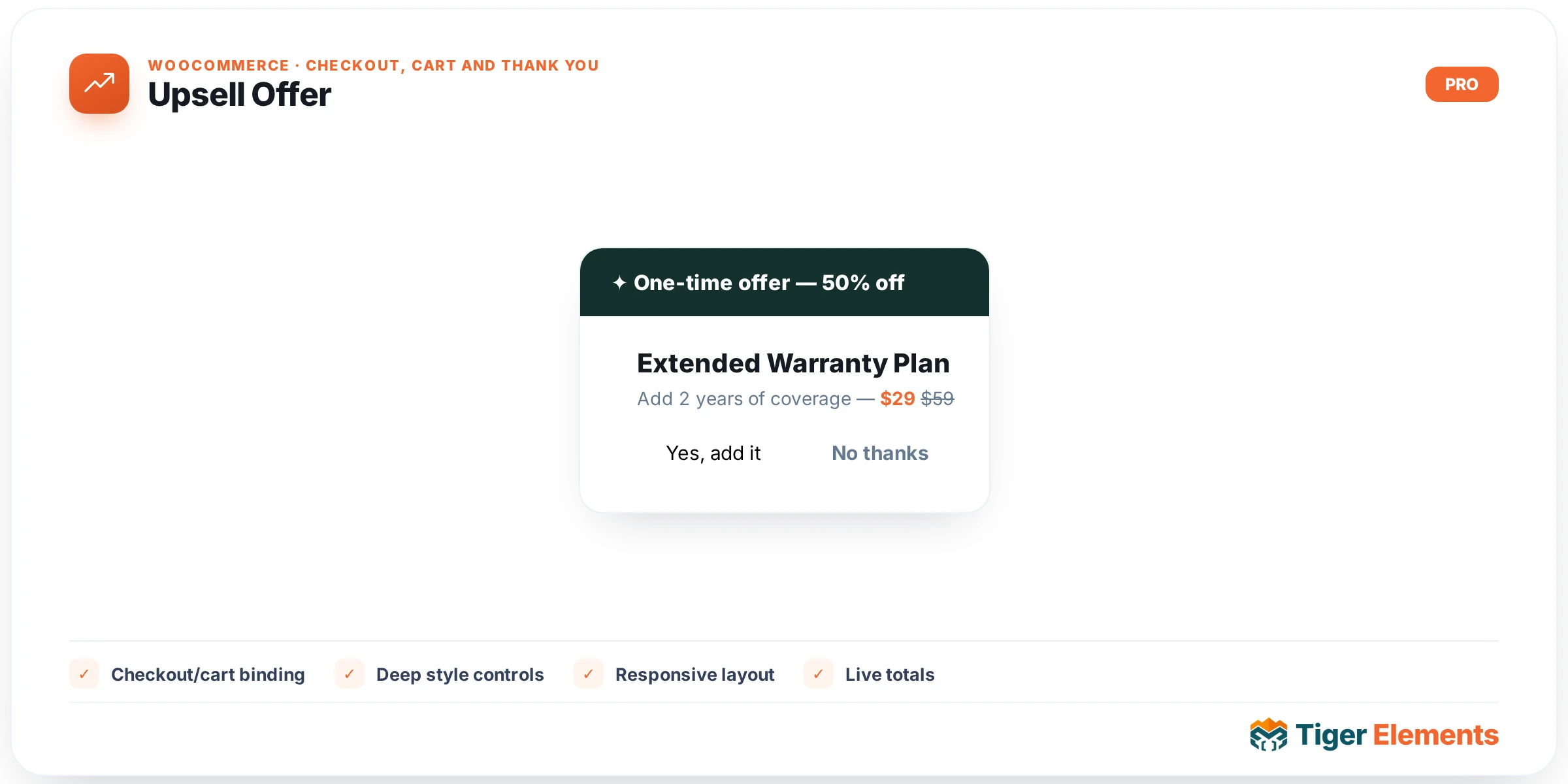
What the Upsell Offer widget does
Upsell Offer renders a single, distinct post-purchase-style pitch — one product, one accept button, one decline link — driven by a Tiger upsell funnel rather than by whatever is currently in the shopper’s cart. It’s built for a dedicated “offer page” reached through a funnel URL: a customer completes an order, is routed to this page, and is shown one more product they can add to that same order with a single click, without re-entering payment details. The widget itself doesn’t define the offer; it reads its context from a tiger_upsell_funnel post (via Tiger_Woo_Upsell_Funnel::current_offer_context()) which supplies the funnel ID and, when reached through a real funnel flow, the originating order and order key.
This makes Upsell Offer fundamentally different from a normal “related products” block: it’s tied to a purchase-flow order and funnel configuration, not to browsing context, and its accept/decline actions post back to a dedicated AJAX decision endpoint rather than adding to a shopping cart.
How to set it up
The widget’s most important content control is Preview Funnel (editor only) — a select populated from your published tiger_upsell_funnel posts. This exists purely so you can see a realistic preview while building the page in Elementor; on the live site, the funnel is always determined by the URL a customer actually arrives on, not by this dropdown. Beyond that, you have Accept Button text (default “Yes! Add this to my order”, dynamic-tag enabled), Decline Link text (default “No thanks, I’ll pass on this offer”), and a Show product image + price switcher (on by default) that toggles the product image/name/price block above the buttons.
Styling is scoped to the Accept Button section on the Style tab: Background and Text Color (both color pickers, defaulting to a green #16a34a and white respectively), a responsive Padding control, and a Radius slider up to 60px. There’s no separate styling for the decline link or the product block — those inherit your theme’s link and typography styles, which keeps the decline option visually secondary to the accept button by default, matching standard upsell-page conversion practice.
Non-obvious behavior
The offer’s actual content — which product, at what quantity, and any discount — is configured on the funnel post itself (_funnel_product_id, _funnel_quantity, _funnel_discount_type/_funnel_discount_value), not on the widget. The widget computes the discounted price the same way the Order Bumps widget does (percent off, fixed amount off, or a straight override price against the product’s regular price) and multiplies it by the configured quantity, showing a struck-through original price when a discount applies.
Clicking Accept or Decline doesn’t reload the page or touch the cart — a click handler on .tiger-upsell__accept/.tiger-upsell__decline posts the decision, along with the widget’s nonce, funnel ID, order ID, and order key (all embedded as data-* attributes on the wrapper), to an upsell decision AJAX endpoint that appends the product directly onto the existing order server-side. This is why the widget requires real funnel context to do anything meaningful: without an order/order-key pair, there’s nothing for the endpoint to attach the upsell to.
If there’s no funnel context at all (for example, someone lands on the page directly rather than via a real funnel URL, and no Preview Funnel is set in the editor), the widget shows a placeholder explaining it displays an offer only when reached via the funnel URL — it never fabricates a fallback offer. Likewise, if the configured funnel has no product assigned, it shows a distinct placeholder for that case, which is useful for catching a half-configured funnel before it goes live.
When to use this widget vs. related widgets
Reach for Upsell Offer when you want a focused, single-product pitch presented as its own step in the purchase flow — typically a dedicated thank-you/offer page rather than something inline on checkout. That’s the key distinction from Order Bumps: bumps are small, inline, checkbox-style add-ons shown alongside the items a customer is already buying during checkout itself, while an upsell is a separate, higher-consideration offer presented as its own moment, after commitment, with a real accept/decline decision. Don’t use Upsell Offer as a generic “you might also like” block on product or cart pages — it has no browsing-context mode and will simply show a placeholder outside of real funnel traffic.
Practical tips
- Always test the offer page by walking through the actual funnel URL rather than just previewing in Elementor — the Preview Funnel control only feeds the editor preview and has no effect on live behavior.
- If a funnel’s offer page is showing the “no product configured” placeholder in production, check the funnel post’s product assignment first — it’s a much more common cause than a widget misconfiguration.
- Because Accept/Decline post directly to the order via AJAX, avoid pairing this widget with page caching that might serve a stale nonce or stale order-key data attribute to returning visitors; exclude offer pages from full-page cache.
- Keep the Decline Link phrased as a real, low-guilt opt-out (the default “No thanks, I’ll pass on this offer” is intentionally neutral) — since the widget gives it no dedicated styling, avoid overriding it with theme CSS that makes it look like another primary action.