
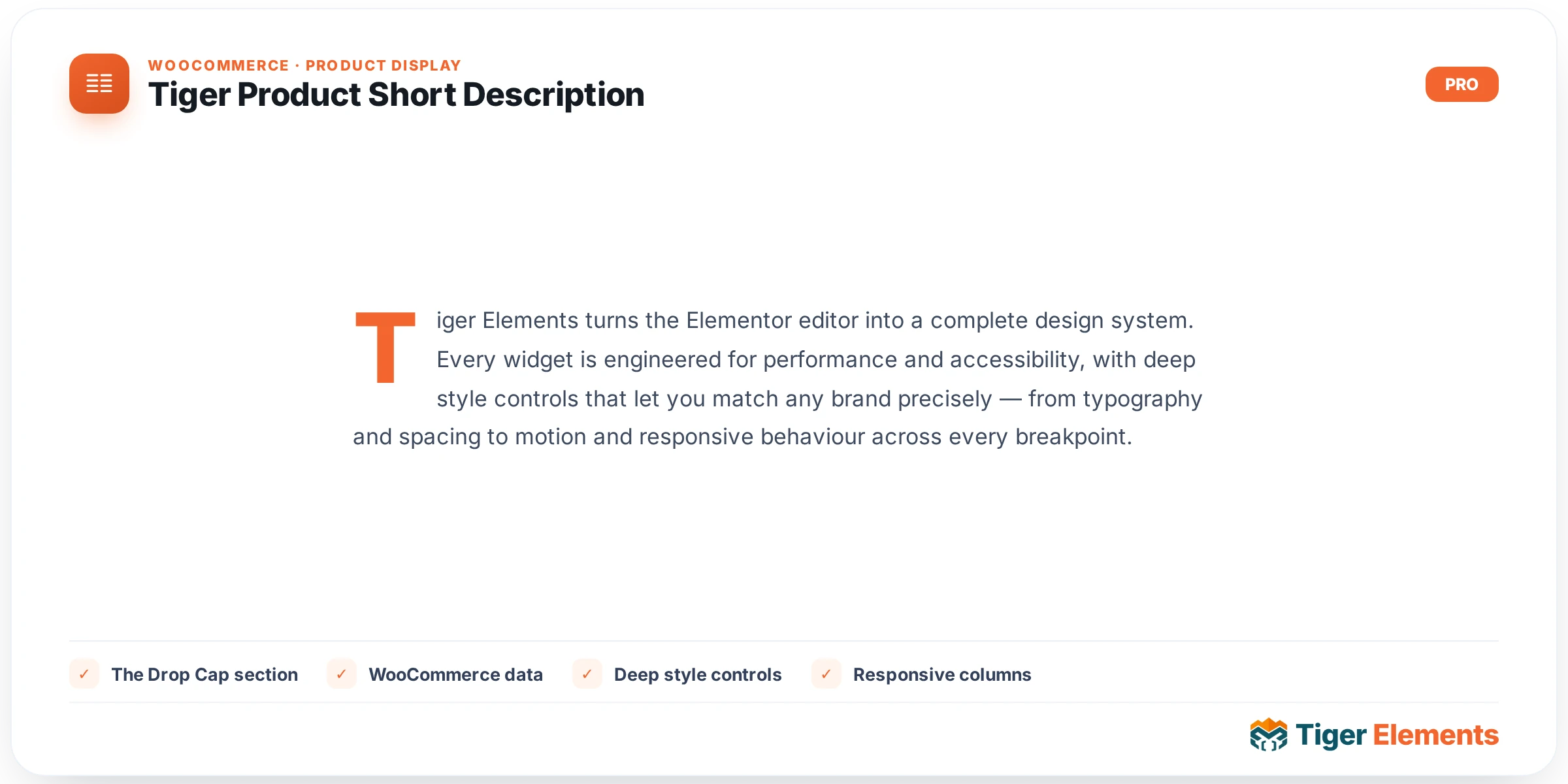
What it does
Tiger Product Short Description prints a WooCommerce product’s short description — the excerpt field you fill in the “Product short description” box on the product edit screen, the same text WooCommerce normally injects into the summary block on a single-product page. Tiger wraps that output in its own .tg-short-desc container and gives it a full Elementor-Pro-grade Style panel (box model, typography, link states, and an optional decorative drop cap), so you can restyle the excerpt independently of whatever the active theme does with it. Because it reads directly from WC_Product::get_short_description(), this widget only produces output where a real WooCommerce product is in scope — a single-product template, or a loop/archive card where Tiger’s internal $tiger_loop_post_id global is set for the current card. Drop it on a page with no product context and it renders nothing on the live site.
Setting it up in Elementor
The Content tab has a single section, “Short Description,” with two controls. “Word Limit” is a number field defaulting to 0; leave it at zero to print the full short description exactly as saved, or set it to a positive integer to truncate the excerpt to that many words. When a limit is applied, the widget strips all HTML from the text first (via wp_strip_all_tags), trims it with wp_trim_words, and appends an ellipsis — so any inline formatting (bold, links, spans) in the original short description is lost once a word limit is in effect. The second control, “Plain Text (strip HTML)”, is a switcher that, when enabled, runs the same tag-stripping regardless of word limit, useful if you want a clean text-only teaser for a card layout.
Everything else lives in the Style tab across three sections. Container gives you a responsive “Alignment” choose control (Left/Center/Right/Justified), a Background group (classic or gradient, image excluded), responsive Padding, Margin, a Max Width slider (10–100% or 200–1200px), a Border group, responsive Border Radius, and a Box Shadow group — all targeting the same wrapping div. Body Text exposes “Text Color”, a full Typography group, a Text Shadow group, a “Paragraph Spacing” slider (0–60px, applied as margin-bottom on each paragraph), and under a “Links” sub-heading, separate “Color” and “Hover Color” controls for any anchor tags the short description happens to contain.
The Drop Cap section
This is the widget’s most distinctive style feature. “Enable Drop Cap” is a switcher that adds a tg-sd-dropcap-yes prefix class to the widget wrapper rather than toggling a simple CSS property — every drop-cap control beneath it is conditioned on this switch and targets the ::first-letter pseudo-element of the first paragraph only (.tg-short-desc > p:first-of-type::first-letter). You get “Color”, a “Size” slider (1–6em or 20–120px, default 3em), a “Weight” select with four named options (Normal/Semi-bold/Bold/Black, mapped to 400/600/700/900, defaulting to Bold), and a “Gap” slider (0–30px, default 8px) that floats the letter left with a tightened line-height. Because this only ever targets the first paragraph’s first letter, a drop cap will not appear if the short description’s first block isn’t a plain paragraph — the effect is paragraph-anchored, not “first letter of the widget.”
Non-obvious behavior
In the Elementor editor, if the current product has no short description saved, the widget shows a placeholder line (“Product short description preview. Edit the product to add real copy.”) so the canvas never looks broken — but on the live front end, an empty short description means the widget prints nothing at all, not even an empty container. The widget also checks for WooCommerce activation first; if disabled, it silently outputs nothing on the front end and only shows an inline notice while editing. Output always passes through wp_kses_post(), so any disallowed HTML in the short description gets filtered before it hits the page.
When to use it vs. Tiger Product Tabs
Tiger Product Tabs’ “Description” tab pulls WooCommerce’s long description (the main post content), not the short description — they are two entirely different fields in WooCommerce, and Tiger’s widgets respect that split rather than blending them. Reach for Short Description when you want the punchy excerpt placed prominently near the price/Add to Cart area (its normal position in most themes), fully restyled and possibly truncated with a word limit for a tighter above-the-fold layout. Reach for Product Tabs when you want the full long-form description content tucked below the fold in a tabbed panel alongside Additional Information and Reviews. Using both together on the same single-product template is standard: short description up top for the quick pitch, tabs below for the full story.
Practical tips
- Set a “Word Limit” (e.g. 20–30 words) when using this widget inside an archive/loop card — short descriptions on product listing pages are often written long, and an untruncated excerpt can blow out card heights.
- If you enable “Plain Text (strip HTML)” together with a Word Limit, remember the stripping happens before trimming either way — so there’s no benefit to enabling both unless you specifically want to guarantee no stray HTML survives an edge case in the source content.
- Drop Cap only affects the very first paragraph’s first character — don’t rely on it for short descriptions that open with a heading, list, or shortcode-generated markup, since
::first-lettertargeting will silently do nothing in those cases. - Because rendering depends on
$tiger_loop_post_idfalling back toget_the_ID(), always test this widget inside an actual product loop/card template, not a generic Elementor page — outside product context it renders nothing and can look “broken” during a plain page preview.