
What it does
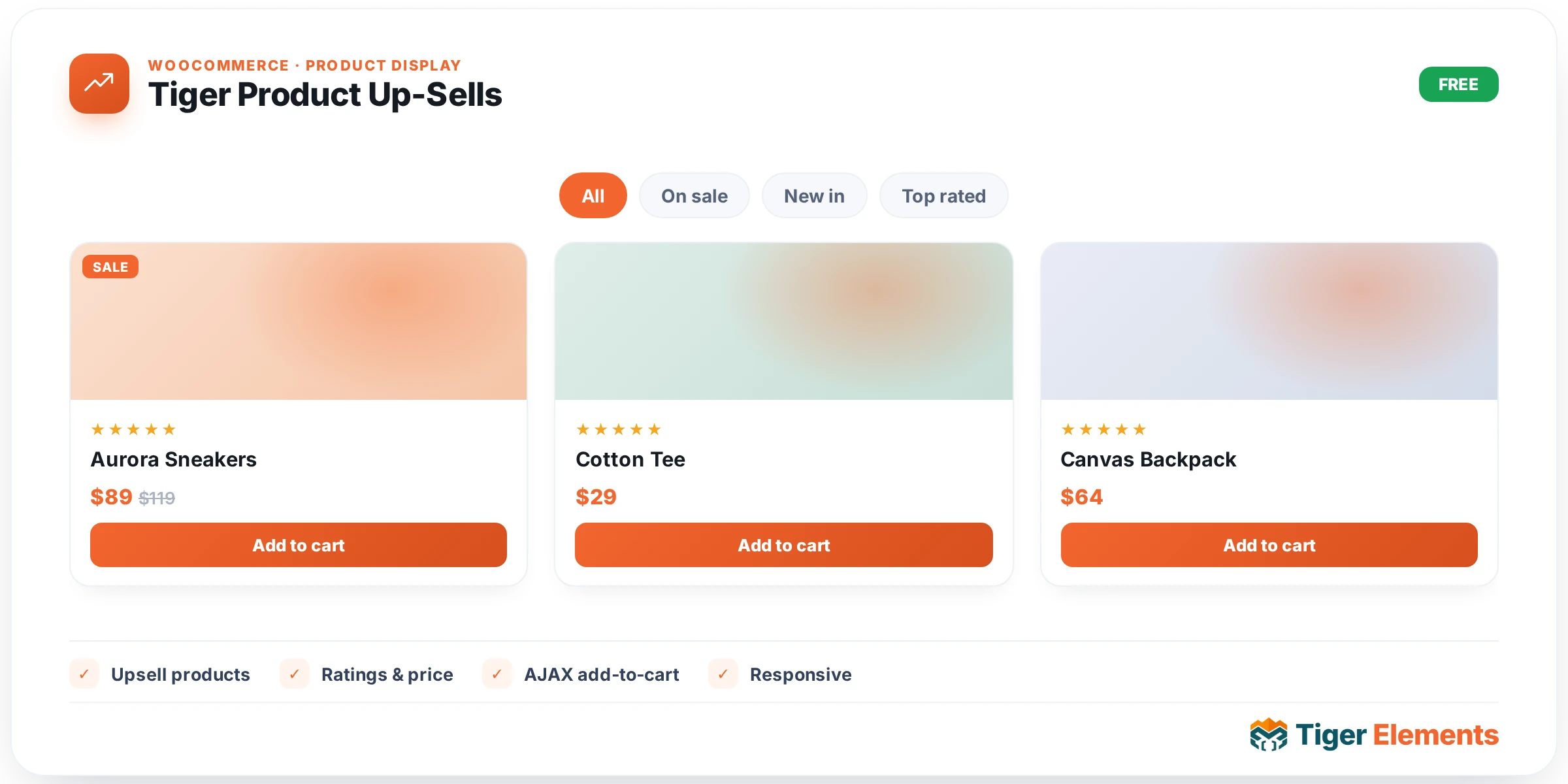
Tiger Product Up-Sells renders WooCommerce’s native up-sells block — the grid of products a merchant has manually linked under a product’s Product data → Linked Products → Up-sells field — by calling the core woocommerce_upsell_display() function and wrapping its output in a .tg-upsells container styled with Tiger’s own CSS-grid layout engine. Because it delegates to the native function, standard WooCommerce loop hooks (sale badges, star ratings, quantity inputs, any third-party loop customizations) keep firing exactly as they would on a stock theme. Column count is enforced through a CSS custom property, --tg-ups-cols, set on ul.products, rather than relying on the theme’s float or grid classes — so the widget’s column control is genuinely responsive and independent of whatever grid system the active theme ships. This is a single-product-context widget: it requires WooCommerce active and a resolvable product (single-product template, or a loop card with Tiger’s $tiger_loop_post_id set), and further requires that the current product actually has up-sells linked — an empty up-sell list produces no front-end output at all.
Setting it up in Elementor
The Content tab’s “Up-Sells” section starts with “Show Heading”, a switcher defaulting to Show, paired with a “Heading Text” field (dynamic-tag enabled, defaulting to “You may also like…”) that only appears when the heading is shown. “Columns” is a responsive select with options 1 through 6, defaulting to 4 on desktop, 3 on tablet, and 2 on mobile — each breakpoint writes its own value into the --tg-ups-cols custom property. “Number of Products” is a number field defaulting to -1, meaning “show every linked up-sell”; set a positive integer to cap how many appear. “Order By” offers Random, Menu Order, Title, Date, Price, Popularity, and Rating, defaulting to Random — and a separate “Order” select (Ascending/Descending, defaulting to Descending) appears only when Order By is not Random, since randomized order has no ascending/descending direction.
Styling depth
Style controls are organized into six sections beyond Layout: Heading (color, typography, responsive alignment, spacing below — all conditioned on “Show Heading” being enabled), Product Card (background, border, radius, padding, and separate Normal/Hover box-shadow tabs — the Hover tab also includes a “Lift on Hover (px)” slider that translates the card upward on hover alongside the shadow), Image (radius, spacing below, and a “Zoom on Hover” switcher that scales the product image to 1.06x on card hover), Title (color, hover color, typography — targeting WooCommerce’s .woocommerce-loop-product__title), Price (base color, a separate sale-price color for the <ins> element, a separate strikethrough color for the <del> element, and typography), Rating (star color and responsive star size), and Add to Cart Button (typography, padding, radius, and Normal/Hover tabs for text color, background, and border). “Layout” itself (the first Style section) covers responsive column gap and row gap plus a responsive “Content Alignment” choose control for the card text.
Non-obvious behavior
The heading text/visibility isn’t hardcoded into the template — it’s applied through an instance-scoped filter on woocommerce_product_upsells_products_heading, added right before the call to woocommerce_upsell_display() and removed immediately after, so a hidden or relabeled heading on one Up-Sells widget can never leak into a second instance elsewhere on the page. The widget also temporarily swaps $GLOBALS['product'] to the resolved product for the duration of the call and restores it afterward, since WooCommerce’s up-sell query reads the current product from that global. Crucially, when the current product has zero linked up-sells, the widget stays completely silent on the live front end — it does not fall back to related or random products — while in the Elementor editor it shows an explicit hint: “This product has no up-sells linked. Add some under Product data → Linked Products → Up-sells.” This is the single most common reason the widget appears to “do nothing” on a real page: the up-sell relationship has to be curated per product in WooCommerce first.
When to use it vs. Tiger Product Tabs
Product Tabs surfaces data that belongs to the current product itself — its own description, its own attributes/additional information, its own reviews. Up-Sells is fundamentally different: it displays other, separately curated products that the merchant explicitly chose as complementary or premium alternatives via WooCommerce’s Linked Products field — this is manual merchandising, not an algorithmic “customers also bought” feature. Reach for Up-Sells specifically when you want to cross-sell hand-picked products near the bottom of a single-product page (its conventional placement), and reach for Product Tabs when you’re organizing the current product’s own content. They’re commonly stacked on the same template: tabs for the product’s own detail, up-sells beneath for merchandising.
Practical tips
- Before assuming the widget is broken, check the product’s own Linked Products tab in the WooCommerce product editor — an empty up-sells field is the most common cause of a blank widget on the front end.
- Leave “Order By” on Random if you want the up-sell grid to feel fresh across repeat visits; switch to Menu Order only if you’ve deliberately sequenced your linked products and want that order preserved.
- Since “Number of Products” defaults to -1 (show all), set an explicit cap on products with long up-sell lists to avoid an unbalanced grid on the last row — pair it with a “Columns” value that divides evenly into your cap.
- The “Lift on Hover” and “Zoom on Hover” controls are independent switches/sliders — combine a small lift (6–10px) with image zoom for a standard e-commerce card hover effect, or leave both off for a flatter, denser grid.