
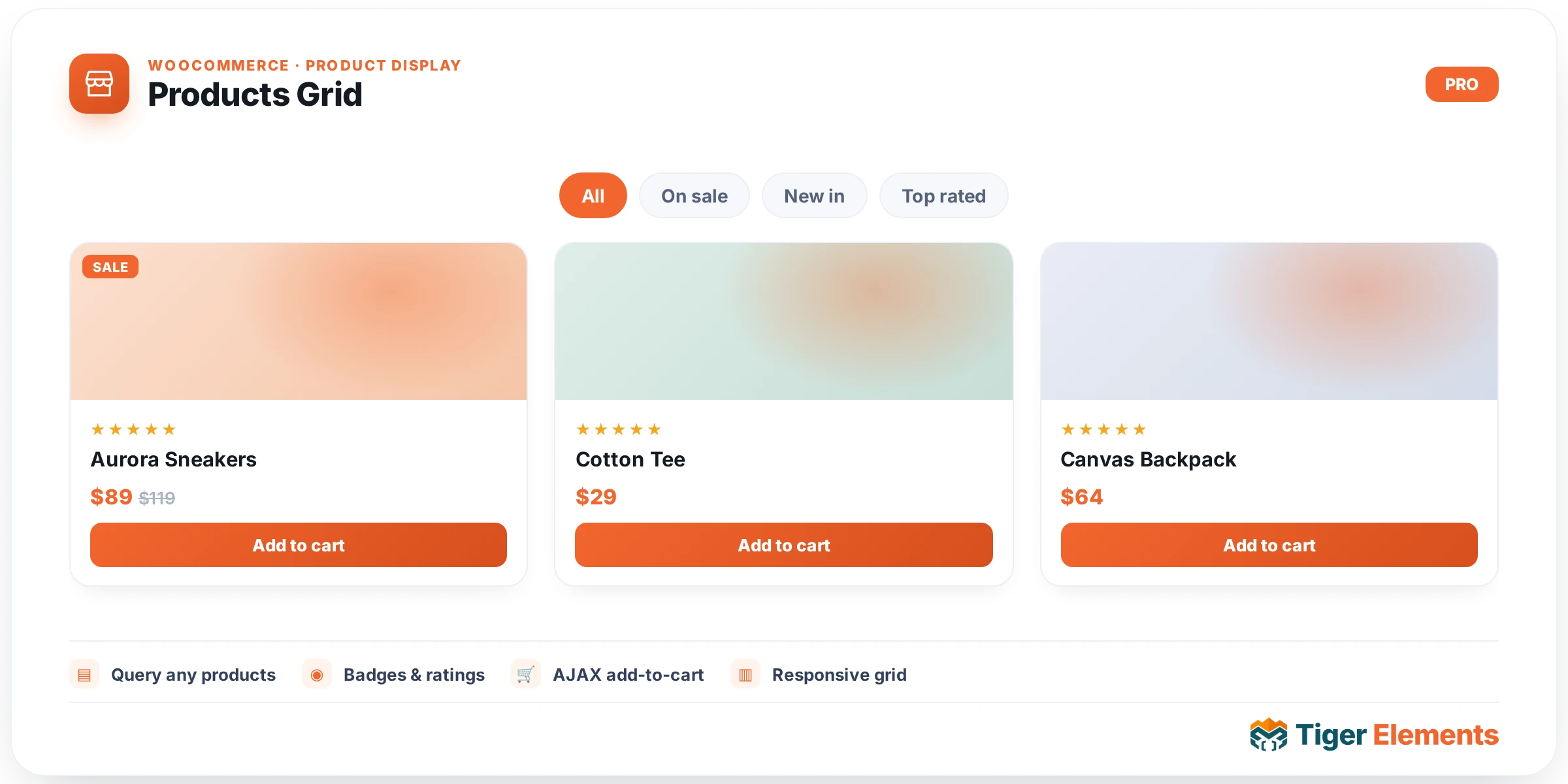
Products Grid (widget key tiger_product_grid) is Tiger Elements’ WooCommerce product-loop widget: it queries products, lays them out as a responsive grid of cards, and gives every part of the card — image, badge, title, meta, rating, price, description, and Add to Cart button — its own toggle and its own Style tab. It requires an active WooCommerce installation; without WooCommerce loaded the render bails out and nothing is printed on the front end.
This catalog entry is a summary. For the full field-by-field walkthrough — query logic, every card preset, AJAX Load More wiring, and the Filter section’s category/tag/author/ID include-exclude behavior — see the dedicated deep-dive article at /doc/product-grid/. What follows here covers the widget at the level you need to decide whether it’s the right tool and to get a working grid on the page quickly.
What it does
Drop the widget on any page (or into a Theme Builder archive template) and it runs a WP_Query against the product post type, then loops the results through a shared card renderer. The same renderer is reused by the plugin’s AJAX filter/grid driver, so a grid built with this widget stays visually in sync with live AJAX category filtering when the Filter widget is paired with it via the Connection ID bus (script dependency tiger-product-grid-filter).
Setting it up in Elementor
The controls are split across three main sections: Grid & Query, Card Settings, and Order Settings, plus a full Style tab.
In Grid & Query, start with “Style Preset” — the options are Classic (bordered, centered, soft lift), Minimal (airy, sliding Add-to-Cart), Beauty (title + rating row, hover swap), Luxe (dark + gold, editorial), and Soft (pastel rounded, playful tilt). Beauty forces a fixed card layout, so the “Order Settings” section is hidden entirely when Beauty is selected — you cannot reorder fields on that preset. Turn on “Archive / Pagination Mode” (a Simple/Archive switcher) to hand the widget the site’s real archive query instead of a manual one — useful inside a Theme Builder shop/category archive template. When Archive mode is on, a “Pagination Type” control appears (Numbers or Previous/Next). “Columns” is responsive. “Total Products” sets posts-per-page. “AJAX Load More” is a switcher with its own “Load More Label” field. “Column Gap” and “Row Gap” are responsive sliders.
When Archive mode is off, three query controls appear: “Source” (Latest / On Sale / Featured — the field description notes category/tag filtering lives separately in the Filter/Include-Exclude section, and stacks on top of Source), “Order By” (Date, Title, Price, Sales, Random), and “Order Direction” (Descending/Ascending).
In Card Settings, toggle switchers control which card elements render: “Show Discount Badge” (on by default), “Show Category” (on), “Show Tags” (off), “Show Reviews” (on), and “Show Description” (off, paired with a “Description Limit (Chars)” number field that truncates the short description with an ellipsis). “Price Display” offers “Regular & Sale Price” or “Sale Price Only.” “Button Text” is a dynamic-tag-enabled text field defaulting to “Add to Cart,” paired with a “Button Icon” icon picker (defaults to the solid cart-shopping icon) and an “Icon Position” select (Before Text / After Text) that only shows once an icon is chosen.
If the Woo Conversion Suite module is active and WooCommerce is loaded, a fourth section, “Wishlist & Compare,” appears with switchers for “Show Wishlist Button,” “Show Compare Button,” and “Show Quick View Button” — these render as icon-only overlay buttons on the card image and are conditional on the module being installed, so they simply won’t appear on sites without that add-on.
Order Settings exposes numeric order fields for Category, Tag, Title, Review, Price, Description, and Button — this reorders the dictionary-style stacking used by the Classic and Minimal presets (Beauty ignores this section, as noted above).
Non-obvious behavior
The discount badge only computes a percentage for simple (non-variable) products on sale; variable products just get a plain “Sale” label instead of a percentage, since a single percentage wouldn’t be meaningful across variations. The Minimal preset moves the Add-to-Cart button into the image area as a sliding overlay rather than the content stack, and it also skips the button in the normal field-order loop to avoid duplicating it. Archive mode falls back to a fresh preview query inside the Elementor editor (so you always see cards while designing) but hands off to the live global $wp_query on the actual front end — meaning what you see in-editor for pagination/filtering may not exactly match a real archive URL’s results.
When to use it vs. related widgets
Use Products Grid for a self-contained, opinionated product grid with built-in presets and card styling. If you need a more generic, fully custom card layout built from individual dynamic-tag fields (title, price, add-to-cart as separate elements you compose yourself), use the “Dynamic Loop & Query Grid” documented separately, or build a loop with individual single-product widgets like Tiger Product Price and Tiger Add to Cart placed inside a loop container.
Practical tips
- If cards look identical to expected editor preview but pagination misbehaves on the live site, check whether the widget is set to Archive mode and confirm it’s placed inside an actual WooCommerce archive context — Simple mode paginates via its own
elementor_pagequery var, not the site’s real archive pagination. - Combine “Source: Featured” with the Filter/Include-Exclude section’s category filter to build “Featured products in category X” grids — the code stacks these two mechanisms rather than treating Source as exclusive.
- When switching to the Beauty preset, revisit Card Settings toggles afterward — Beauty renders a fixed title+rating row and its own footer layout, so some Order Settings-driven expectations from Classic/Minimal won’t carry over visually.
- Enable “Show Wishlist Button”/”Show Compare Button” only after confirming the Woo Conversion Suite module is active; otherwise the section won’t even appear, which is expected, not a bug.