
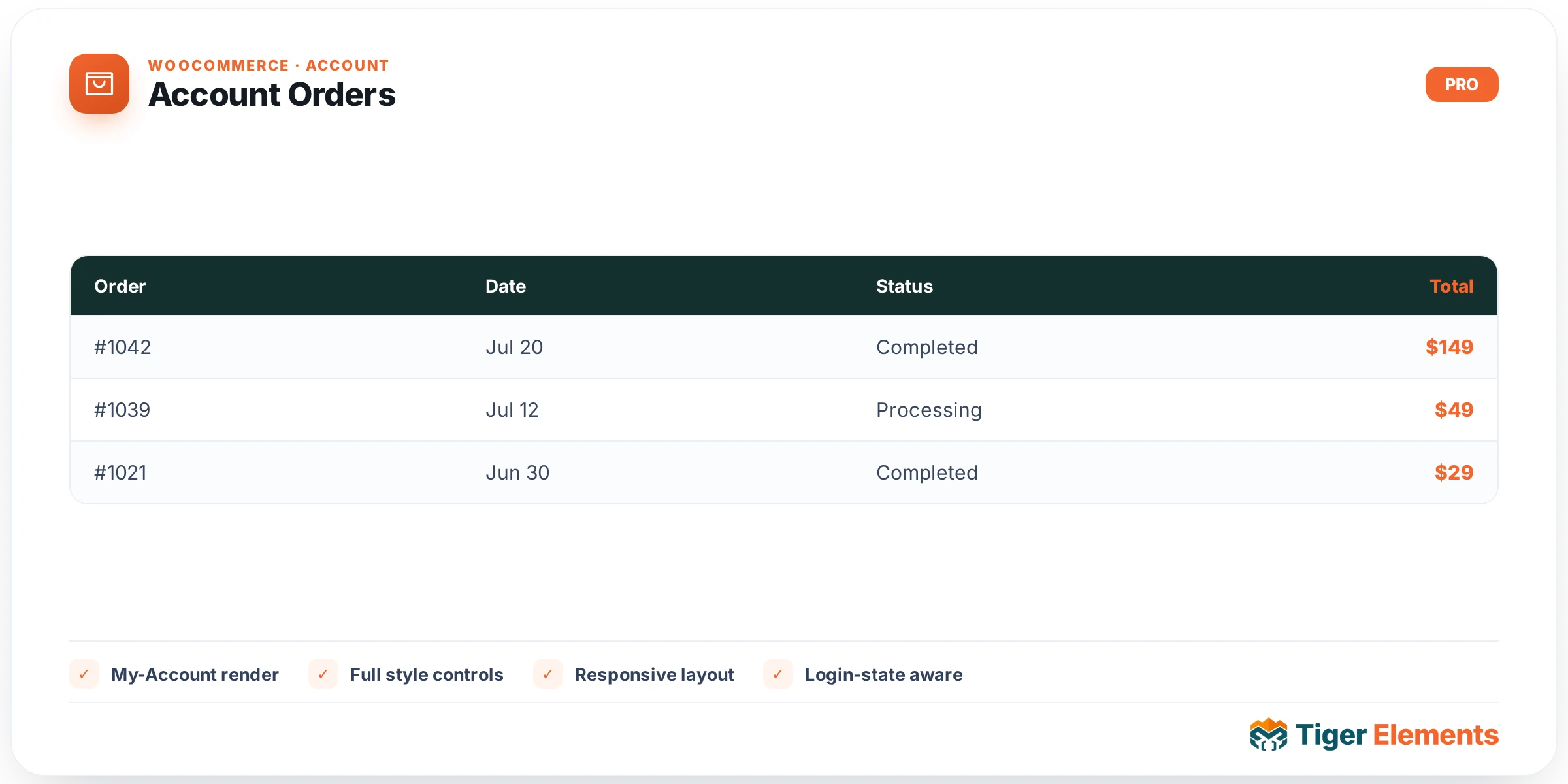
What the Account Orders widget does
The Account Orders widget renders the “Orders” endpoint of a customer’s WooCommerce My Account area — the paginated list of past and current orders with their status, date, total, and action links. It is one of six endpoint-specific widgets in tiger-woo-account-widgets.php, and it is the only one of the group that does real query work rather than just forwarding to a template. In render(), the widget reads the current pagination position from the orders query var, then calls wc_get_orders() with customer set to the logged-in user’s ID, paginate true, and a configurable page size, filtered to every order status WooCommerce knows about via wc_get_order_statuses(). It then hands the resulting order collection to WooCommerce’s own myaccount/orders.php template, along with a computed has_orders flag and a wp_button_class string — a compatibility variable the stock template expects (normally supplied automatically by WooCommerce’s own orders endpoint) that the widget builds manually via wc_wp_theme_get_element_class_name('button') so the template doesn’t throw an “undefined variable” notice when rendered standalone inside Elementor.
Why it’s a separate widget
Splitting Orders out from Dashboard and Addresses lets you build a My Account page where each section lives on its own URL/endpoint template while sharing the same overall Elementor-designed layout (header, navigation sidebar, footer). This widget only ever renders the orders list — it will not show dashboard text or address cards even if you add it to the same page as those widgets — so a fully custom account experience requires assembling each endpoint widget on its corresponding page or theme-builder template, connected by the Account Navigation widget.
Setting it up
The Content tab exposes exactly one control: Per Page, a number field (default 10, range 1–50) that governs how many orders wc_get_orders() fetches per page. There is no style section registered for this widget — like Account Dashboard and Account Addresses, it inherits nothing from the shared “Fields” style controls in the checkout base class, so there are no widget-level colour, typography or spacing options. Any visual adjustment to the order table, status badges, or pagination links has to happen through Elementor’s Advanced tab custom CSS or your theme’s WooCommerce order-table styling, targeting the standard WooCommerce classes the template itself outputs (the widget wraps everything in .tiger-woo-account-orders.woocommerce, which is a convenient outer scope for custom CSS).
Non-obvious behaviour
Pagination is driven by the WooCommerce orders query var, which WooCommerce’s rewrite rules populate when the URL includes the orders endpoint with a page number (e.g. /my-account/orders/page/2/). If your custom My Account page structure doesn’t route through that endpoint correctly, pagination links generated by the WooCommerce template may not resolve to the right widget instance — this is worth checking carefully when the page isn’t built on WooCommerce’s default account page. The status filter deliberately includes every registered order status, not just “completed” or “processing,” so cancelled, refunded, and failed orders will also appear exactly as they would on the stock account page — the widget doesn’t add any status filtering of its own. Logged-out visitors get the shared “Login required.” placeholder rather than an empty or error state, consistent with the rest of the account-endpoint widgets.
When to use it vs. related widgets
If you only need customers to check a single recent order rather than browse a full paginated history, this widget is still the right tool — just be aware it always shows the whole list, newest first, with no “recent N only” mode; the Per Page control changes page size, not how many total orders a customer can eventually reach through pagination. Reach for the Account Dashboard widget instead when the goal is a short account summary or welcome message, and reserve Account Orders specifically for the dedicated order-history view. Because this widget requires an authenticated WooCommerce customer session, it isn’t a substitute for a general order-lookup or guest order-tracking tool — those need separate mechanisms (such as WooCommerce’s order-tracking shortcode) since this widget only ever queries orders tied to the logged-in user’s account ID.
Practical tips
- Keep Per Page reasonably low (10–20) on accounts with long order histories — the underlying query still runs a real database lookup on every page load, and a very high value increases the work per request.
- If a store has custom order statuses added by another plugin, they will automatically appear in this widget’s results since the status list comes straight from
wc_get_order_statuses()— no extra configuration is needed or possible. - Because there’s no style section, apply custom CSS via the
.tiger-woo-account-orderswrapper class rather than looking for widget controls that don’t exist. - Test pagination specifically after moving this widget onto a non-default My Account page/template, since the endpoint URL structure needs to line up with WooCommerce’s rewrite rules for “page 2” links to work correctly.