
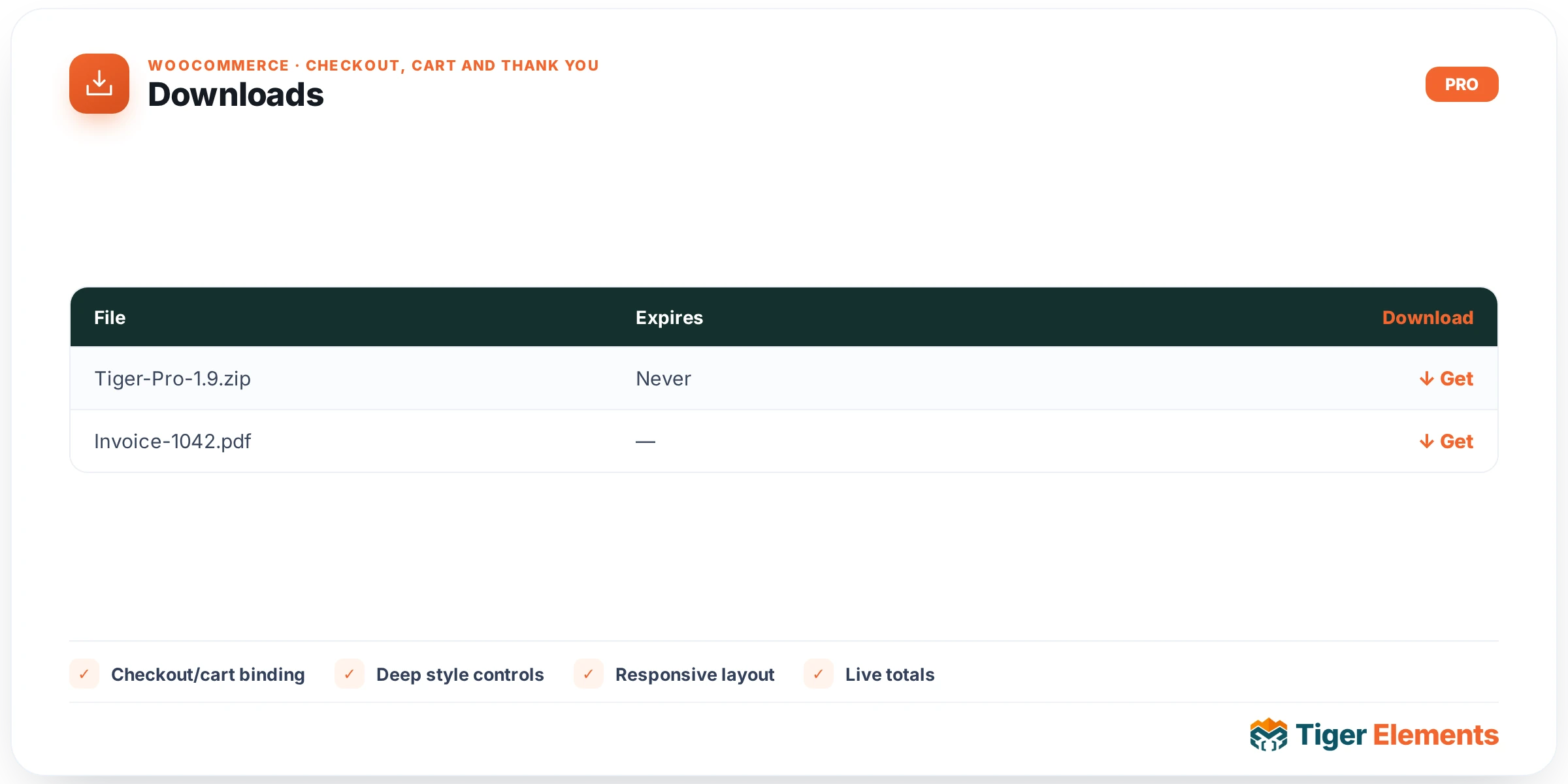
What the Downloads widget does
Downloads is the digital-fulfillment piece of Tiger Elements’ Thank-You / Order Received widget family, alongside Thank You Heading, Order Details, and Customer Details. Its sole job is to surface the download links WooCommerce generates when an order contains a downloadable product — the file(s) a customer just purchased and is now entitled to grab. It exists as its own widget, rather than being folded into Order Details, because it’s the one piece of the thank-you page that’s conditional on your store actually selling downloadable goods: a physical-goods-only store can leave this widget off the template entirely, while a digital-products store can drop it in right where customers expect to find their files.
Like the rest of the family, it doesn’t build its own download UI — it renders WooCommerce’s native order/order-downloads.php template, passing it the order’s downloadable items and a flag to show the template’s built-in title. That means the download list — file name, download button/link, and any remaining-downloads or expiration info WooCommerce tracks per item — looks exactly as it would on a stock WooCommerce order-received page, just placed and styled within your Elementor layout.
How to set it up
There is nothing to configure. The widget’s content panel registers a “Downloads” section with no fields in it — no toggles, no style tab, no typography controls. You simply place it on your Order Received template; it either renders the order’s download list automatically or renders nothing/a placeholder, depending on context (see below). Any visual customization of the download list itself — spacing, button appearance, list styling — must be done via Elementor’s Custom CSS panel or your theme’s WooCommerce stylesheet, targeting the standard WooCommerce download-table markup, since the widget provides no styling controls of its own.
Non-obvious behavior
This is the most conditional widget in the family, with two layers of guarding rather than one. It first resolves the current order the same way its siblings do — via the WooCommerce order-received query var or ?order= URL parameter, or, inside the Elementor editor only, a fallback to the store’s most recent order. But even once an order is resolved, the widget checks $order->has_downloadable_item() before rendering anything: if the order has no downloadable products at all, the widget shows nothing on the live frontend. Inside the editor, though, it will show a dashed “No downloadable items in current order” placeholder in that same case, so you can still see and select the widget while building the layout even when your latest test order happens to be a physical product.
There’s a second safety check right after: even if has_downloadable_item() is true, the widget re-fetches get_downloadable_items() and bails out silently if that list is empty for any reason, printing nothing at all — no placeholder, even in the editor. In practice this means the widget is genuinely invisible/empty most of the time unless you’re actively testing with a digital-product order, which is expected behavior, not a bug — don’t be alarmed if it disappears on a normal physical-goods test order.
When to use this widget vs. related widgets
Use Downloads only if your store sells at least some downloadable/digital products — it is the only widget in the family that has zero purpose for a purely physical-goods store. It is not for showing what was purchased in general (that’s Order Details’ job — items, quantities, totals) and not for showing who purchased it or where it ships (that’s Customer Details). Think of the three as answering three different questions on the thank-you page: Order Details answers “what did I buy and how much did I pay,” Customer Details answers “where is it going and whose account is this,” and Downloads answers “where do I get my file right now.” For a mixed-catalog store selling both physical and digital products, keep Downloads on the template — it will simply render nothing on orders without digital items and appear automatically the moment a customer buys something downloadable.
Practical tips
- Don’t remove this widget from your thank-you template just because it “looks empty” while testing with a physical-product order — it’s working correctly and will appear once a downloadable product is purchased.
- Place Downloads prominently near the top of the thank-you page layout for digital-only stores, since immediate file access is usually the customer’s top priority right after paying.
- To style the download buttons/links, target WooCommerce’s standard download-table classes with Elementor’s Custom CSS panel — there’s no widget-level color or typography control to reach for.
- When testing in the editor, place a real order containing a downloadable product first; otherwise the editor-only placeholder will always show “No downloadable items,” which can be mistaken for a broken widget.