
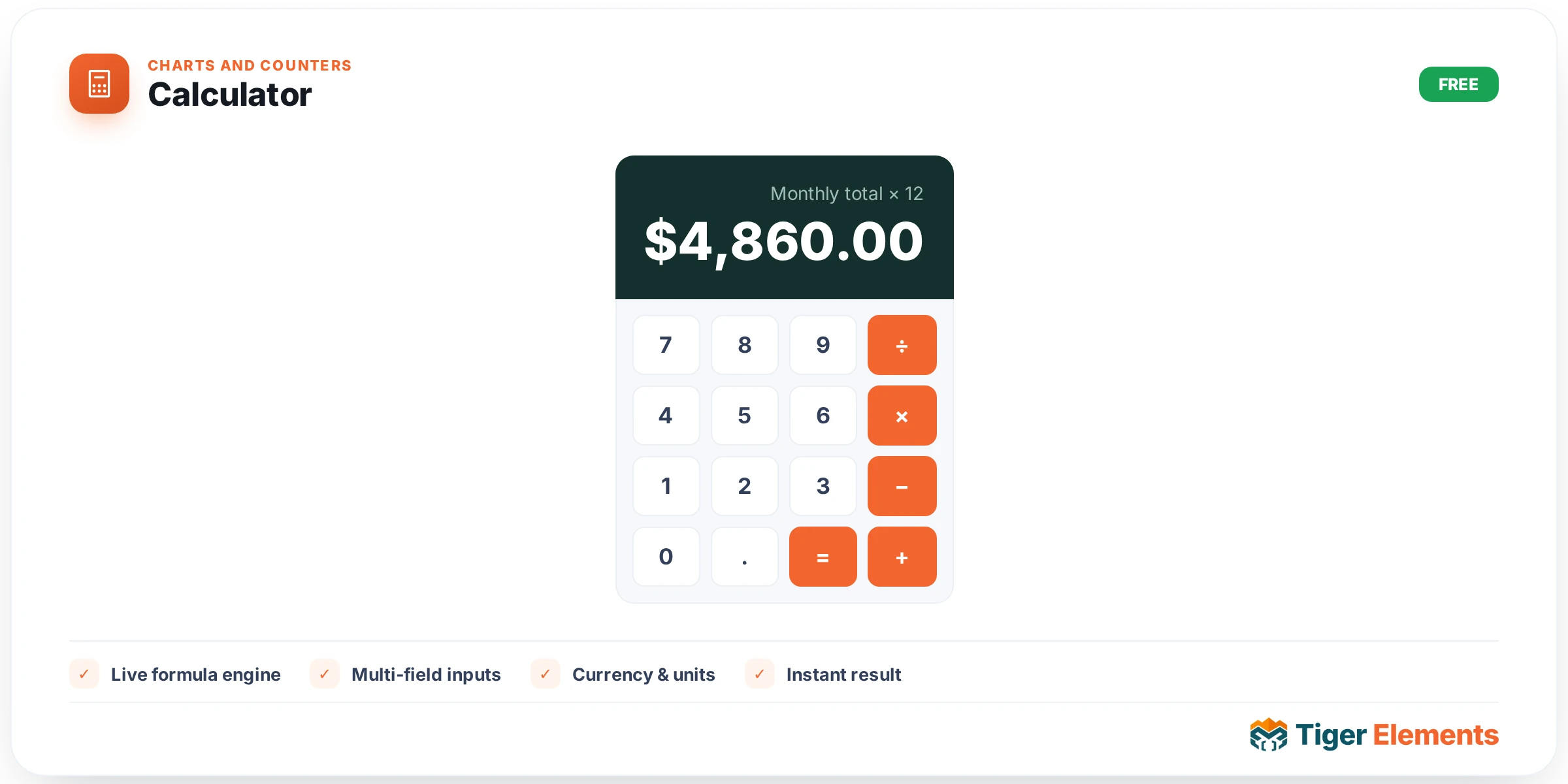
Calculator turns a set of inputs and a formula into a live, on-page calculator — visitors drag a slider or pick an option and the result updates instantly. Use it for rental yield and ROI, quotes and pricing, project profit, solar payback, BMI, tip splitting and more.
Where: Elementor editor → widget panel → Tiger Elements category → Calculator.
Quick start — pick a preset
The fastest way to a working calculator is the Preset calculator dropdown at the top of the widget’s Inputs tab. Choose one and its inputs and result rows are filled in for you — no formula writing required. Presets cover real estate and several other sectors:
- Real estate — Rental yield & ROI, Fix & flip profit, Price per area, Agent commission.
- Other sectors — Solar savings & payback, Retail pricing (margin & markup), Freelance hourly rate, Body mass index (BMI), Tip & bill split.
Set Preset calculator to Custom when you want to build your own from scratch with the fields below.
Building a custom calculator
Each row in Fields is one input. Give it a Label (shown to visitors) and a Variable key — a short name using letters, numbers and underscores (e.g. quantity, unit_price, discount). You reference that key in the formula.
Field types
- Slider — a draggable range with Min, Max and Step. Best for amounts the visitor tunes.
- Number input — a typed number, with the same Min / Max / Step.
- Dropdown — a select menu. Enter one option per line as
Label|value; the numeric value feeds the formula (e.g.Premium|250). - Button group — the same option list shown as clickable pills instead of a menu.
- Toggle (on/off) — a checkbox that contributes a Value when on or Value when off.
Writing the formula
A formula combines the variable keys with maths. It is evaluated by a safe built-in parser — it never runs arbitrary code, so formulas are safe to publish.
- Operators:
+ - * / %(modulo),^(power), and parentheses( ). - Comparisons:
< > <= >= == !=— these return 1 (true) or 0 (false). - Logic:
&&(and),||(or),!(not). - Conditional (ternary):
condition ? value_if_true : value_if_false. - Functions:
min,max,round(x, decimals),floor,ceil,abs,sqrt,pow(a, b),log(x)orlog(x, base),exp,clamp(x, low, high), andif(condition, a, b).
Examples
- Order total with discount:
quantity * unit_price * (1 - discount/100) - Tiered pricing — $8 each over 10 units, otherwise $10:
qty > 10 ? qty*8 : qty*10 - Volume discount, floored:
max(price * qty * (1 - discount/100), 0) - Gross rental yield:
rent * 12 / price * 100
Multiple result rows
Add rows under Result rows to show a breakdown — for example a rental calculator that displays Gross yield, Net yield and Monthly cashflow at once. Each row has its own label, formula, prefix/suffix, decimals and an Emphasize switch for the headline figure. Leave Result rows empty to use the single result field beneath it.
Conditional fields (show / hide)
Any field can appear only when another field’s value meets a condition. In the field, set Show only when to another field’s variable key, choose a comparison, and enter a value — for example show an Extras input only when an Add-ons? button equals 1.
Note: while a field is hidden it contributes 0 to the formulas, so an input the visitor can’t currently see never skews the result.
Lead capture (optional)
Under Lead capture you can attach a Tiger Form that appears beneath the results. The calculated figures are written into the form’s Hidden fields on submit, so Tiger Forms stores the lead and handles the email — reuse keys calc_summary, calc_result_1… and calc_<variable key> on those hidden fields.
Formatting & styling
- Decimals and a Thousands separator control how results read.
- Prefix / suffix add currency symbols or units (e.g.
$,%,sqft) on inputs and results. - Show field values prints the current value next to each input’s label.
- The Style and Container tabs control accent colour, result background, typography, padding, border, radius, shadow and spacing.
Good to know
- Multiple calculators on one page are fully independent.
- Formulas are evaluated with a safe parser (no
eval); an invalid formula simply shows a dash instead of a number. - Everything runs in the browser and updates instantly — no page reload and no server round-trip.