
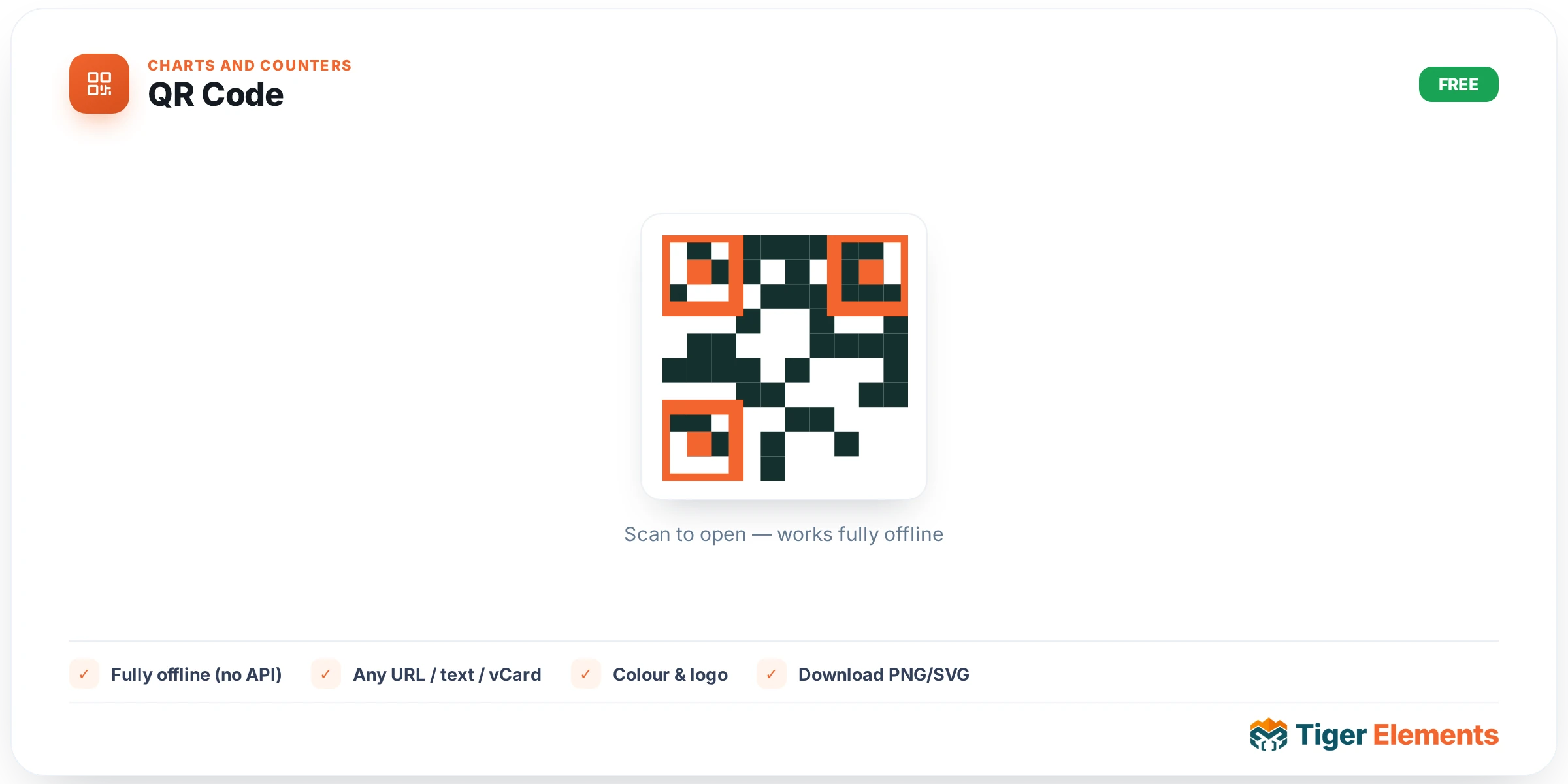
The Tiger QR Code widget generates a fully offline QR code inside the browser — the matrix is computed client-side by a vetted, table-free encoder, and no payload data is ever sent to a third-party API to be turned into an image. That distinction matters for anything containing personal information, such as a Wi-Fi password or a contact card: many free QR generators quietly POST that text to an external server to render the bitmap, while this widget assembles the payload string in PHP and hands it straight to a canvas element as a JSON data attribute for local rendering.
Choosing what to encode
The Content section starts with an Encode selector offering nine payload types: URL, Plain text, Email address, Phone number, SMS message, Wi-Fi network, Contact card (vCard), Map location, and This page URL. Each type reveals its own fields via conditional logic. URL uses a single URL field. Email needs just an Email address and the widget prefixes it with `mailto:` automatically. Phone takes a Phone number, stripped down to digits and a leading plus sign and prefixed with `tel:`. SMS combines a Phone field with an optional Message body, encoded as the widely-supported `SMSTO:number:body` convention scanners recognize.
Wi-Fi network is the most elaborate type: it takes a Network name (SSID), an Encryption choice of WPA/WPA2/WPA3, WEP, or None (open), a Password field that only appears when encryption isn’t set to none, and a Hidden network switch — all correctly escaped per the MECARD/WIFI QR grammar so SSIDs or passwords containing semicolons, commas or quotes don’t break the code. Contact card (vCard) collects First name, Last name, Organization, Job title, Phone, Email and Website, and assembles a proper vCard 3.0 record with CRLF line endings, so scanning it on a phone offers to save a real contact rather than just displaying text. Map location takes raw Latitude and Longitude values and encodes a `geo:` URI that opens directly in the visitor’s maps app. This page URL needs no input at all — it automatically encodes the current page’s permalink, which is the right choice for a printable flyer template that should always point wherever it’s placed.
Below the type-specific fields sits Error correction, with four levels — Low (7%), Medium (15%), Quartile (25%) and High (30%) — trading how much physical damage or obstruction the code can survive against how much data it can hold. An optional Caption text field prints a line beneath the code, useful for a “Scan to view menu” prompt.
Styling the code
The Style tab controls the rendered QR itself: a pixel Size slider (80–1000px), a Quiet zone (modules) number that sets the blank border required for reliable scanning, Foreground and Background colors for the module and canvas colors respectively, and a Centre logo media control that overlays a brand mark in the middle of the code with an adjustable Logo size (5–40% of the code). The widget’s own description flags that a centre logo should be paired with High (30%) error correction, since punching a logo into the middle of the matrix destroys some of the encoded data that the correction level has to reconstruct. A responsive Alignment control positions the whole block left, center or right. A Container group adds padding, background color, border, border radius and box shadow around the code, and a Caption group controls the caption’s color, typography and spacing above it.
When to use it
Use the URL or “This page URL” modes for print-to-digital bridges — business cards, posters, packaging inserts — where a scan should land on a specific landing page or the page it’s printed from. Use the Wi-Fi type on a guest-network landing page or Airbnb welcome page so visitors can join a network without typing a password. The vCard type suits an About or Team page where a headshot next to a “Scan to save contact” code beats making a visitor manually enter details. SMS and Phone types work well on service or emergency-contact pages where the goal is a one-tap action rather than a link.
Practical tips
- If you’re overlaying a Centre logo, bump Error correction up to High first — otherwise the code can become unreliable to scan, especially at smaller sizes.
- For a Wi-Fi code meant for printing at the front desk, test the actual printed size before finalizing — dense payloads (long passwords, hidden-network flag) need a larger Size and a wider Quiet zone to stay scannable from a phone held at arm’s length.
- The “This page URL” type is the one to use in a saved template or Theme Builder part that gets reused across many pages, since it never needs per-page reconfiguration.
- Keep Plain text payloads short — very long text strings force the encoder into a denser QR version that’s harder to scan at small sizes; a shortened link is usually a better choice for anything beyond a sentence.