
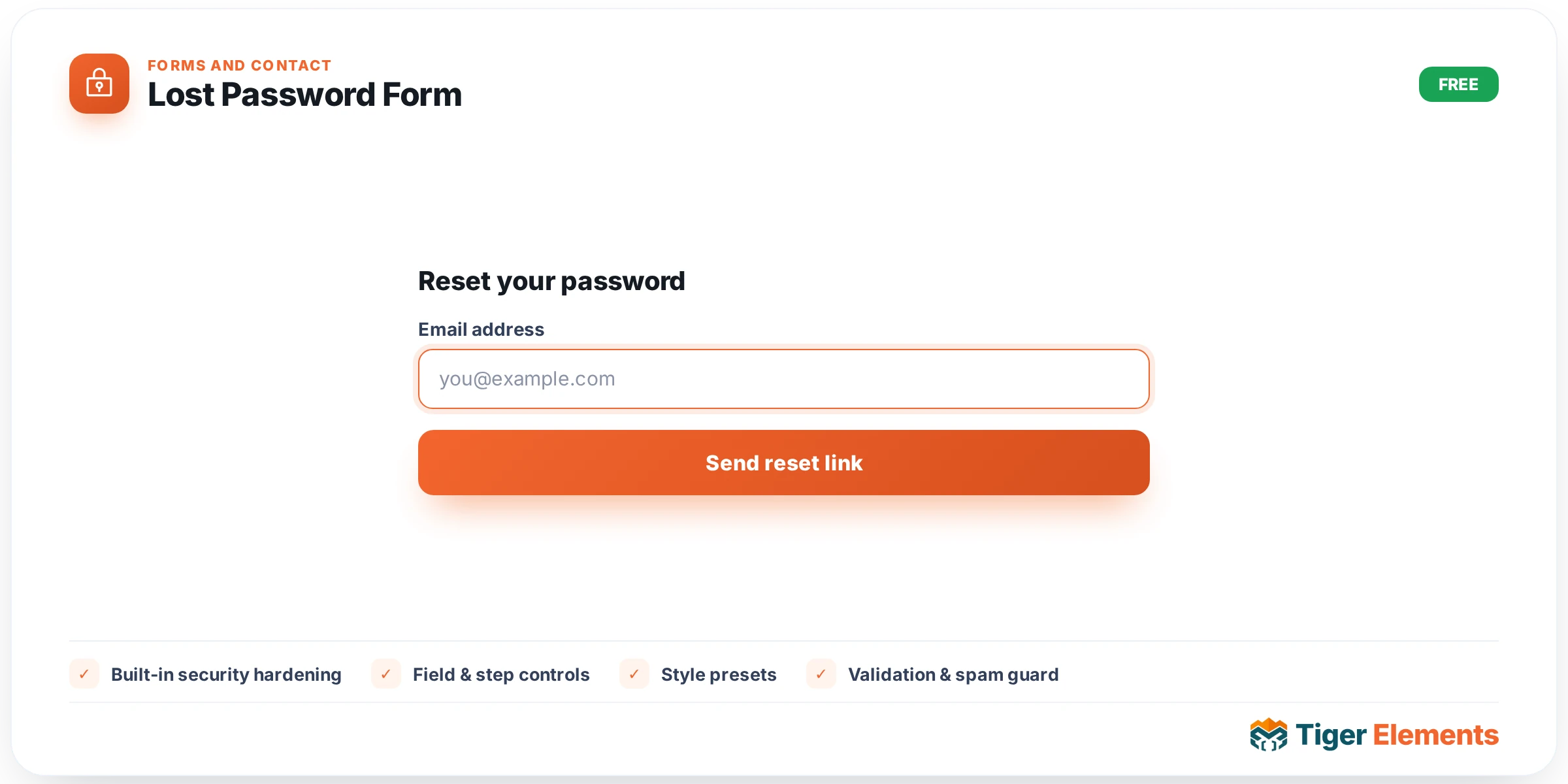
What the Lost Password Form widget does
The Lost Password Form widget renders the “forgot your password” step of the site-wide Account module — a single-field form (username or email) that triggers WordPress’s standard password-reset email flow. The widget class Tiger_Lost_Password_Widget forwards to Tiger_Account_Forms::lostpassword_form() for markup, while Tiger_Account‘s POST handler behind admin-post.php does the actual work of looking up the account and dispatching the reset email. Like Login Form and Registration Form, it needs no WooCommerce dependency and is part of the Account module, which is active by default on any Tiger Elements install.
Built-in security hardening
This form gets the same nonce protection as its siblings — a dedicated action string, tiger_account_lostpassword, verified server-side before any processing happens — and it is deliberately throttled harder than the login form: only 5 attempts per 10-minute window per IP/user-agent fingerprint, versus login’s 10, precisely because a successful submission here triggers an outbound email and a reset-token attempt against a specific account. The most important security behaviour, though, is on the response side: regardless of whether the submitted username or email actually matches an account, the widget always reports the same “If an account matches, a reset link has been sent” message. That prevents an attacker from using this form to enumerate valid usernames or email addresses on the site by watching for a difference between “found” and “not found” responses — a distinction plenty of default WordPress lost-password screens still leak.
Setting it up
There are no widget-specific content controls beyond what the shared base class provides, and — like the Registration Form widget — this one has no “Redirect after” control either, since Tiger_Lost_Password_Widget overrides has_redirect() to return false: a password reset request results in an email being sent, not an immediate sign-in, so a post-submit redirect field would be misleading. Styling comes entirely from the shared Container, Fields, Button, and Links & Notices sections used across the whole account widget family: accent colour (via the --tiger-account-accent CSS variable), responsive sizing/alignment/background/border/shadow for the outer container, label and input colour/typography with separate Normal and Focus states, button styling with Normal/Hover states, and — particularly relevant here — dedicated success and error notice background/text colour controls, since this form’s primary feedback to the visitor is the notice text itself rather than a redirect.
Non-obvious behaviour
Because the confirmation message is identical whether or not the account exists, don’t use this widget’s front-end response as a debugging signal when testing whether a given test account is set up correctly — check the actual mail log or the account directly instead. The rate limiting here applies per fingerprint, not per submitted username, so five failed or successful attempts from the same browser session in ten minutes will trigger the throttle regardless of which accounts were targeted.
When to use it vs. related widgets
This widget is the natural companion to Login Form — most login forms link to a lost-password page, and this widget is what that link should point to on a Tiger Elements site rather than WordPress’s default wp-login.php?action=lostpassword screen, keeping the visual design and security model consistent with the rest of the custom account experience. It has no equivalent inside the WooCommerce-specific widget family; WooCommerce’s own login/registration template includes its own “Lost your password?” link that goes through WooCommerce/WordPress core’s native reset flow instead, so if you’re building a WooCommerce My Account page with the “Login / Register” widget, you don’t need this widget alongside it — the two flows aren’t meant to be mixed on the same page.
Practical tips
- Link to whichever page hosts this widget from your Login Form’s “lost password” link/text rather than leaving it pointed at the default WordPress URL, so visitors get the consistent branded design and the tighter rate limiting.
- Don’t build any “email not found” messaging into a custom page around this widget — the anti-enumeration design means the widget will never surface that distinction, by intent.
- If test resets during development seem to silently do nothing, check the rate limit first (5 per 10 minutes per IP/UA) before assuming the mail pipeline is broken.
- Keep this widget’s styling in sync with the Login Form widget’s Style tab settings — they share the identical control set, so matching values keeps the sign-in and recovery experience visually seamless.