
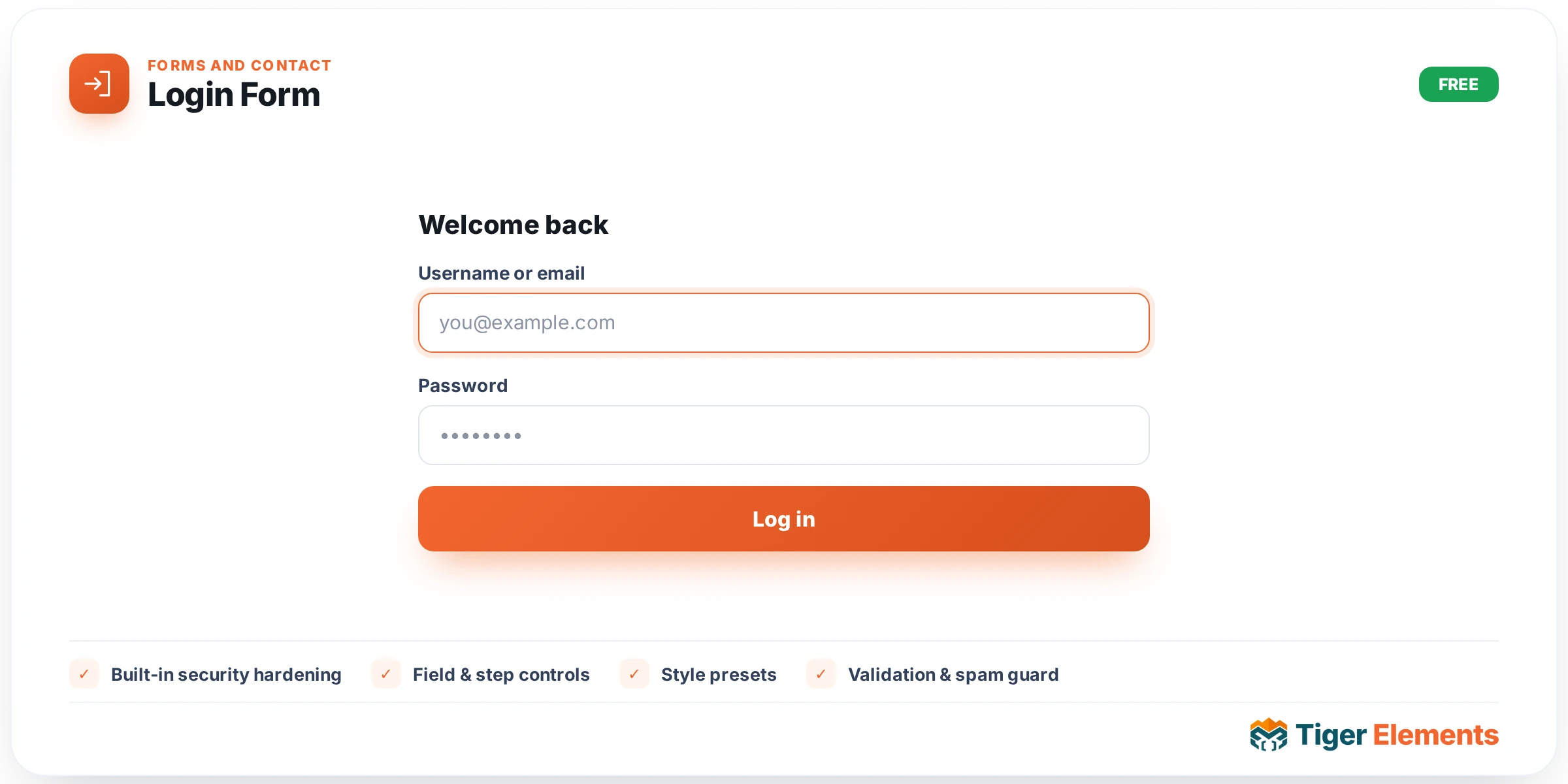
What the Login Form widget does
The Login Form widget is Tiger Elements’ site-wide, WooCommerce-independent sign-in box. It belongs to the “Account” module — enabled by default on every install — and is built on top of a hardened backend rather than delegating to any e-commerce plugin. In code terms, the widget class Tiger_Login_Widget is a thin presentation layer: its render_form() method just calls Tiger_Account_Forms::login_form( $args ), and the actual submission is handled by a separate class, Tiger_Account, whose handler posts through admin-post.php. That separation matters: the widget only decides how the form looks and where the visitor lands after logging in, while every security-relevant decision — validating the request, checking credentials, deciding what error message to show — happens in code the widget never touches.
Built-in security hardening
This is the widget’s defining characteristic. Every submission carries a nonce field (_tiger_account_nonce) tied to the action string tiger_account_login, verified server-side with wp_verify_nonce() before anything else happens; a failed check returns an HTTP 400 and stops processing outright. Login attempts are also rate-limited: the handler calls a shared throttling class keyed on the visitor’s IP-plus-user-agent fingerprint, capping attempts at 10 per 10-minute window — beyond that, the visitor is redirected back with a “Too many attempts” notice rather than being allowed to keep guessing. Failed logins deliberately collapse to one generic message regardless of whether the username exists or the password was wrong, which prevents an attacker from using error text to enumerate valid accounts. Finally, any redirect target — whether posted explicitly or inferred from the referring page — is passed through wp_validate_redirect() against the site’s home URL and dispatched with wp_safe_redirect(), so a login link can never be crafted to send a visitor off-site after authenticating.
Setting it up
In the Content tab, the widget shares a “Settings” section with its sibling account widgets, exposing a single control here: Redirect after login, a URL field defaulting to the current page if left blank. The Style tab is generous: a Container section (Accent Colour — sets a CSS custom property, --tiger-account-accent, consumed by the form’s own styling — plus responsive Max Width, Alignment, background, padding, border, border-radius and box-shadow controls all scoped to .tiger-account); a Fields section (label colour/typography, input typography, field spacing, input padding/radius, and separate Normal/Focus colour states for input text, background and border); a Button section (full-width switcher defaulting on, typography, padding, radius, and Normal/Hover colour states); and a Links & Notices section covering the “lost password” link colour plus success/error notice background and text colours.
Non-obvious behaviour
Because the widget preview logic checks Elementor’s edit-mode state, an admin building the page still sees the actual form markup while designing, rather than any logged-in-state redirect firing early. The rendered output is already fully escaped inside Tiger_Account_Forms, which is why the widget’s PHP prints it with an explicit phpcs escaping exemption rather than double-escaping it.
Login Form vs. the WooCommerce Login / Register widget
Tiger Elements also ships a “Login / Register” widget under its WooCommerce widget family, which simply renders WooCommerce’s own myaccount/form-login.php template and requires WooCommerce plus the Woo Builder module to be active. That widget is the right choice when you’re building a custom WooCommerce My Account page and want native Woo behaviour, including any registration fields WooCommerce itself adds. This Login Form widget is the right choice everywhere else: it needs no e-commerce plugin at all, works on any WordPress site, and comes with meaningfully more anti-abuse hardening (nonce, throttling, anti-enumeration messaging, redirect validation) than the plain WooCommerce template provides out of the box.
Practical tips
- Leave “Redirect after login” blank when the login form lives on a page visitors should simply stay on after signing in (e.g. a login modal on a content page) — the default falls back to the current URL.
- Use the Accent Colour control as a quick single-point brand tweak before diving into the more granular Fields/Button colour controls — it drives the CSS custom property that other parts of the form styling can key off.
- If you’re troubleshooting a “why did my login get blocked” report, remember the rate limit is IP+UA based and resets after the 10-minute window — it’s not a permanent lockout.
- Don’t expect a custom “invalid password” vs “unknown user” message — that ambiguity is intentional security behaviour, not a missing feature.