
Safely find and replace URLs, text, and database entries across all your Elementor pages during site migrations, rebrands, or domain changes — without a single SQL command.
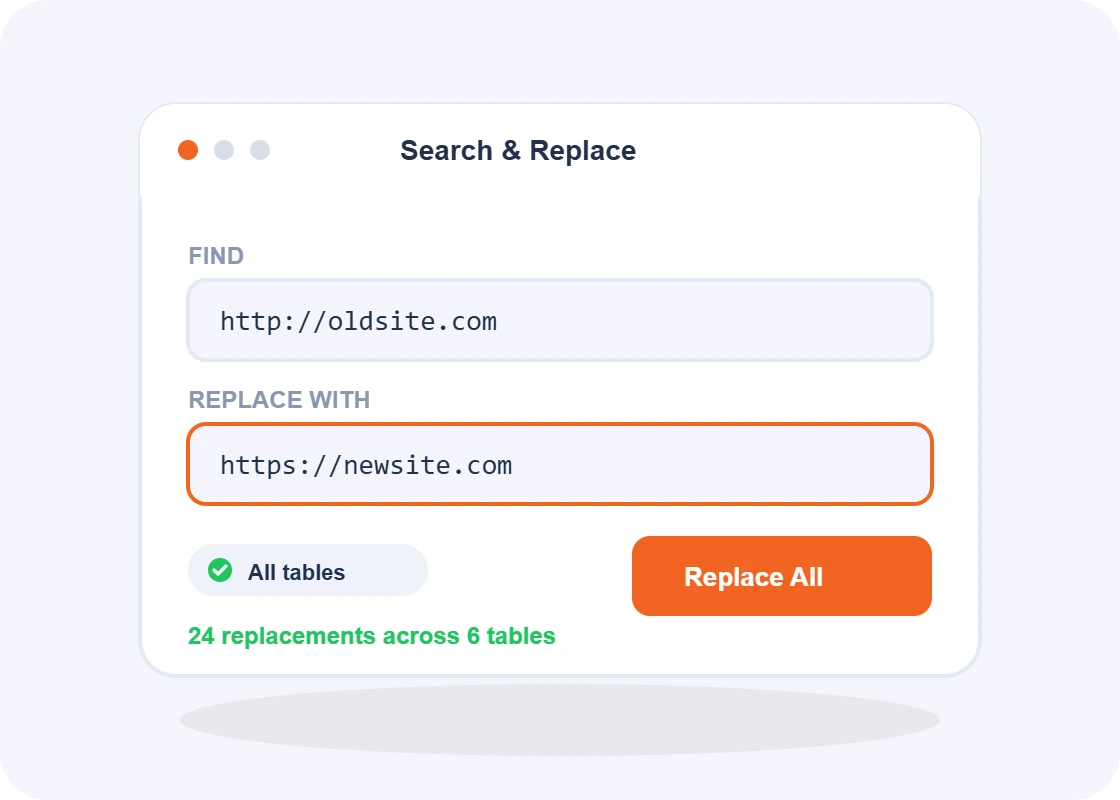
The only Search & Replace that understands Elementor’s serialized JSON data.
Searches site wide and inside Elementor's serialized JSON widget data — not just the post content. Finds text that other tools miss.
Replace Text Media and Color and URL with new ones across every page, template, and widget setting in a single operation.
Apply changes site-wide or select specific pages, post types, or template types to limit scope.
Type the text, URL, or string you want to find across your site.
See exactly which pages and widgets contain matches before changing anything.
Apply the replacement and verify the results in the built-in log.
Yes. A SQL find/replace edits raw strings, which is how serialized Elementor data gets corrupted. Search & Replace works on Elementor’s parsed control tree instead, so it changes the value a control actually holds and leaves the structure around it intact.
Yes. You target by dimension — text, colour, image, link, font or CSS class — so a colour swap only touches colour controls. It will not rewrite a hex code that happens to appear inside a paragraph of body text.
No. The scan runs as a background job rather than one long request, so site-wide searches on large installs complete without hitting a PHP timeout. Each match reports the exact post, element, widget type and field it was found in.
Always. Preview is a read-only pass that lists every match, and nothing is written until you click Apply. You can narrow the match first with Contains, Case-sensitive or Whole word, and text searches also support a regex mode.
Apply uses optimistic concurrency: it only writes when the value is still exactly what the preview saw. If something changed in between, that match is skipped rather than overwriting the newer value. Re-run the preview to pick up the current state.
Undo covers the last operation. For a large site-wide apply, take a database backup first — undo is a convenience, not a substitute for a real restore point.
Yes. Scope a run to specific content types — posts, pages and any registered custom post type — so you can rehearse on one section of the site before running the change everywhere.
The developer tool every Elementor agency needs in their toolkit.
Join thousands of web creators who are building better, faster, and more beautiful WordPress websites with Tiger Elements.